Start with the run’s status label and the message on the run. The status tells you which part of the run to inspect.
Where to find it
Click Workflows in the sidebar, then click the Runs tab. It lists the runs of every workflow and Autopilot in the project. An Autopilot’s own page also shows Recent runs, with a View all runs button.
Find the run
Open the run
- In Workflows, click Runs.
- To narrow the list, click Failed. Running and Done also filter the list.
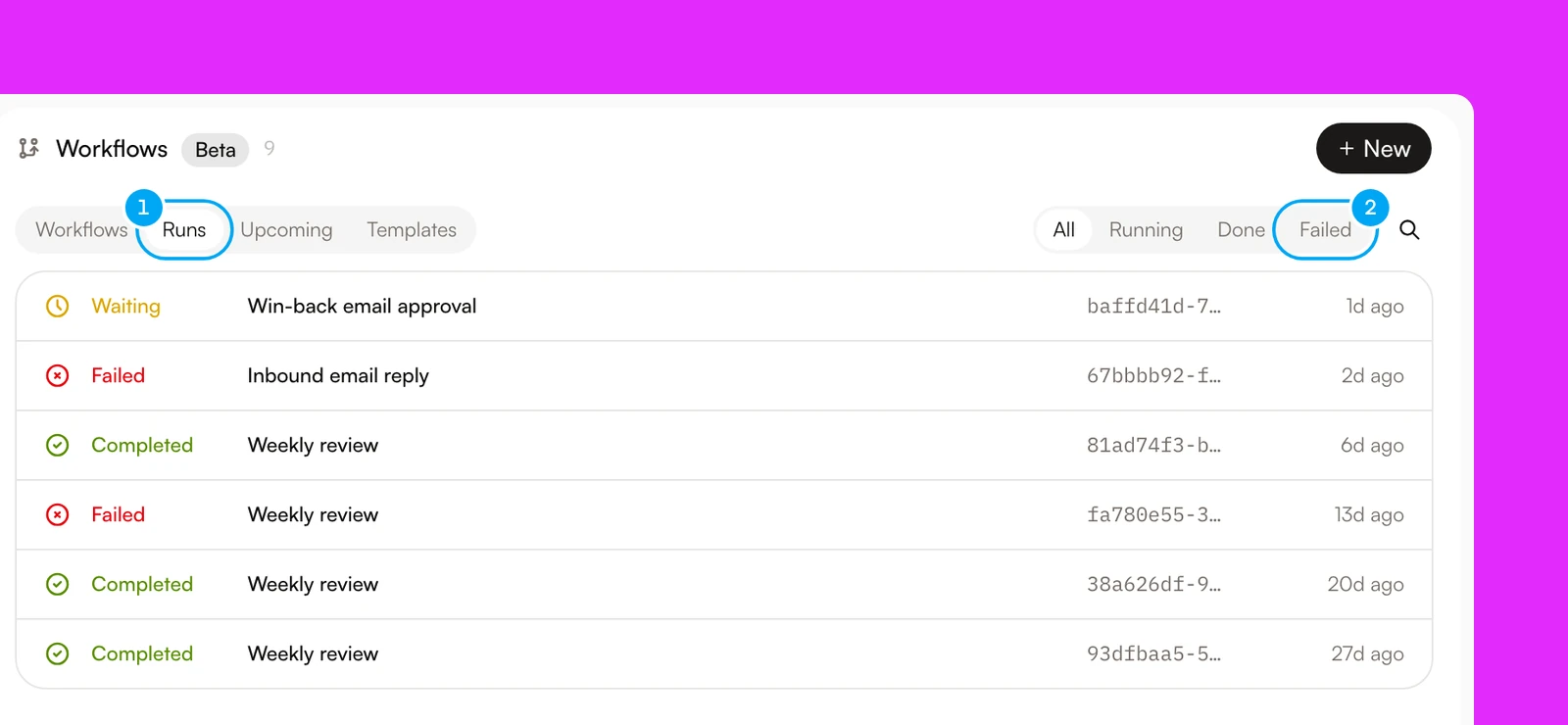
- Click the run. It opens in the workflow’s run history, with the run list on the left.
- Read the status and the error. After you fix the cause, click Rerun.
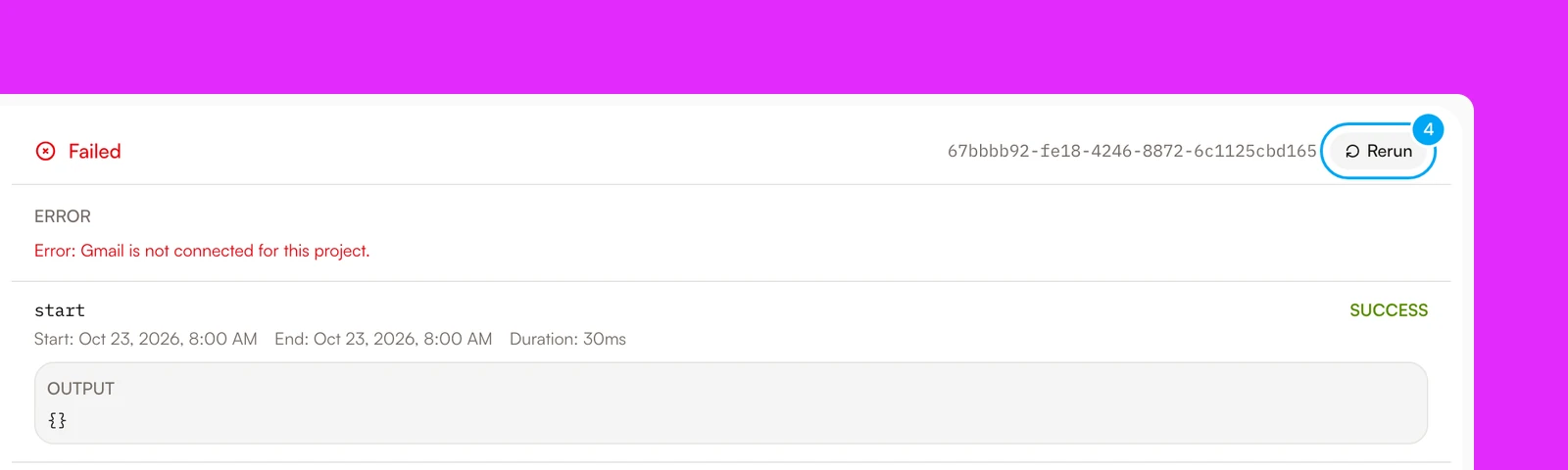
A run shows an error summary, then one block for each step with its result, timing, and output or error. Open the first step that did not succeed. Review its input, output, or error before you change the workflow.
Read the status
| Status | What it means |
|---|---|
| Running | The run is in progress. |
| Waiting | The run stopped at a block and waits to continue, usually an Approval block. |
| Completed | The run finished all its steps. |
| Failed | A step failed. The error is on the run. |
| Canceled | Someone stopped the run. |
| Bailed | A reviewer rejected an approval, so the run ended there. |
| Filtered | A Filter block ended the run quietly because its condition did not hold. |
| Stopped | A Stop block ended the run on purpose. |
| Responded | A Respond block replied to the caller and ended the run. |
Filtered, Stopped, and Responded are not failures. A Stop block can also end a run as a failure, and that run shows Failed. A queued run has no status of its own in the list. Instead you see a message such as “Rerun queued”, or the At your concurrency limit dialog.
Fix the matching symptom
On an Autopilot’s page, Run now is available only when all three conditions hold:
- The switch next to the name reads Active, not Paused.
- Your last click is not still starting a run. The button reads Running… until the run starts.
- No unpublished draft exists. Publish the draft from the Unpublished draft bar, or click Discard draft.
If Run now is available but the run does not start, AI Agent shows an error:
- A step may use an agent that is missing or archived, or the workflow may be incomplete. Fix the step, then run again.
- If the workspace does not have enough credits, a dialog offers an upgrade or a top-up. See Plans, credits, and usage.
- In the workflow builder, any other start problem shows only the message “Failed to start workflow run”. Open the workflow and check that every step is complete and has an agent or connection where it needs one.
To confirm the fix, run again and look for the message “Autopilot run started” or “Workflow run started”.
Your plan limits how many runs of one workflow can happen at the same time. A run over the limit waits in a queue and starts when another run of that workflow finishes. It is not dropped. Do not start duplicates while it waits.
When you start a run at the limit, a dialog titled At your concurrency limit says “Your run is queued”. When you click Rerun at the limit, a message says “Rerun queued — it appears in the list once a slot frees up”. Wait for the active runs to finish. If you often reach the limit, see Plan limits.
Open the run and read the error summary, then open the step marked FAILED. Common causes are invalid data, a provider error, or a missing connection, as in “Gmail is not connected for this project.” Correct the source data or the configuration. After you fix the cause, click Rerun.
To confirm the fix, check that the new run reaches Completed.
A run in the Waiting status has usually stopped at an Approval block. The Approvals waiting card at the top of the Workflows tab lists every run that waits for a decision.
- In Approvals waiting, at the top of the Workflows tab, read the message, then click Approve to continue the run or Reject to end it.
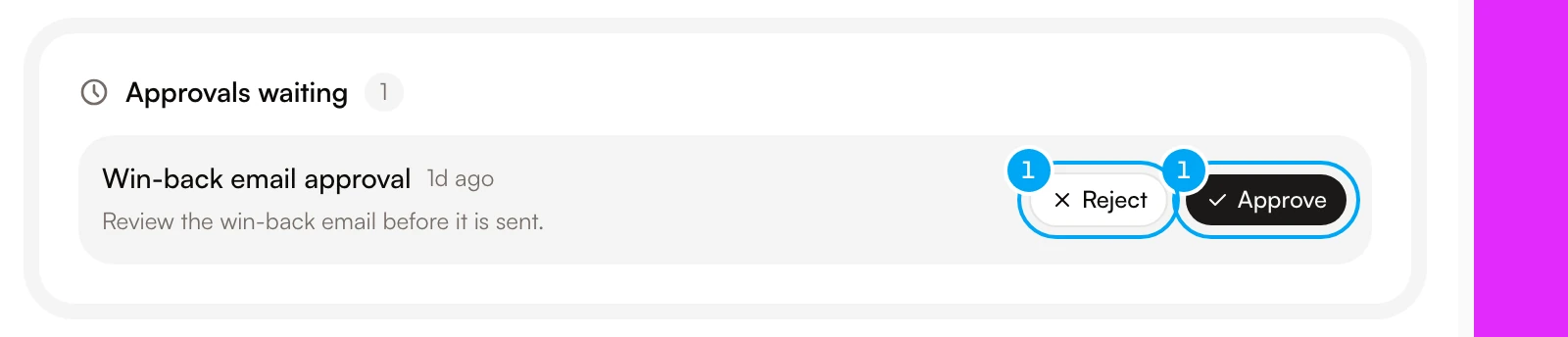
A confirmation message reads “Approved” or “Rejected”. A rejected run ends as Bailed. Do not perform the action yourself and then approve the original request as well.
Rerun starts a new run with the same input as a finished run. It uses the workflow as it is published now. It does not use the version that ran the first time, and it does not use an unpublished draft. If you edited the workflow to fix the cause, publish the change first, then click Rerun.
- Rerun appears only for runs that have finished. For a run in progress, wait for it to finish, or stop it.
- “This run’s input was not kept, so it cannot be rerun.” means AI Agent has no stored input for the run. Use Run now and enter the input again.
- A run that replied to an inbox message cannot be rerun here. Use the draft action in the Inbox to regenerate the reply.
- A message reads “Rerun started” when the run was sent, and the new run appears in the list shortly after.
In the run list, click the stop icon on the run. Its tooltip is Stop run. On the open run, click Stop in the header. A message reads “Cancel requested”. The run shows Canceling… and then Canceled.
AI Agent pauses an Autopilot when its runs keep failing. On the Workflows page, the Autopilot’s card reads Paused and shows a line with the reason, such as “Paused automatically after N consecutive failed runs.” Organization admins who have Run failure notifications turned on also get an email.
Find the failing step in Runs and fix the cause. Then switch the Autopilot back to Active, and click Run now to confirm the fix. A manual run clears the failure streak. See When an Autopilot pauses itself.
The workspace has no active subscription, so Autopilots and other background work are stopped. A banner on the Workflows page and on an Autopilot’s page says so. Click Choose a plan. See Plans, credits, and usage.
After a downgrade, active Autopilots and workflows can exceed the new plan’s limits. Everything keeps running. You cannot turn on anything new until you are back within the plan or you upgrade. See Plan limits.
When you set a trigger live, AI Agent checks the steps that write to your connected apps. A dialog titled Allow these writes? lists the writes and asks for your consent. Click Allow and set live to continue.
A dialog titled This workflow can’t go live lists steps that can never run without approval. Each row has one of these labels: Destructive write, Manual-only action, Unsupported backend, or No connection bound. Fix the steps, then set the trigger live again.
Confirm that the account is active, attached to the agent, and allowed by its tool permissions. Reconnect expired accounts before you rerun. See Troubleshoot connections.
The sender’s token or signature does not match what the trigger expects. See Fix a rejected request for the checks to run.