Activity is a timeline of agent work. It merges chat turns, workflow and Autopilot runs, ticket work, and finished results into one list, newest first, so you can answer “what happened?” without opening each run.
Where to find it
- Per agent — open the agent, then choose Activity in the inspector. The top of the tab shows what the agent is doing right now.
- Workspace-wide — open Activity under Labs in the sidebar to see every agent you can access, with an agent filter.
To add the workspace-wide page to the sidebar:
- Open Settings → My account → Labs.
- Turn on Show Labs features.
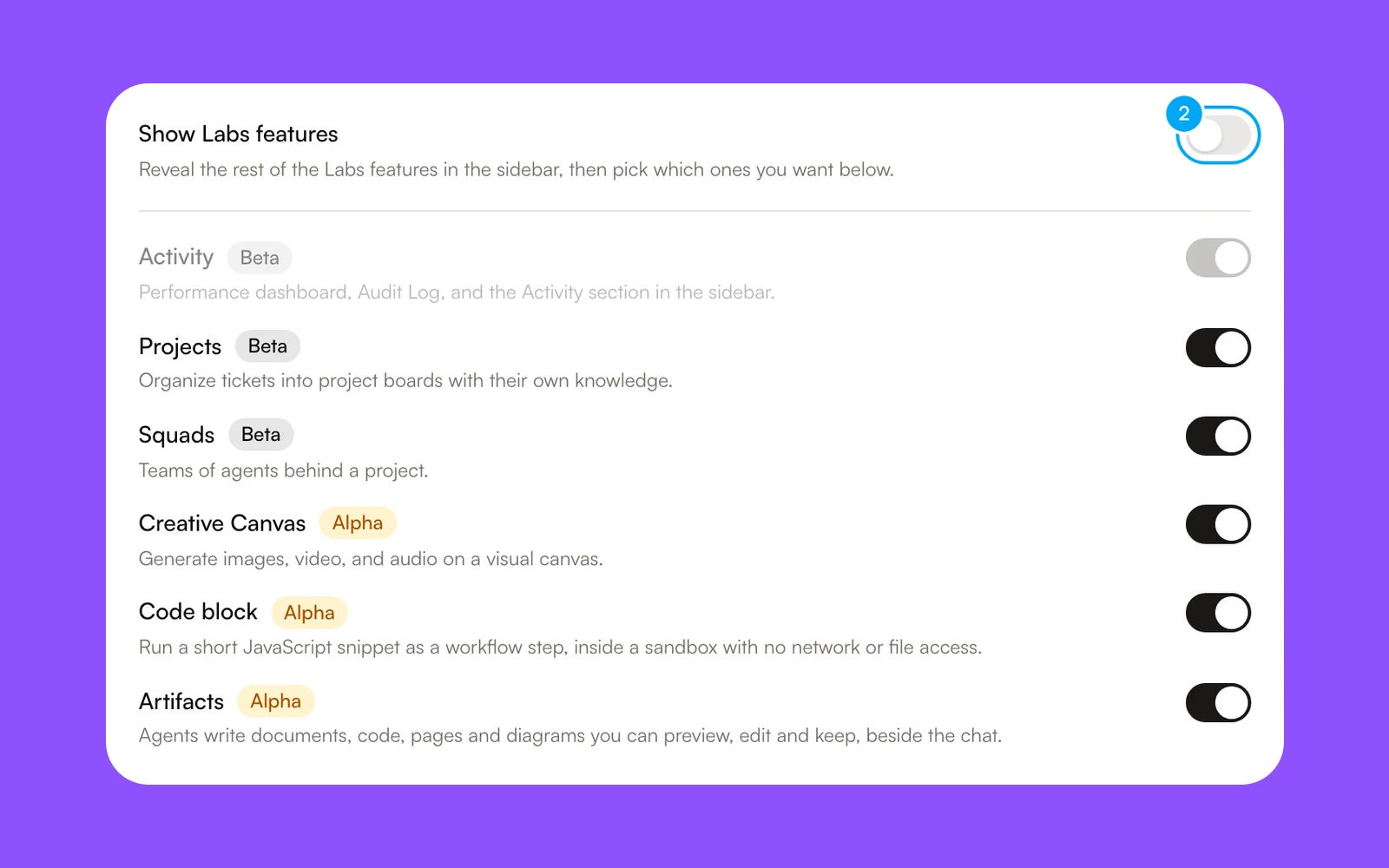
Show Labs features applies to the browser you turn it on in. Below it, the Activity switch can hide the page again. The page has three tabs: Activity, Performance, and Audit. Performance shows provider metrics and refresh state. Audit is the Audit Log: every action agents and teammates have taken, with its time, actor, action, and resource. Ticket approval decisions are recorded there.
What the page shows
Each row is one run, result, or ticket event, newest first. Rows are grouped by day, under headings such as Yesterday and This week. The refresh button at the top right reloads the list.
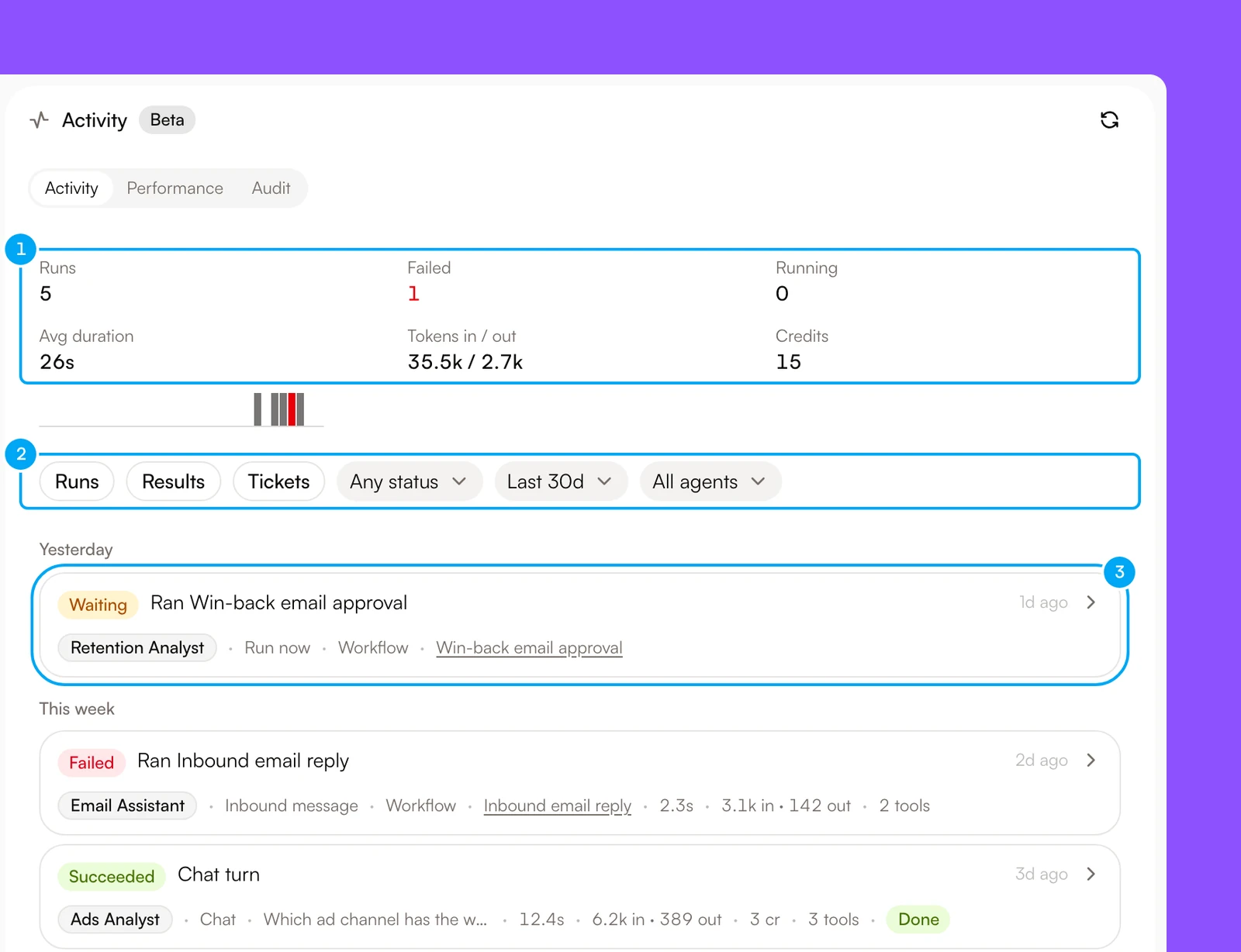
- The summary shows Runs, Failed, Running, Avg duration, Tokens in / out, and Credits. A small chart under it shows runs over the window, with failed runs in red.
- The filters choose the kinds of activity, the status, the window, and the agent.
- Each row shows one piece of work. Select a row to expand it.
What a row shows
Each row starts with a status badge, a title that says what ran, and how long ago it happened. A line of details follows.
| Part | Meaning |
|---|---|
| Status | Queued, Running, Succeeded, Failed, Stopped, Waiting, or Unknown |
| Agent | On the workspace-wide page, the agent or agents that took part |
| Trigger | Chat, Ticket, Autopilot, Schedule, App event, Inbound message, Run now, or Called by workflow |
| Linked item | The ticket, Autopilot, or workflow the run belongs to, as a link |
| Duration | Time from start to finish |
| Tokens and credits | Input and output tokens as “in” and “out”, plus the credits billed to the run, written as “N cr” |
| Tools | How many tools the agent called |
| Outcome | A badge when the result adds information, such as Done, an artifact, a request for input, or an approval |
Waiting means a human is needed: the run is paused for an approval, an answer, or a missing input. Open the row to see what it needs.
Select a row to expand it. The expanded row shows a summary of the result, the tools the agent called in order with their durations and whether each one succeeded, the error when the run failed, and the documents, tickets, and other outputs the run produced. Rows with nothing more to show do not expand.
When several agents took part in one run, the duration, tokens, and credits are run totals, not per-agent figures. The expanded row names the agents.
Open the trace
Select Open trace in an expanded row to open the trace of that run. Traces show the step-by-step detail; Activity shows the outcome. Rows without a trace do not show the button.
Filters and window
Use the buttons and menus above the list to filter:
- Runs, Results, and Tickets choose the kinds of activity to show;
- Any status limits the list to one status;
- Last 7d, Last 14d, and Last 30d set the window;
- All agents limits the list to one agent.
Activity keeps the last 30 days. Older results stay where they were delivered, such as the ticket or document.