Your account settings control how you appear to teammates, how AI Agent looks, and which supported notifications you receive.
Where to find it
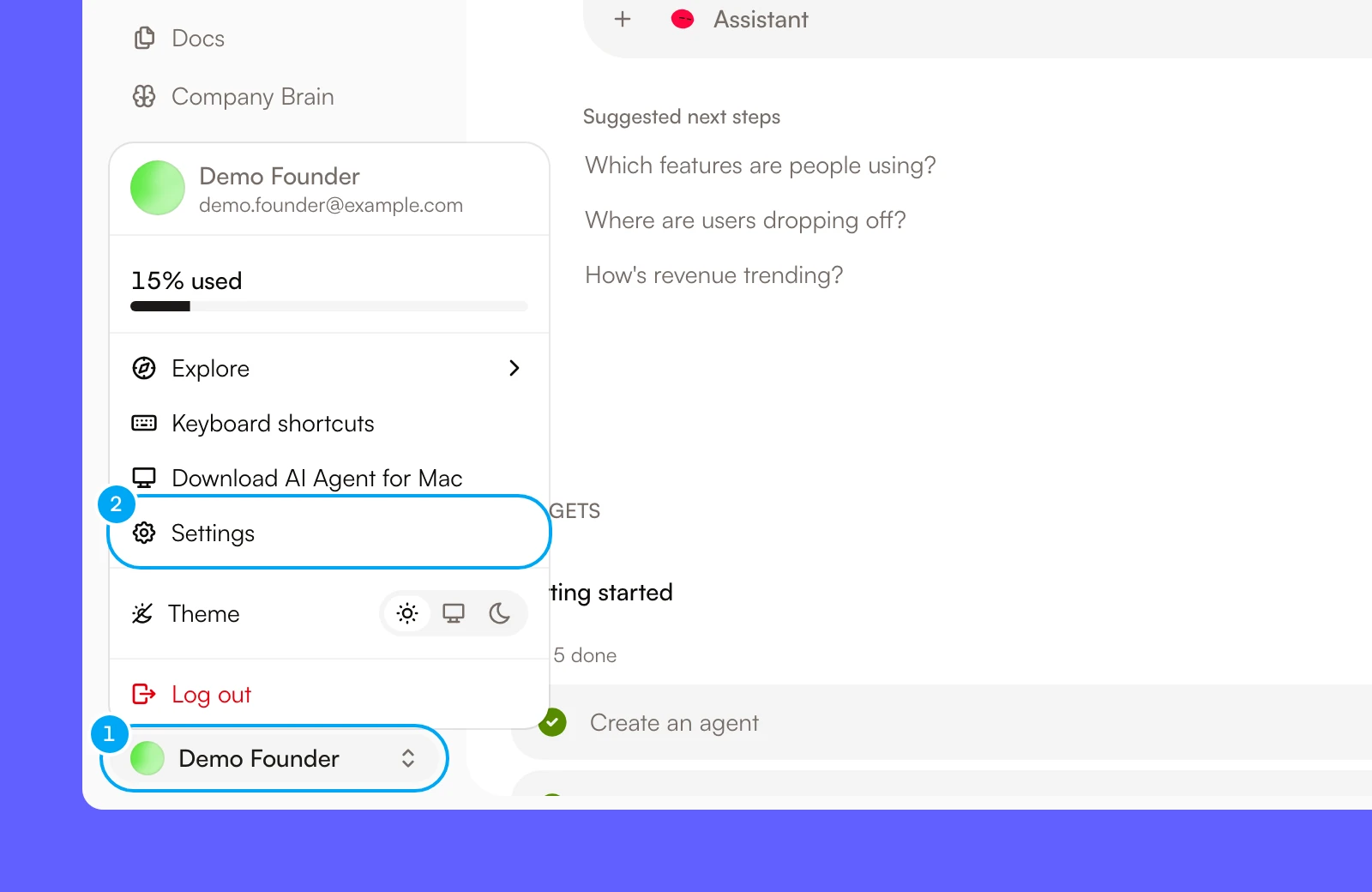
Open the account menu at the bottom of the sidebar and click Settings. Your own tabs sit in the My account group: Profile, Preferences, Computers, Labs, and Notifications. The group below it, named after your organization, holds the organization tabs.
Update your profile
Open Profile
- Click your name at the bottom of the sidebar.
- Click Settings. Settings opens on Profile.
Change your details
- To change your photo, click the avatar and choose an image.
- In Display name, enter the name teammates should see.
- In Bio (optional), enter a short bio. It is visible to organization members and holds up to 2,000 characters.
- Click Save.
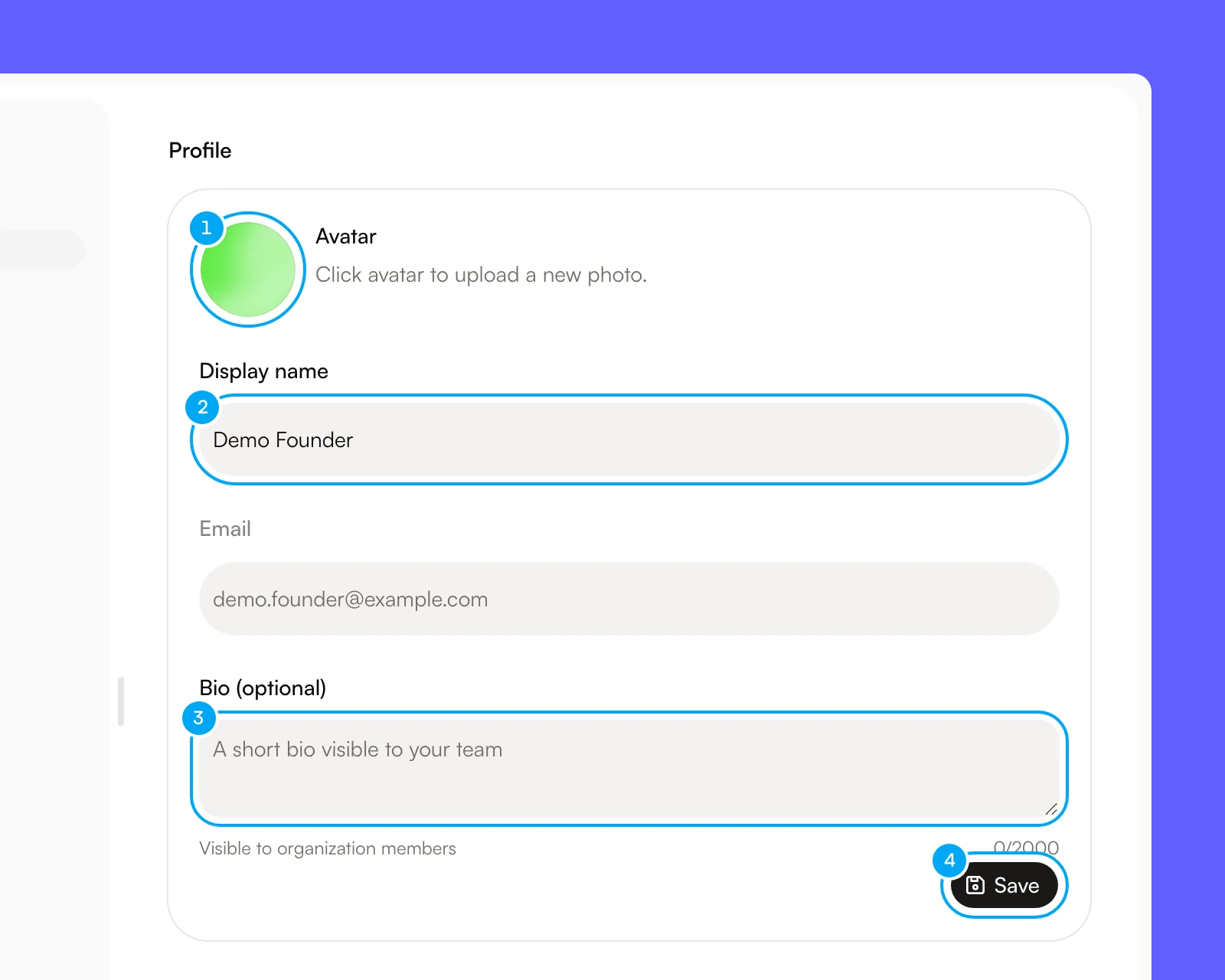
Your sign-in email is read-only. An avatar upload is saved when the upload completes, so it does not need Save.
Below the form, Sign-in lists the ways you can sign in to this account. Apps lists the AI assistants connected to your workspaces as you. To connect one, see Connect Claude or ChatGPT.
Set your preferences
Open Settings, then click Preferences in the My account group.
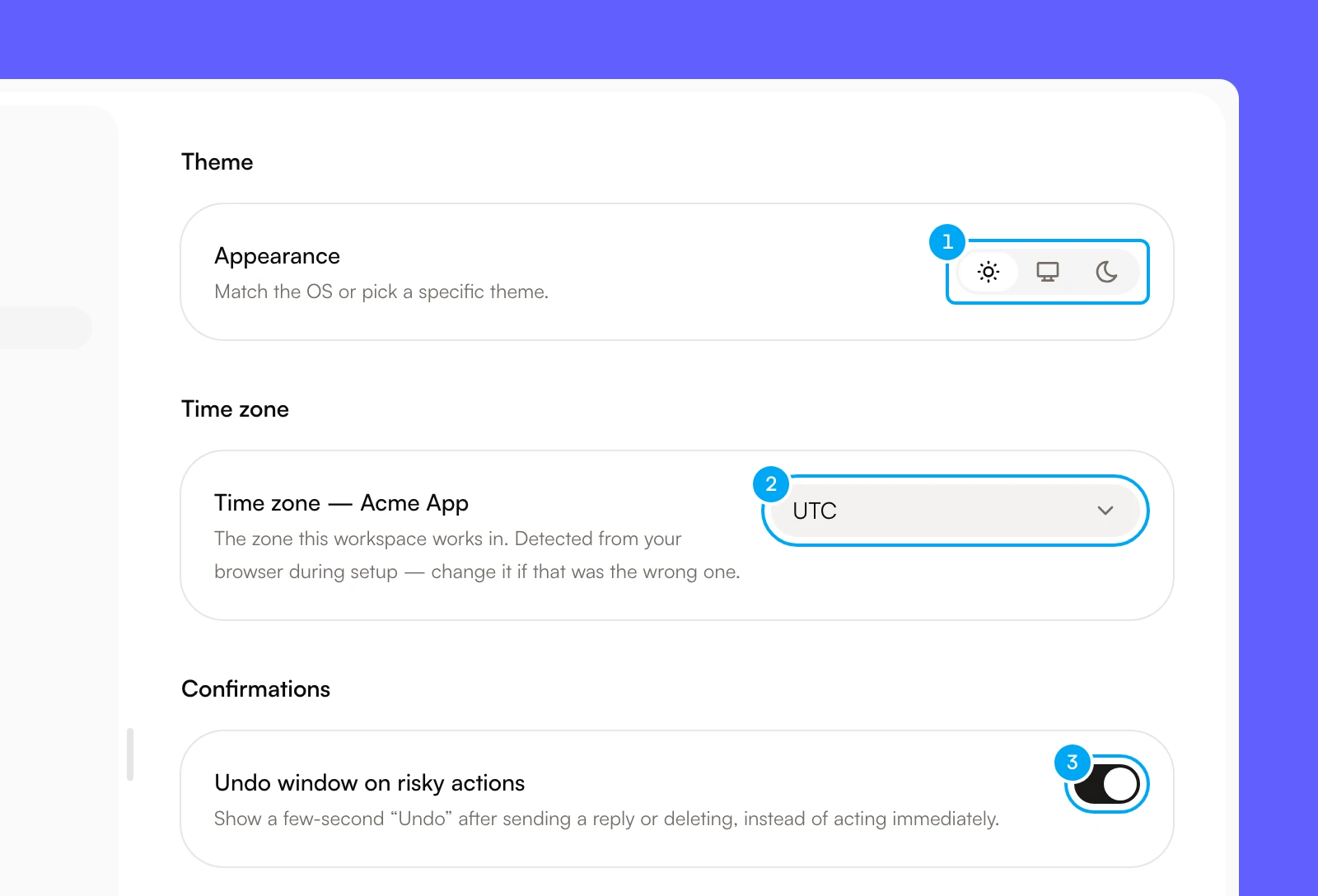
- In Preferences, in Appearance, click one of the three icons: the sun for light, the monitor for system, or the moon for dark.
- In Time zone, choose a time zone.
- Turn Undo window on risky actions on or off.
Appearance
- The monitor follows your device setting. The sun always uses the light theme. The moon always uses the dark theme.
- The choice is saved in your browser, not in your account. It applies to this browser only and does not change anything for other members. On another browser or device, choose again.
- The account menu in the sidebar has the same control under Theme.
Time zone
The card is titled Time zone followed by the name of a workspace project. It sets the zone that project works in. AI Agent detects it from your browser during setup, so change it if that was the wrong zone.
The zone sets when a ticket’s due-date reminder arrives on Telegram: 09:00 on the due day in this zone. It does not change which day a ticket or project date shows. Those dates are the same calendar day for every member.
Undo window
The switch is on by default. When it is on, supported actions such as sending a reply, deleting an item, archiving a ticket, or changing a ticket’s status, priority, assignee, labels, or dates show a short Undo before they take effect. Turn it off when you want supported actions to proceed immediately after confirmation.
An undo window is not a replacement for an approval. External actions that require approval still use their approval card.
The Setup section of Preferences has two buttons that change nothing you have configured. Reset tour shows the intro card for each section again the next time you open it. Reset checklist brings back getting-started items you skipped on Home.
Configure notifications
Open Settings, then Notifications. Changes save as soon as you make them, and a confirmation message appears.
- In Delivery frequency, choose As they happen, Daily digest, or Weekly digest. The control shows Daily digest until you change it.
- Turn Ticket review on or off.
- Turn Run failure on or off.
- Under In-app, turn Review queue on or off.
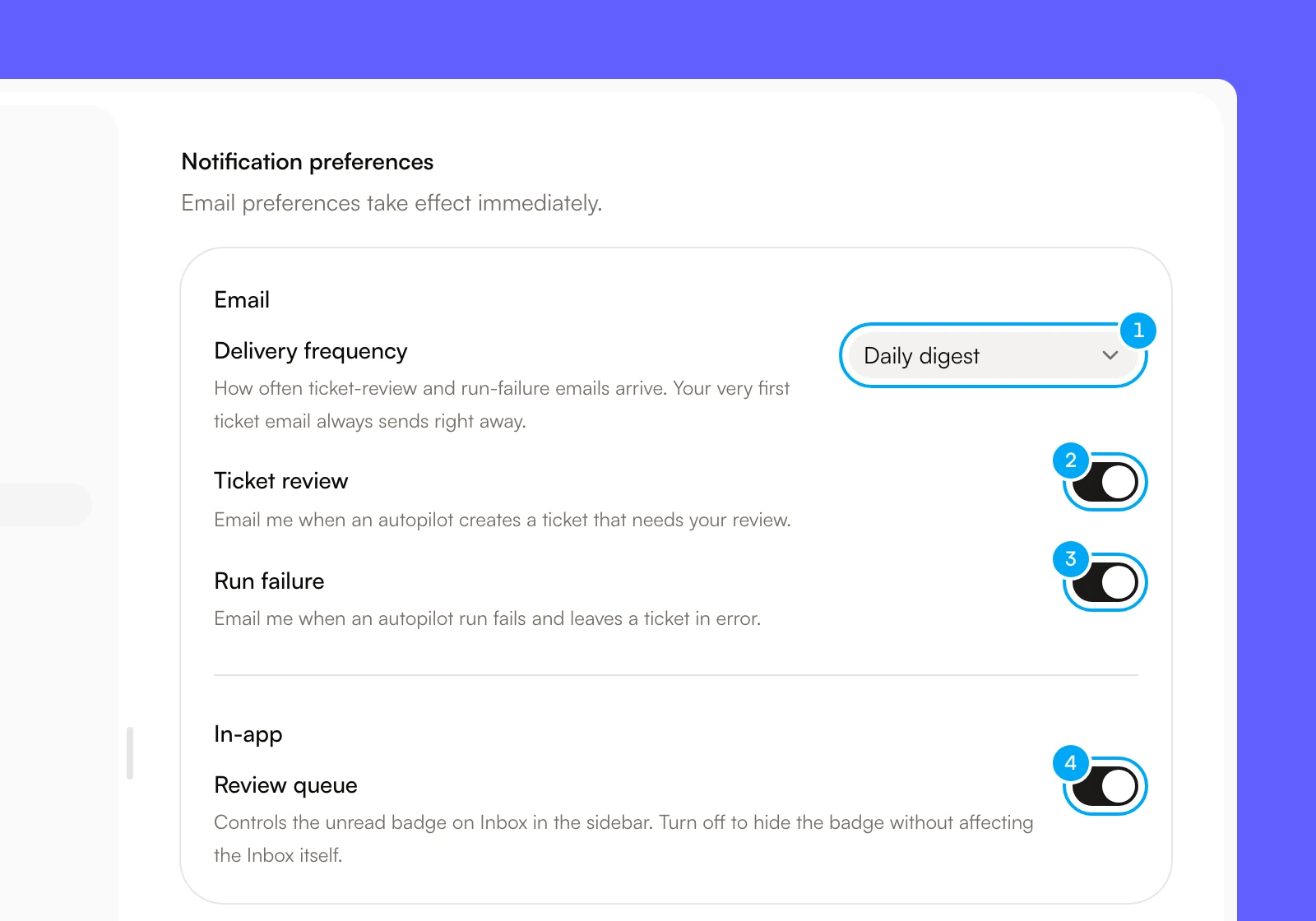
The Email group holds the first three controls:
- Delivery frequency sets how often ticket-review emails arrive. Your very first ticket email always sends right away. Run-failure emails and the pause email always send right away.
- Ticket review sends an email when an Autopilot creates a ticket that needs your review.
- Run failure sends an email when an Autopilot run fails and leaves a ticket in error. If you are an organization admin, it also controls the email you get when an Autopilot pauses itself after repeated failures.
Review queue controls the unread badge on Inbox in the sidebar. Turning it off hides the badge and does not remove or archive Inbox items. Open the Inbox directly to review the queue at any time.