Tickets keep a piece of work, its context, and its progress together on the Board.
Create a ticket
- On the Board, click New ticket.

- In Ticket title… and Description (optional)…, enter a clear title and the context needed to complete the work.
- Click Create.
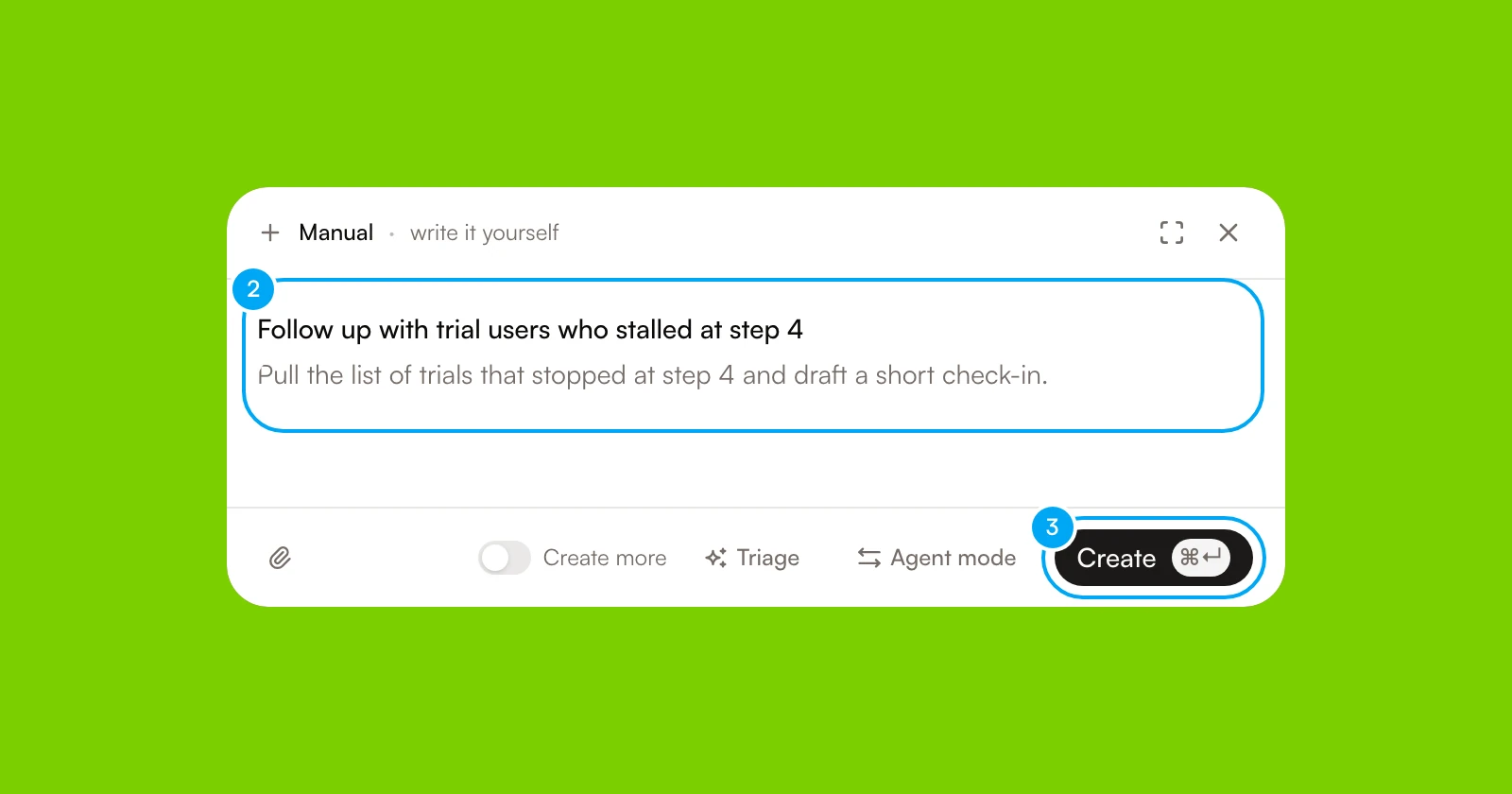
Open the ticket to edit its details, add steps, leave comments, or attach supporting files. Use Steps when the result has several checkable parts. Use comments for decisions and updates that should remain in the work history.
Choose Triage while you create a ticket, or in the properties of a ticket that is not Done or Cancelled, to refine it. Triage may ask a few questions first; answer them, or choose Skip questions. It then shows a proposal. Tick what to keep: a title, text to add to the description, a priority, an assignee, labels and steps. You can edit the title, the description text, the priority and the steps before you keep them. When there is already a description, the proposed text is added below it and the existing text stays as it is. The proposal also lists possibly related tickets for reference, without merging or closing anything, and suggests how to get the work done.
On an existing ticket, choose Apply to save what you kept; the button counts your changes, as in Apply 3 changes. While you create a ticket, choose Use in draft instead, and nothing is saved until you create the ticket. Discard closes the proposal and changes nothing. Applying a proposal never starts work, switches on automations or grants access to any tool. On a ticket mirrored from another tool, the title, description and agent follow the source issue, so triage leaves them as they are. Triage needs an active plan.
You can also describe the task to an agent in chat instead of filling in the form. The agent returns a ticket draft card in the conversation; review it and confirm to add it to the Board. Asking the agent to change an existing ticket works the same way — it proposes the change as a draft rather than editing the ticket directly.
Organize the Board
Move a ticket between Board columns as its status changes. The columns are Backlog, To do, In progress, In review, Done, and Blocked. Use the filters on the Board header to narrow the Board to the work you need. To find a ticket by its title, use search at the top of the sidebar.
Keep the displayed status aligned with reality. Moving a ticket communicates progress. The one exception is dragging a ticket into In progress: the Board offers to start agent work, and nothing runs unless you confirm.
Ask an agent to work
Start agent work when the ticket has enough context and the agent has the required docs and connections. Any of these starts a run on an open ticket:
- click Start work in the ticket;
- drag the ticket into In progress and confirm;
- click Approve and start on a To do ticket that has an agent assignee;
- mention an agent in a comment with
@, which assigns that agent and starts its run.
- On the Board, click the ticket to open it.
- Click Start work.
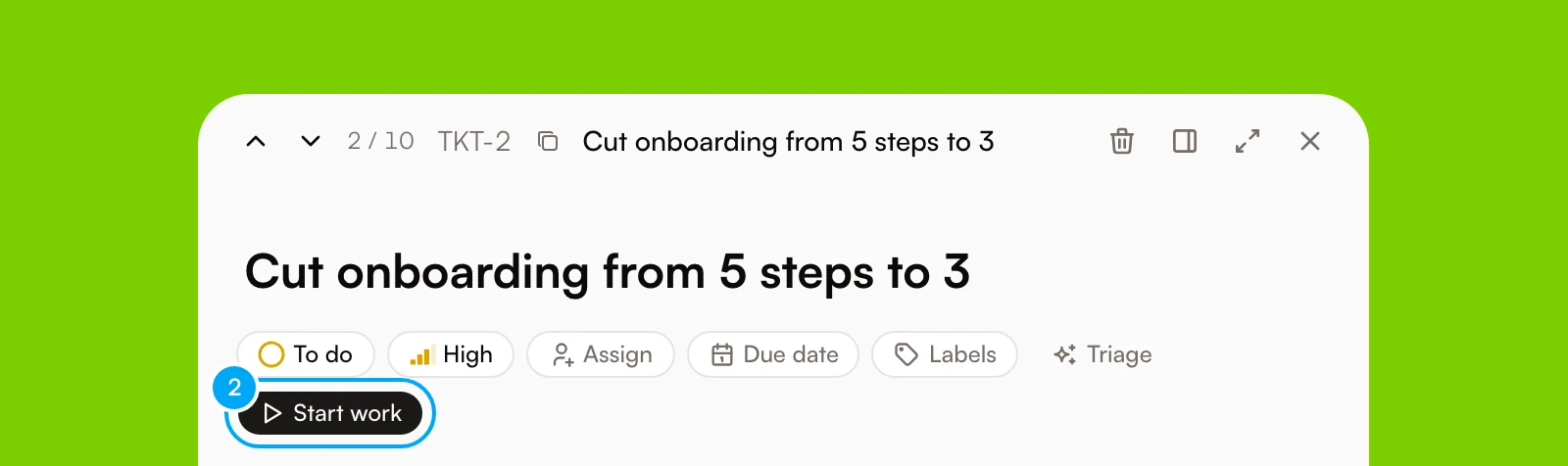
Follow progress in the ticket. For a run on your own computer, type in Message the agent on the Agent card to continue the same session. The box is off while the agent works. When the session cannot continue, click Start fresh to run again with the ticket. Starting a run on your computer needs an active subscription.
If the agent marks the work as Needs input, open the request and provide the missing decision or information. Agent work may also pause for approval before an external action is executed. See Review and execute an action.
Review the result
When a run finishes, the ticket moves to In review and shows the agent’s Latest result: its outcome, deliverables, checks, and suggested next step. Check it, along with completed steps, comments, attachments, and any proposed actions, before moving the ticket to its completed state. If the outcome is incomplete, add a specific comment or mention the agent with what to change, rather than creating a duplicate.
Archive or delete a ticket
Archive a ticket
- Open the ticket.
- Click the trash icon in the ticket header. Its tooltip reads Archive ticket.
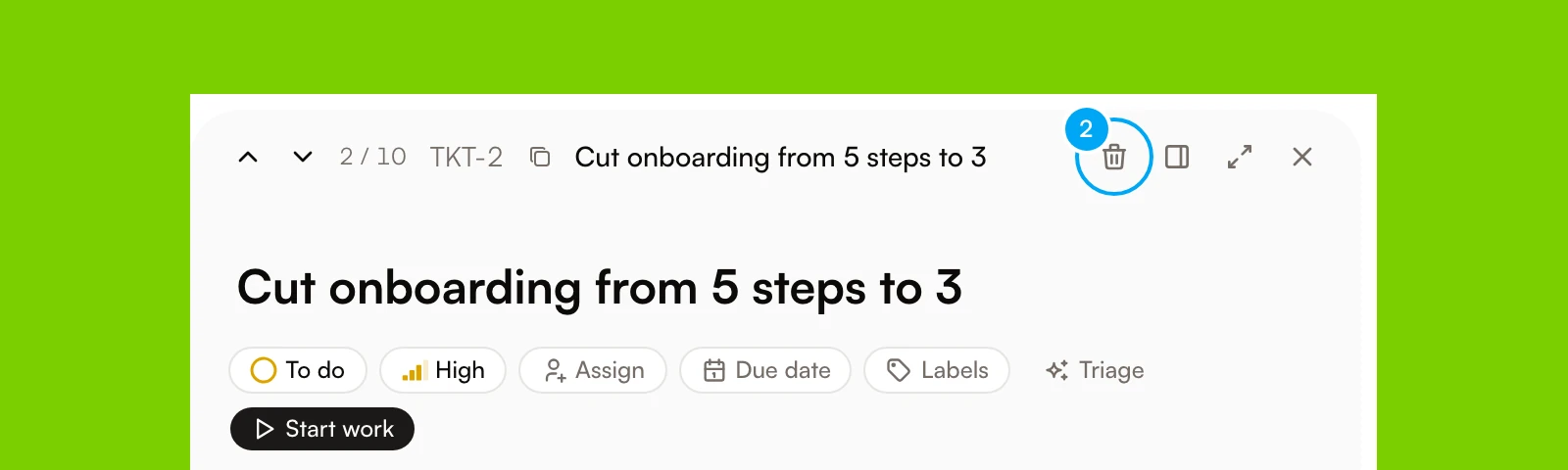
The ticket is archived with no confirmation. While the undo window is on, an Undo toast shows first and the archive completes when it closes. Its status becomes Cancelled, and it leaves the Board columns. A ticket that is mirrored from another tool cannot be archived until it is cancelled. A Done ticket moves to the archive on its own 14 days after you finish it. To bring an archived ticket back, open the Archived tab and click Restore.
Delete an archived ticket permanently
- On the Board, click the Archived tab.
- Click Delete permanently on the ticket’s row.
- In Delete ticket permanently?, hold the Delete permanently button until it confirms.
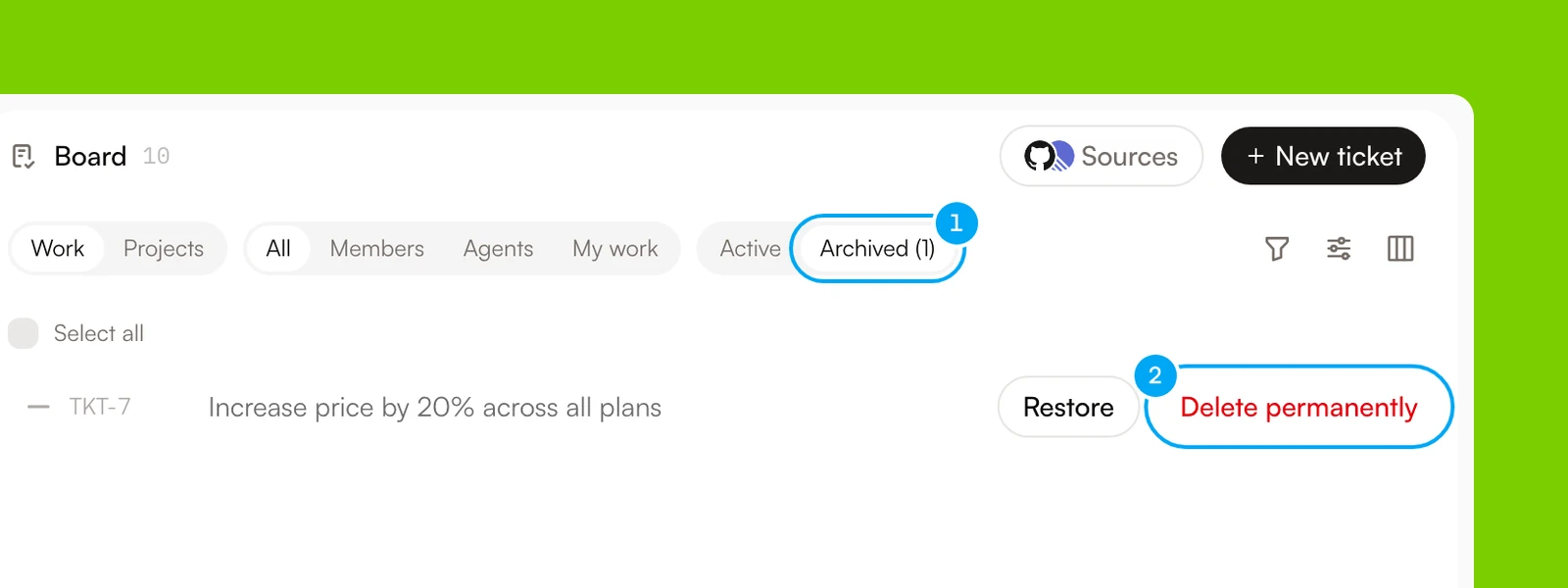
Expected result
Limitations
- Only a confirmed move into In progress starts agent work; other status moves do not.
- Mentions and Start work do not run on Done or Cancelled tickets. Reopen the ticket first.
- An agent cannot use a connection or doc that has not been attached to it.
- External changes may remain pending until a person approves them.