AI Agent workspaces have two member roles:
Admin
Manage members, invitations, roles, and workspace project access.
Member
Work in the workspace projects assigned to the member.
Here, a workspace project is a top-level business context with its own agents, connections, knowledge, and work. It is different from the optional Project on the Board, which groups tickets for an initiative. The Members tab calls workspace projects brands: you see the labels Brands and Brand access there.
Where to find it
Open the account menu at the bottom of the sidebar, click Settings, then click Members under your organization’s name. Everyone in the organization can see the member list. Only admins see Invite member and Pending.
Invite a member
Open Members
- Click your name at the bottom of the sidebar.
- Click Settings.
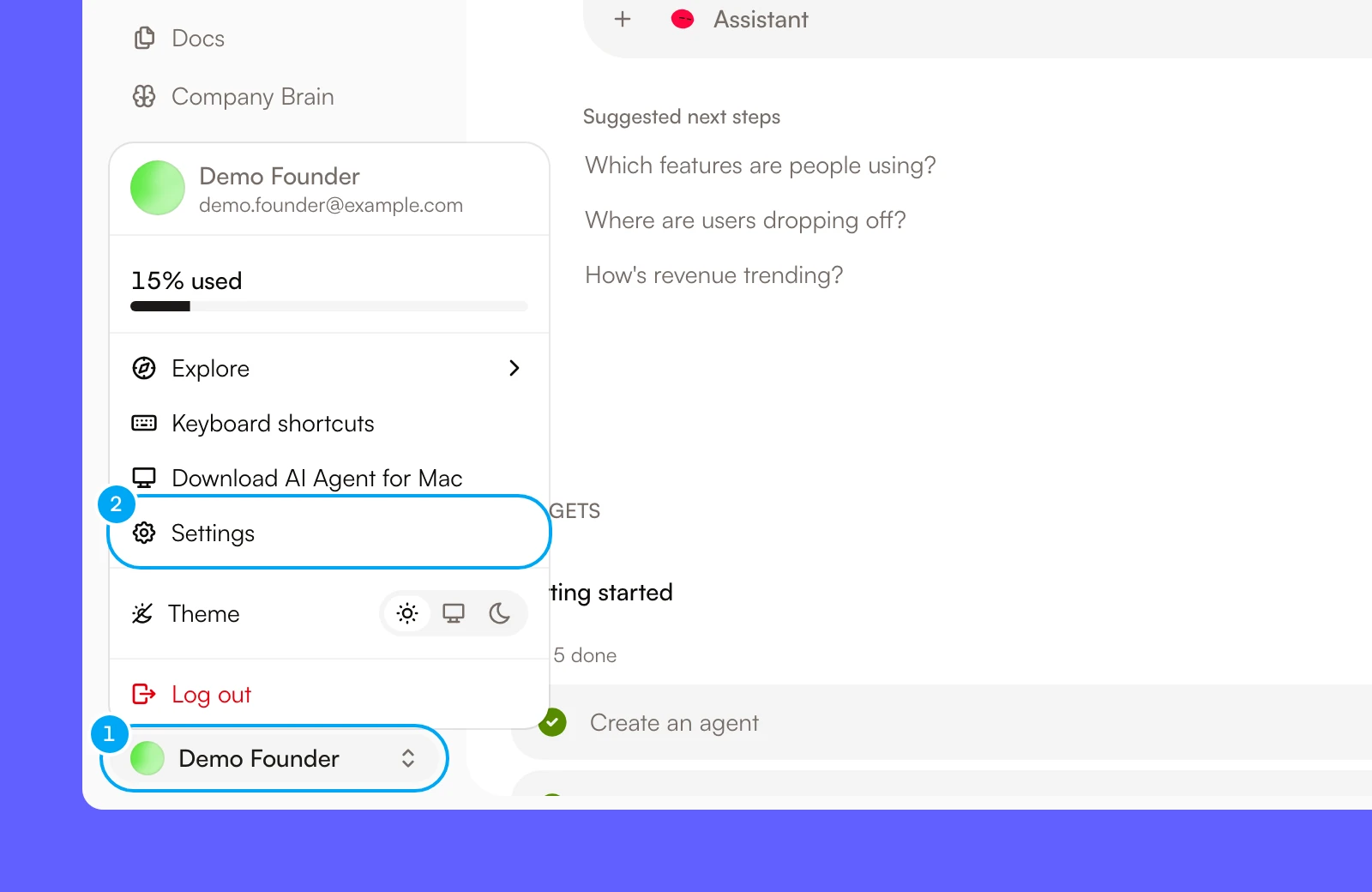
- Under your organization’s name, click Members.
Send the invitation
- In Email, enter the person’s address.
- In Role, choose Member or Admin.
- For a Member, in Brands, leave every brand ticked or untick the brands the person must not open.
- Click Invite.
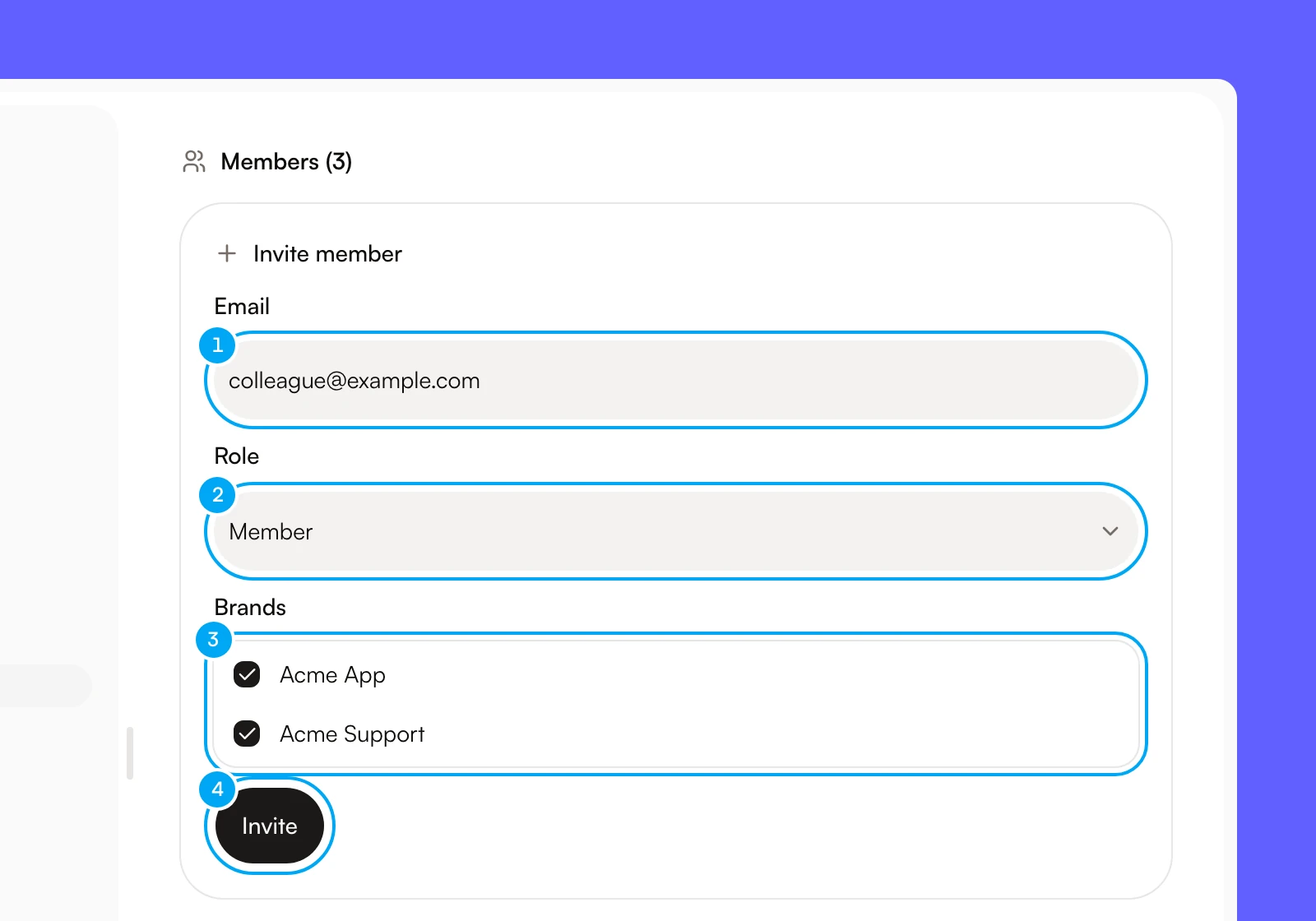
Admins can open every brand, so the Brands list appears only when Role is Member. Invite stays disabled while every brand is unticked. To give someone access to every brand, invite them as an admin or leave every brand ticked.
AI Agent sends the invitation by email and lists it under Pending. If the email cannot be delivered, a message shows the invitation link so you can share it yourself.
- Expiry. An invitation expires 7 days after you send it. An expired invitation disappears from Pending. Send a new one.
- Limits. An organization can send 20 invitations in 24 hours, and one address can receive 3 in 24 hours. Past a limit, a message tells you to try again tomorrow.
- Acceptance. Nothing joins automatically. When the invitee signs in with the invited address, a banner titled “Join organization name?” with Accept and Decline appears at the top of every dashboard page and during onboarding. The invitation link also asks the person to accept or decline.
Revoke an invitation
Revoke an invitation that you no longer need before anyone accepts it.
- In Pending, click the X next to the invitation. Its tooltip is Revoke invitation.
- In the dialog, click Revoke.
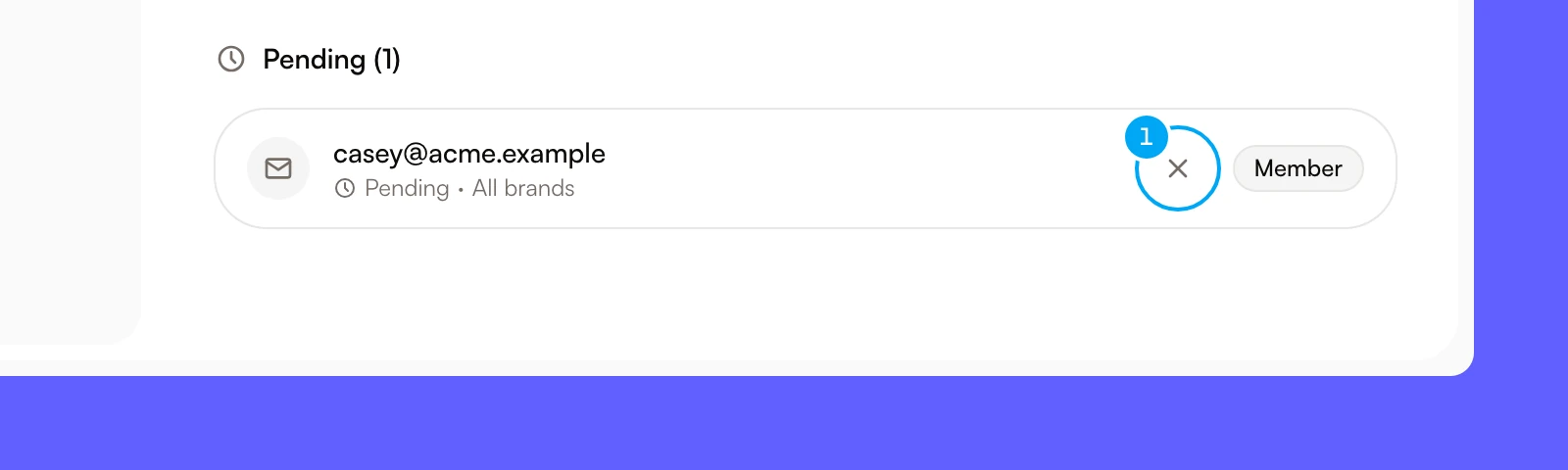
The dialog gives you a few seconds to undo the revoke.
Change access
An admin can open the menu on any member’s row, except their own.
Choose which brands the member can open
- In the Members list, click the … menu on the member’s row.
- Choose Brand access.
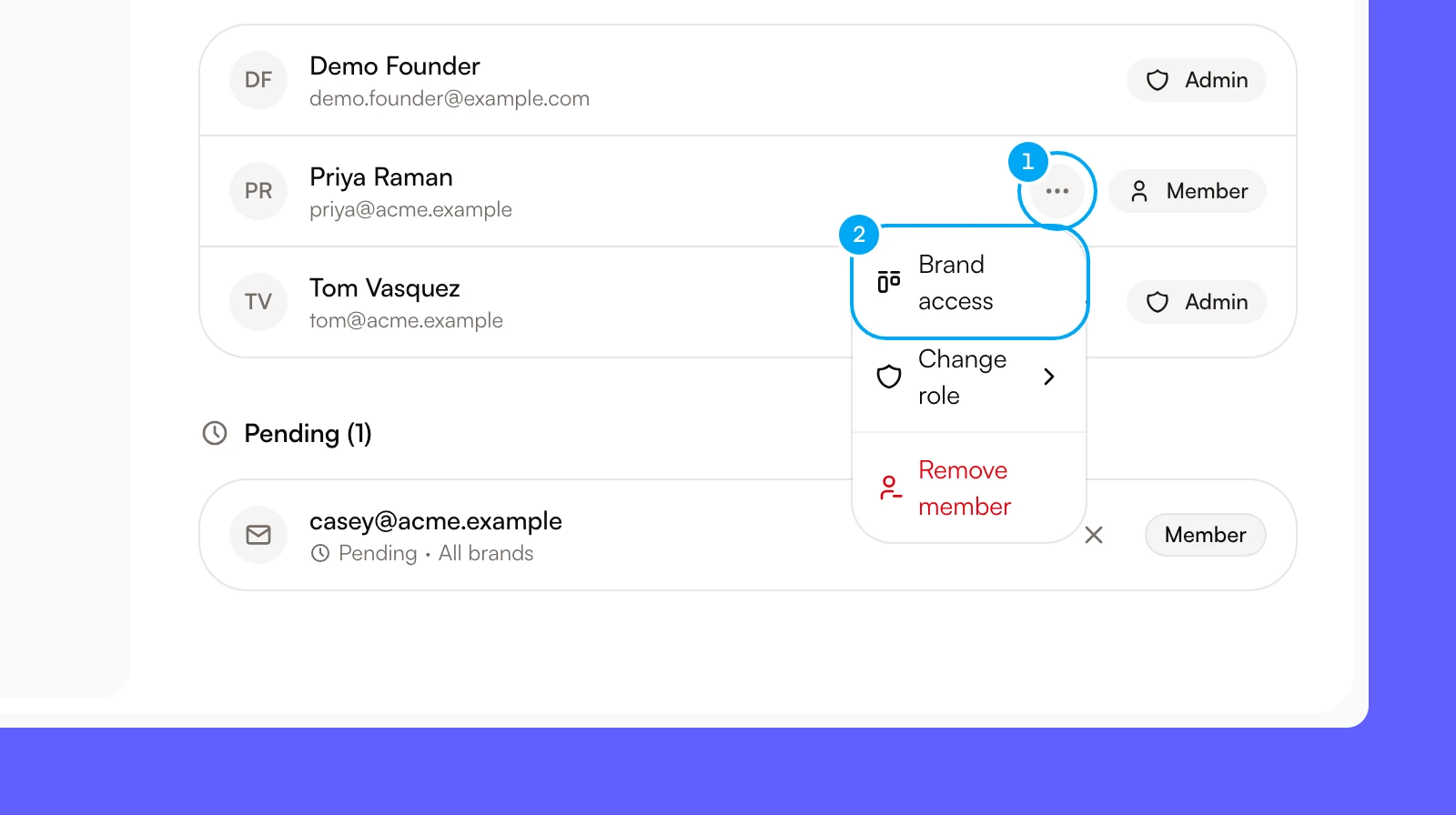
- In Brand access, tick the brands the member can open.
- Click Save access.
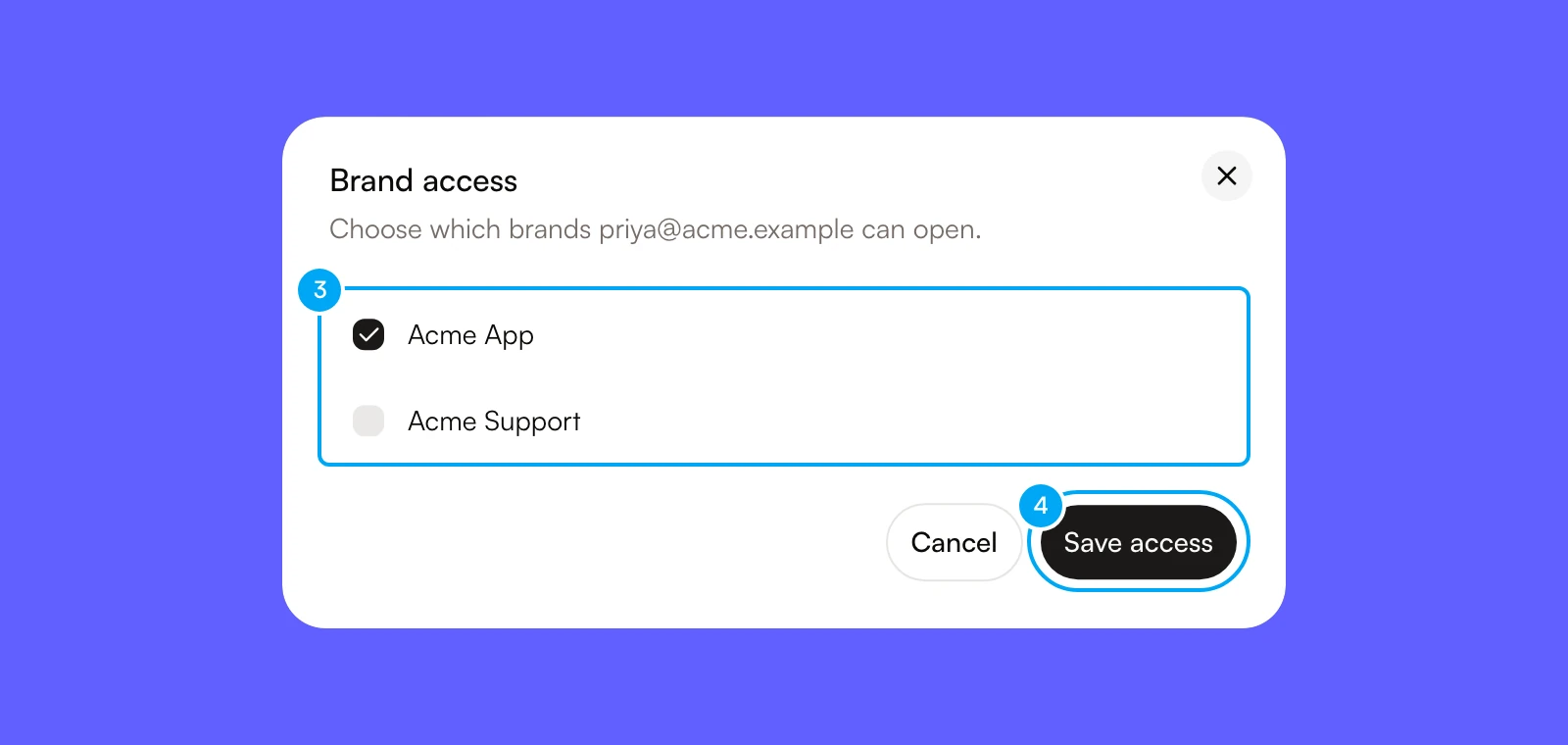
The same menu also has Change role (choose Admin or Member) and Remove member.
- Brand access appears only for members. Admins always open every brand.
- A member you limit to selected brands stays limited. When someone creates a new project, that member does not get it automatically. Ticking every brand removes the limit.
- Changing a role resets access: an admin you demote can open every existing brand, and a member you promote can open all of them.
- You cannot change your own role or remove yourself. You cannot remove or demote the last admin.
Before removing someone
Review active work and shared responsibilities first. Remove member asks for confirmation and gives you a few seconds to undo. When a member is removed:
- they lose access to the organization;
- their personal connections are disabled, and Autopilots and workflows that start from an app event on those connections pause;
- shared connections they created stay, but no longer have an owner;
- tickets assigned to them become unassigned;
- their Telegram link is removed.