Knowledge sources give agents reference material they can search while working. AI Agent lists every source in Docs. This guide calls the material knowledge, and the app calls the page Docs.
A source has one of four types: manual (a doc you write), file (an upload), website (an imported page or site), or connection (material from a connected app). An agent can use a source only when its status is Ready.
Open Add source
- In the sidebar, click Docs.
- Click Add source.
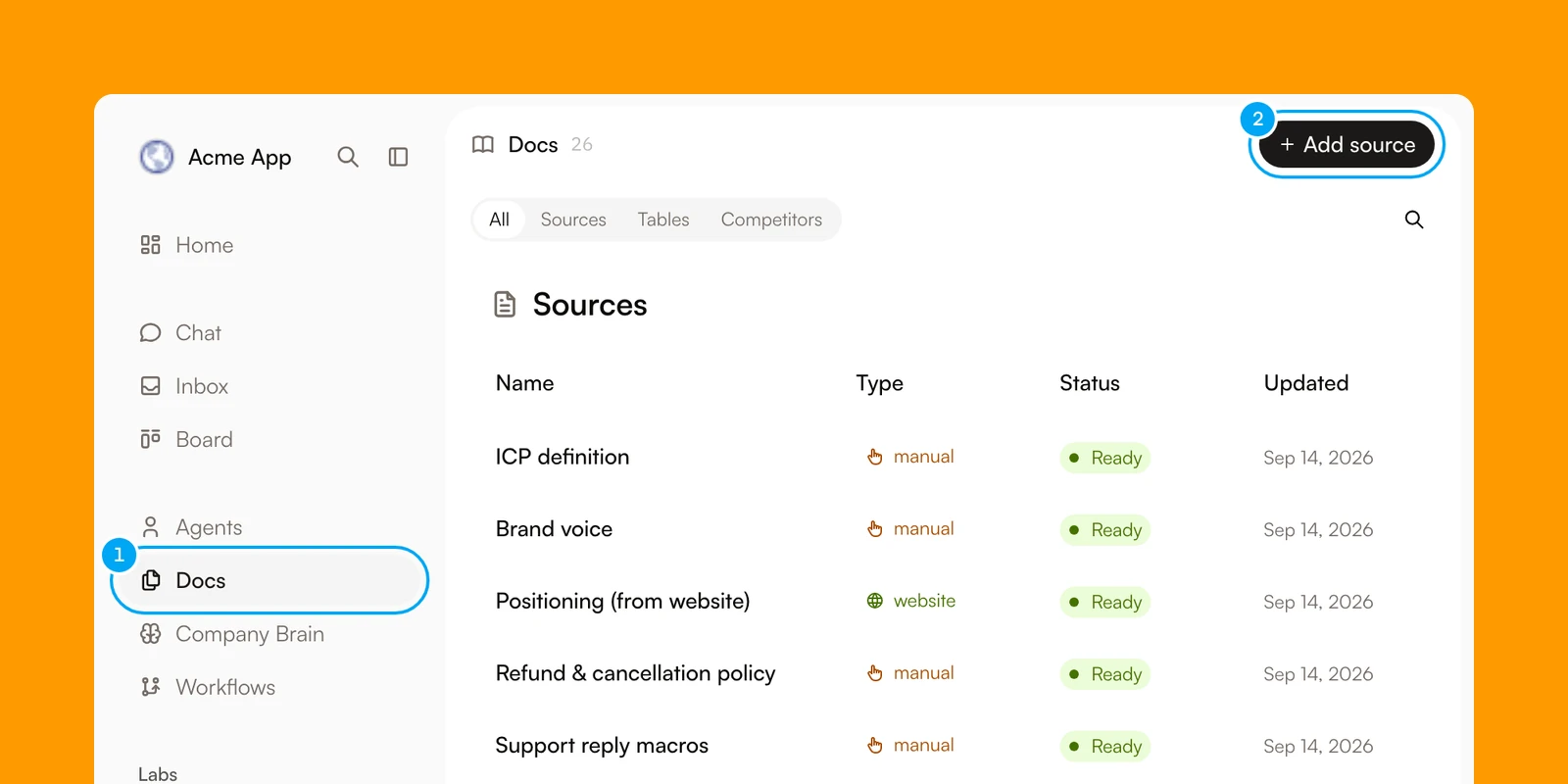
Choose where and what to add
- In Add to, choose Brand knowledge to make the source available to every agent in this project. If you use Board Projects, choose one instead to limit the source to that Board Project’s work.
- Choose Import URL, Upload file, or Write doc.
- For Import URL, choose Single page or Multiple pages.
- Enter the address, then click Import page. For Multiple pages, the button reads Scan site.
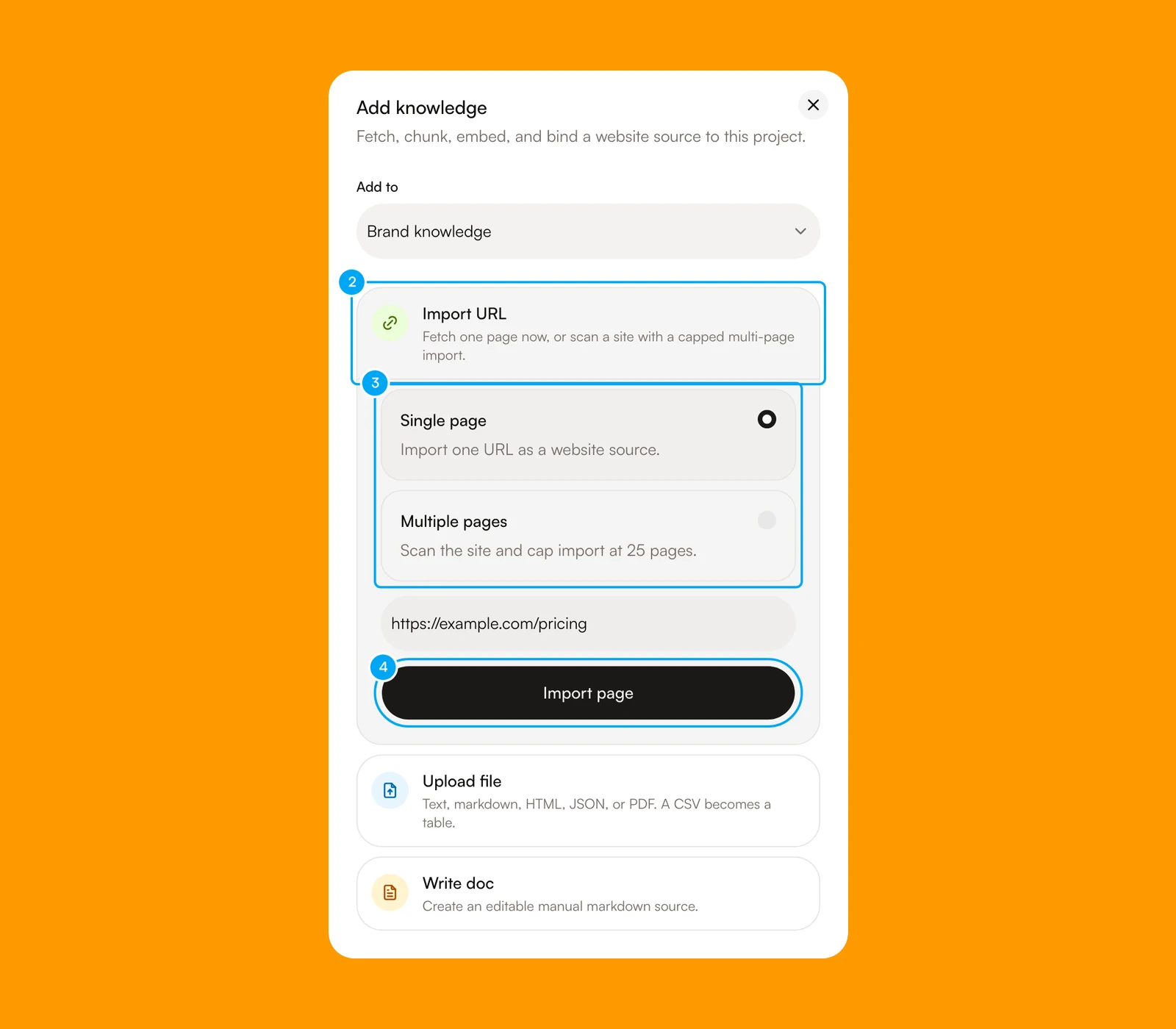
Each option works as follows:
- Import URL, Single page imports one public page as a website source.
- Import URL, Multiple pages maps the site, then imports up to 25 pages as one source.
- Upload file takes TXT, Markdown, HTML, JSON, or PDF files up to 10 MB. Drop a file on the box or choose one.
- Write doc creates a blank doc that you open and fill in.
A CSV file does not become a source. When you choose a CSV in Upload file, AI Agent opens a CSV import that turns the file into a table. The limit is 5 MB. See Tables.
Importing a URL, scanning a site, and refreshing a website source need an active subscription.
Wait for the source to be Ready
A site scan or an upload is queued, and AI Agent indexes every source in the background. You can leave the page and return later. The Status column shows where the source is:
| Status | Meaning |
|---|---|
| Pending | The source waits to be indexed. Agents cannot use it yet. |
| Indexing | AI Agent is preparing the source. Agents cannot use it yet. |
| Ready | Agents can use the source. |
| Error | Indexing failed. Agents cannot use the source. Open it to read the message. |
Check or change a source
Click a source in the list. Its panel opens on the right, and Expand makes the panel larger. Check that the expected material is there before you rely on it.
- For a website, file, or connection source, you can change the title or the text. Save and Discard appear next to the title when you change something.
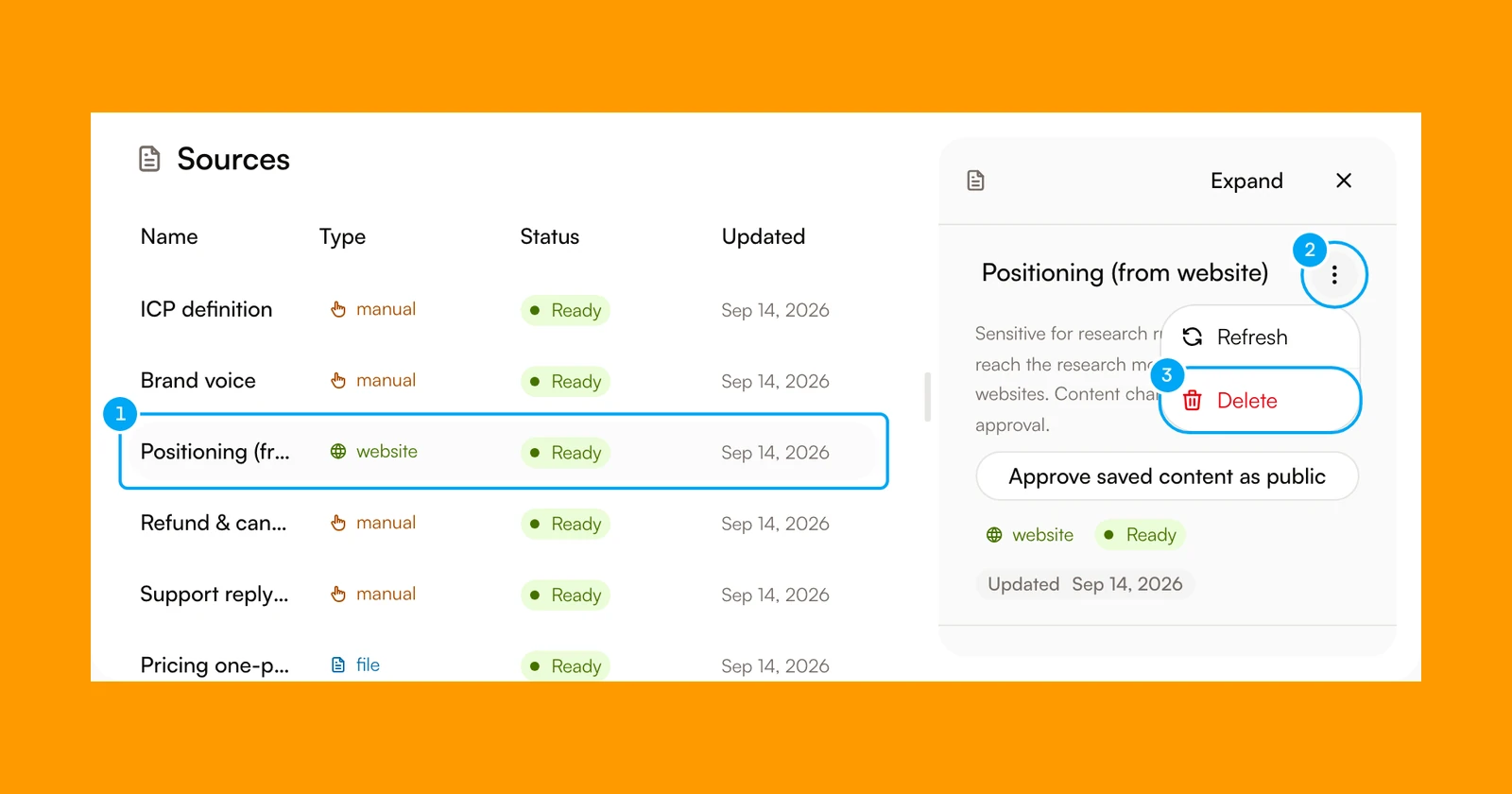
- For a website or connection source, open Source actions and choose Refresh to fetch the material again.
Delete a source
- In the list, click the source.
- In the panel, click Source actions.
- Choose Delete.
- In Delete source?, press and hold Delete. If your device uses reduced motion, a single click is enough.
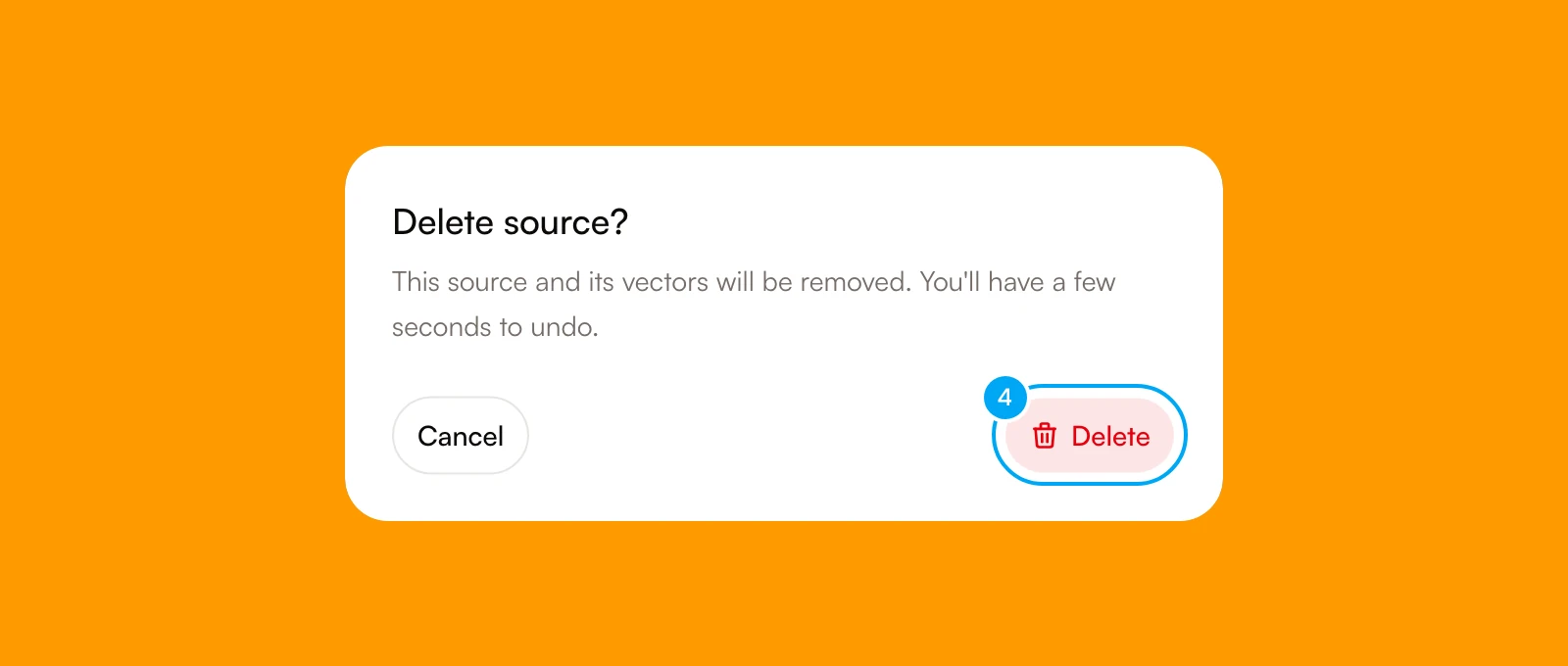
Deleting removes the source and its indexed passages from the project. A message offers a few seconds to undo.