An Autopilot gives one agent a repeatable task. You describe what should happen, choose the agent, choose what each run produces, and choose when it runs.
Create the Autopilot
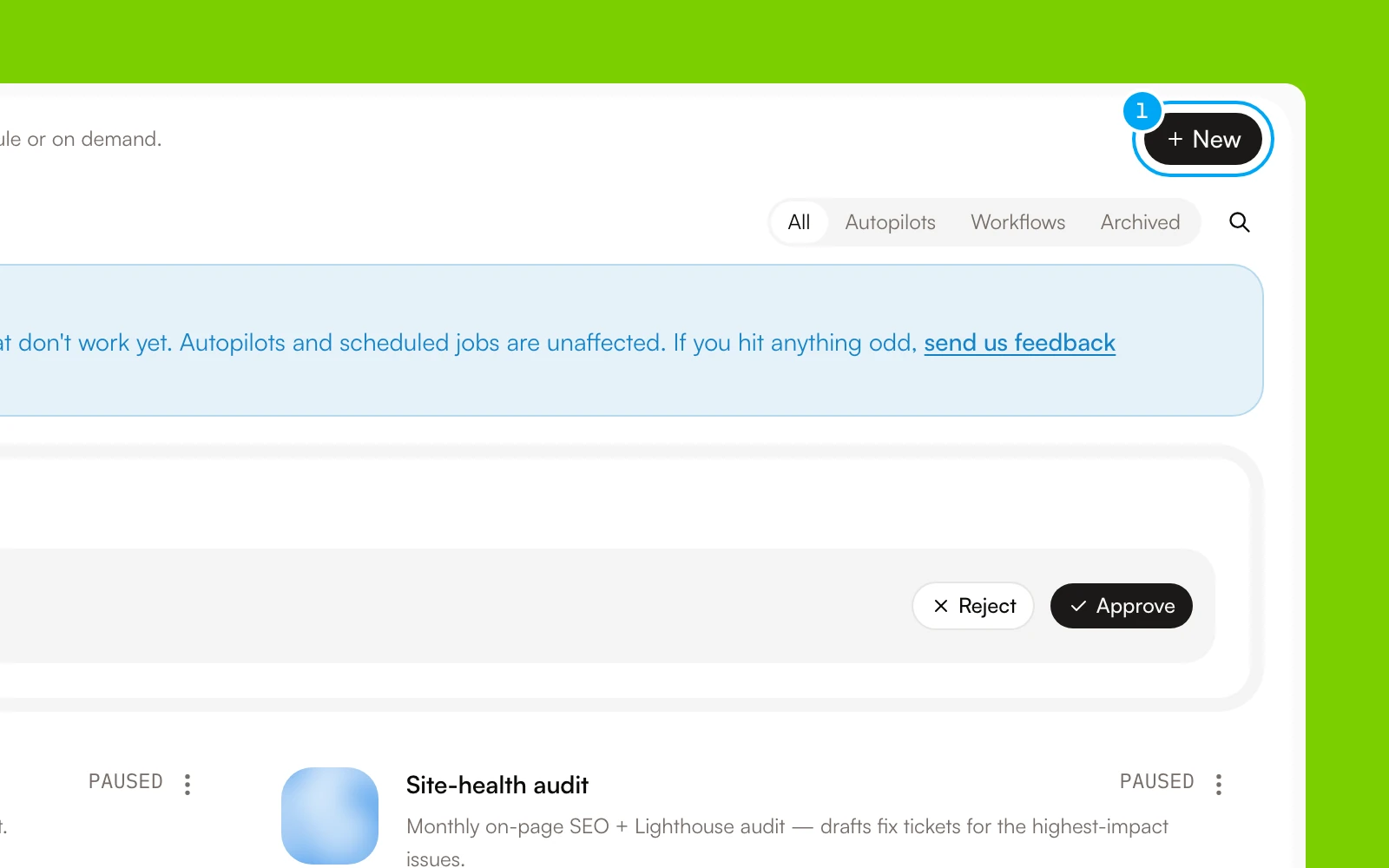
- In Workflows, click New.
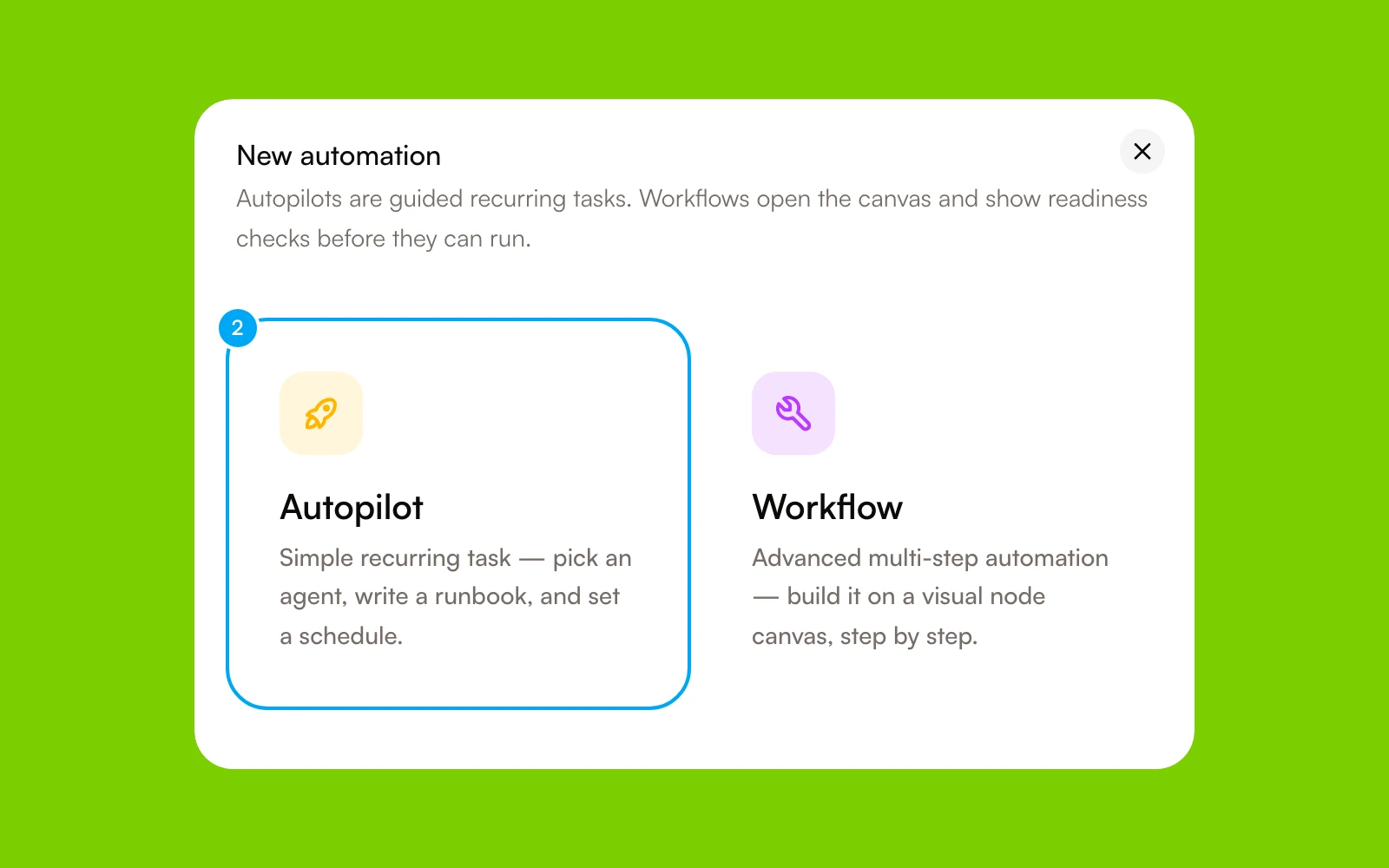
- Click Autopilot.
- In Name, enter a name for the Autopilot.
- In What should happen?, describe the task, the sources to use, the result you expect, and when the agent must ask for review. This field is optional and holds up to 8,000 characters.
- In Who does the work?, choose an agent.
- In Trigger, choose when the Autopilot runs. For a schedule, choose On a schedule, then set Repeat, the time and the timezone.
- In What should it produce?, choose Save the run output or Create tickets.
- Click Create autopilot.
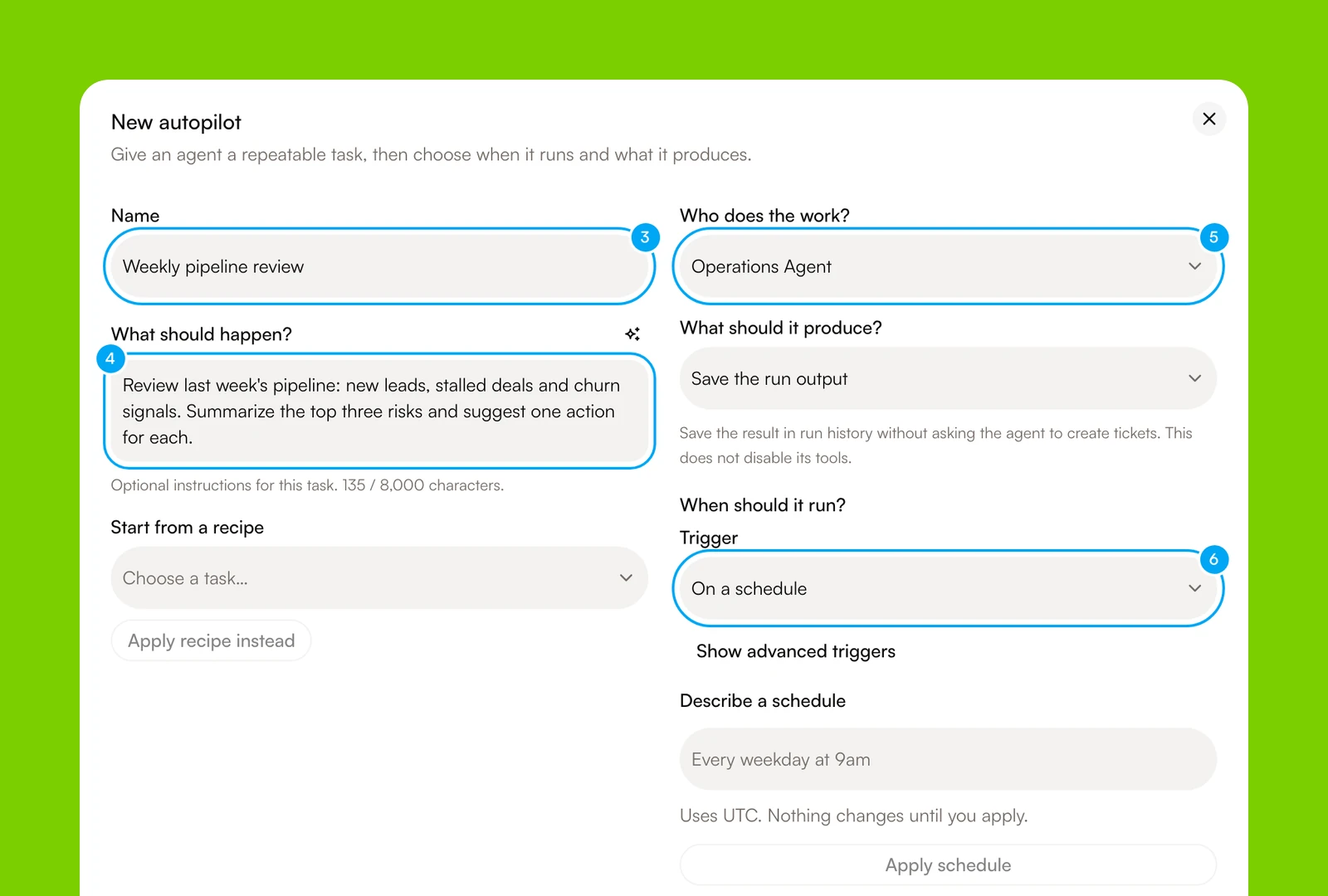
To start from a prepared task instead, choose one in Start from a recipe, then click Use recipe. A recipe replaces the instructions, the schedule and the output choice. It never connects accounts or starts runs.
A new Autopilot starts paused.
Check access and approvals
Make sure the agent has the connections and tools the task needs. Keep external writes behind an approval step, and leave destructive tools turned off unless the task needs them.
Turn it on and run it once
- In Workflows, open the Autopilot.
- Click the Paused switch. It changes to Active.
- Click Run now.
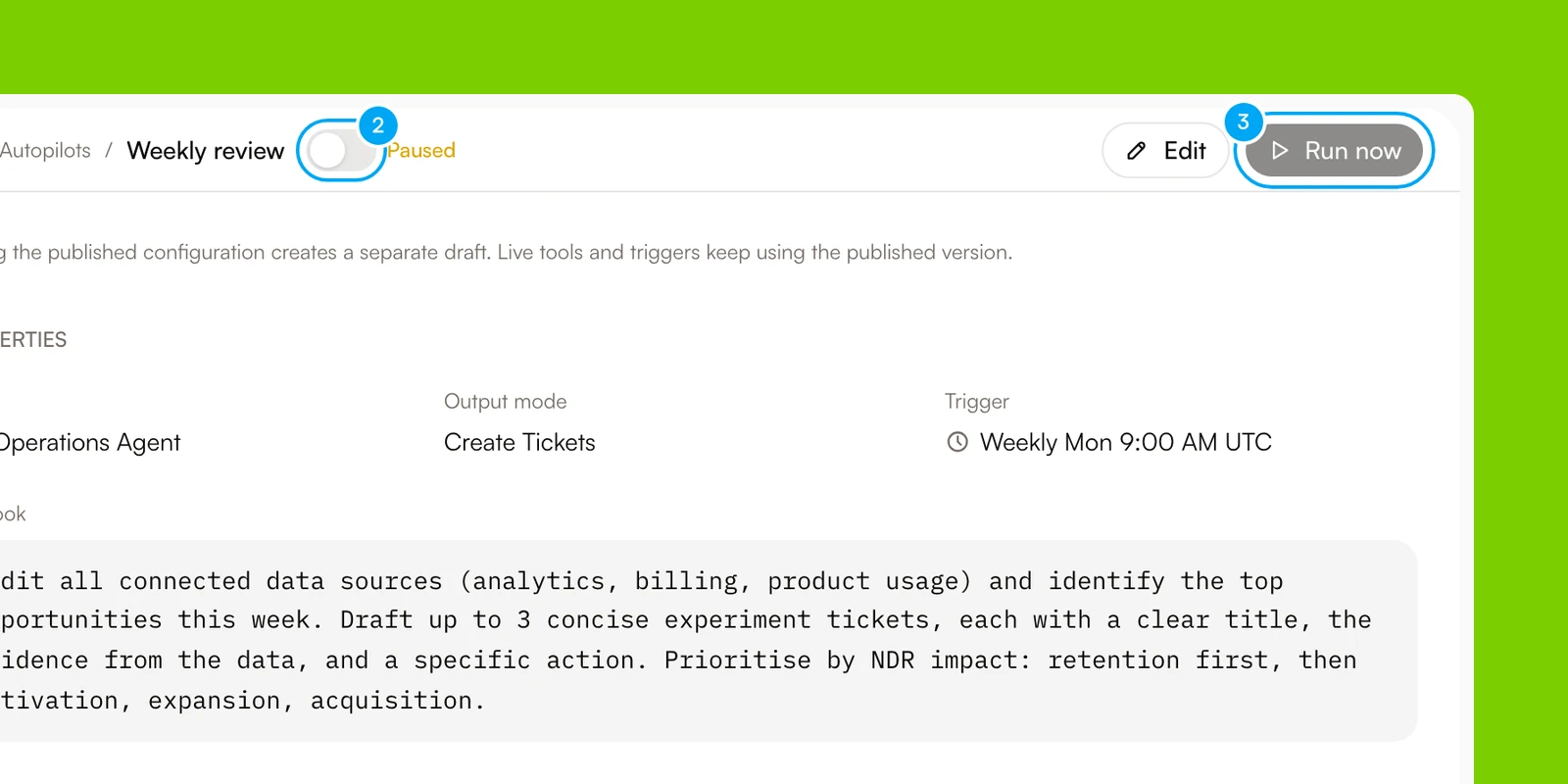
Run now is available only when the Autopilot is active and has no unpublished draft. While AI Agent starts the run, the button reads Running…. In Recent runs, open the run and check that its steps, output and approvals match what you expect.
If your plan’s limit for runs at the same time is reached, the run waits in a queue and At your concurrency limit opens. The run starts when another run finishes.
Change a live Autopilot
- Click Edit.
- Make your changes, then click Save draft.
- In the Unpublished draft bar, click Review changes, then publish the draft.
Until you publish, the Autopilot keeps running its published configuration. To drop your changes, click Discard draft.
When an Autopilot pauses itself
AI Agent pauses an Autopilot when its runs keep failing: after 10 failed runs in a row, or when 8 of its last 10 runs failed, including the latest one. A failed run that you start with Run now counts too. Any successful run resets the count. Org admins who have Run failure notifications turned on get an email.
Expected result
Continue from here
Build and test a workflow
Validate the process and inspect a representative manual run first.
Inspect runs
Review active, queued, completed, waiting, and failed execution history.
Understand approvals
Learn how supported external actions pause for review.
Workflows and Autopilots
Compare an on-demand workflow with a triggered Autopilot.