Workflows and Autopilots are two separate ways to automate repeatable work. A workflow is a sequence of steps that you build on a canvas. An Autopilot gives one agent a written task, a trigger, and an output. An Autopilot is not a promoted workflow, and neither can be converted into the other.
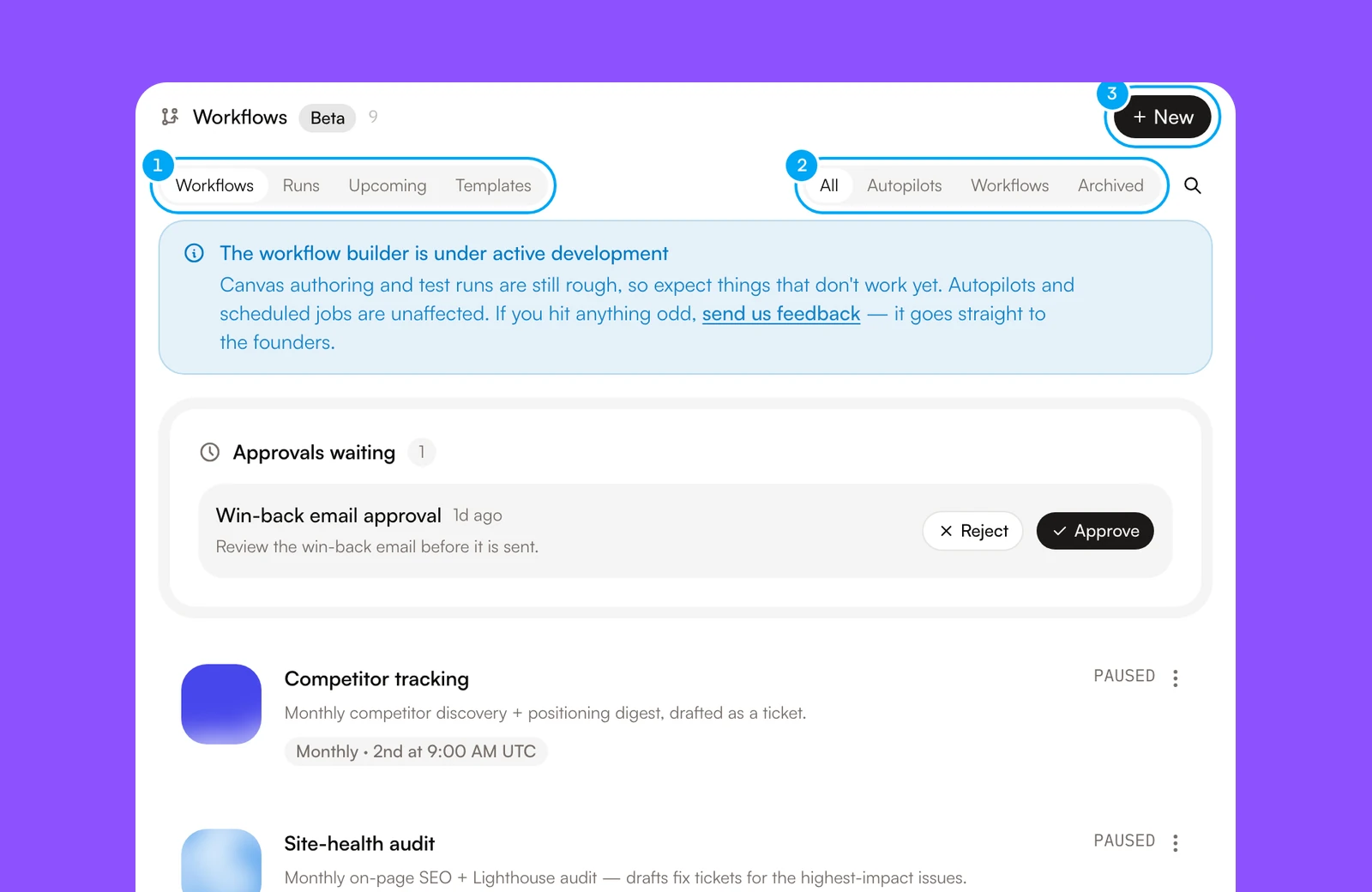
- The page tabs: Workflows, Runs, Upcoming, and Templates.
- The kind filter: All, Autopilots, Workflows, and Archived.
- New opens the New automation dialog.
Workflows
Use a workflow when a process has several known steps. On the canvas you can:
- receive validated input in the Start block;
- run Agent and Tool steps, and add Send steps to deliver a result;
- pass data from one step to the next with Insert data;
- branch on a Condition;
- pause for review at an Approval block;
- record each run and step outcome in run history.
The builder has three modes. Build edits the canvas, Test tries steps and sample runs, and Run starts a real run. Run stays disabled until the workflow is runnable.
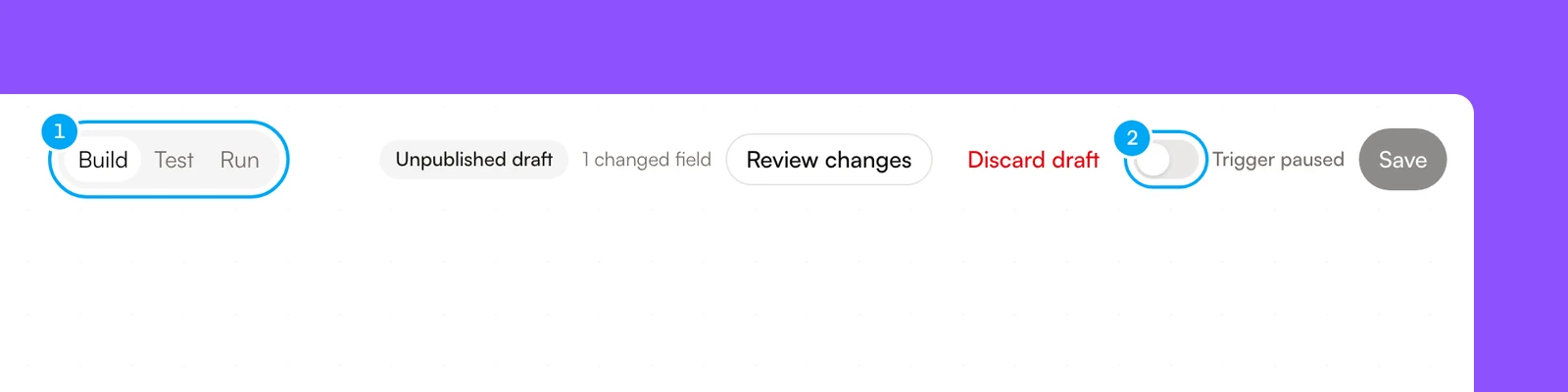
- The mode tabs: Build, Test, and Run.
- The trigger switch. It reads Trigger paused while the trigger is off, and it turns the trigger live when you switch it on. Save sits to its right, and the draft bar with Review changes sits between the tabs and the switch.
Start by running a workflow manually. Set a schedule, event, or webhook trigger only after the inputs, outputs, and review points are correct.
Draft, publish, and go live
Editing a published workflow creates an Unpublished draft. Live runs keep using the published version until you click Review changes and publish the draft. Publishing uses Publish, keep paused, and a live workflow must be paused first. Publishing updates future runs and leaves the workflow paused.
Going live is a separate action. The Trigger live toggle in the builder header turns the schedule, event, or webhook trigger on. It reads Trigger paused when the trigger is off. When a workflow contains writes that run without a person, setting the trigger live opens the Allow these writes? dialog. See Approvals for what it covers.
Autopilots
Use an Autopilot for a recurring task that one agent can do from written instructions. An Autopilot is a form, not a canvas. You fill in:
- Name;
- What should happen?, the task, the sources to use, the expected result, and when the agent must ask for review (optional);
- Who does the work?, one agent;
- What should it produce?, either Save the run output or Create tickets;
- When should it run?, a trigger such as On a schedule.
You can also start from a recipe: a prepared task that fills in the instructions, schedule, and output choice. A recipe never connects accounts or starts runs.
A new Autopilot starts paused. On its page, the Active and Paused switch turns its trigger on and off, Run now starts one run, and Edit opens the form. Changes to a live Autopilot save as a draft that you review and publish. AI Agent also pauses an Autopilot whose automatic runs keep failing. Follow Configure an Autopilot for the full procedure.
An Autopilot has no Approval block. It runs one agent, and each action that agent proposes on a connected app waits for your approval, as described in Approvals.
Which should you choose?
Both write to the same run history, so you can inspect what happened and respond to a waiting approval from the run detail. Open Workflows, then the Runs tab.