Onboarding creates the workspace and the personal agent you will use across AI Agent. You can complete it with a website or with a short description of what you are building. Three screens carry a Step N of 3 label: the website, workspace, and agent screens. The screens after them hold the optional setup and the plan.
Add your business context
- On Where should we start?, enter your address in Website URL.
- Click Continue.
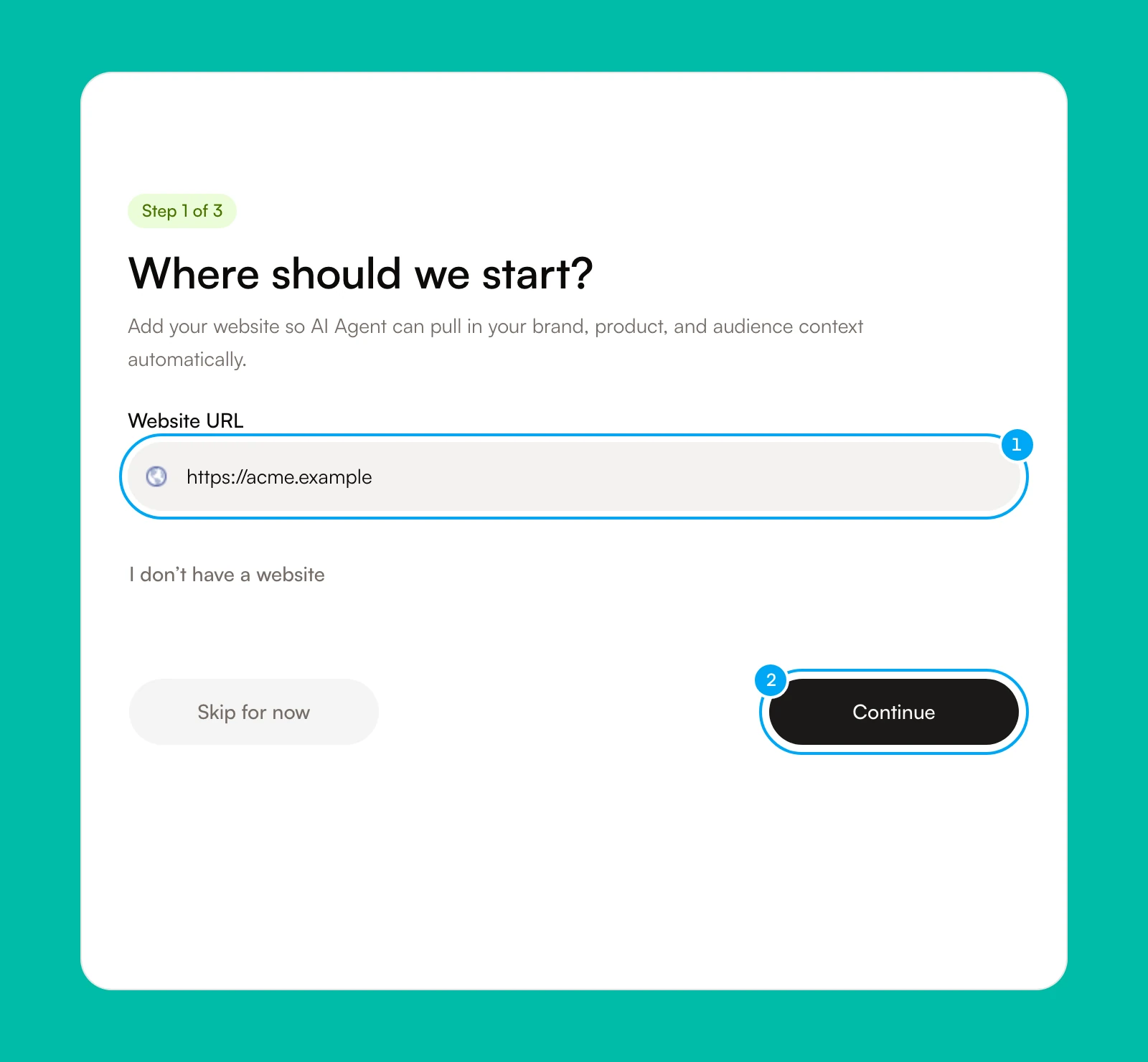
If you have no website, click I don’t have a website instead. The field changes to What are you building?. Describe the product, audience, pricing, or idea in a few lines, then click Continue. Click Use a website instead to switch back.
When the website check is available, the screen shows Agent check included. Scan results are public. The next screen, Before we start, shows the line Most teams run their AI in four different places. Click Continue.
Skip for now asks you to confirm. If you choose Skip to plans, you go straight to the plan screen and your agents start without business context.
Set up the workspace
- On Set up your workspace., enter a name in Workspace name.
- In Ticket prefix, enter the prefix for your ticket keys. Preview shows a ticket card with the prefix.
- Under How did you hear about us?, choose the closest source.
- Under Which best describes you?, choose one answer.
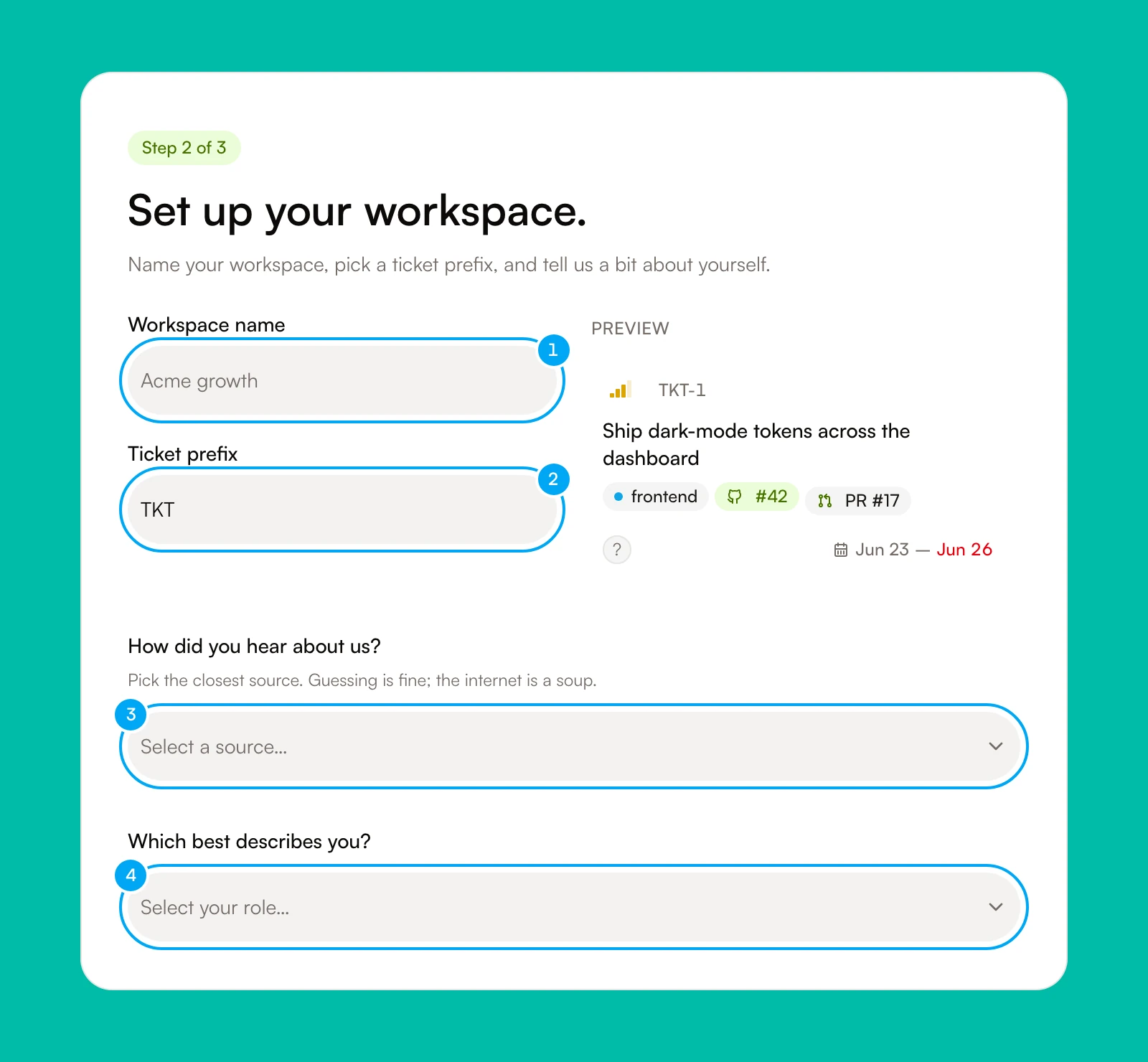
- Under What do you want to use AI Agent for?, choose one or more answers.
- Click Create project.
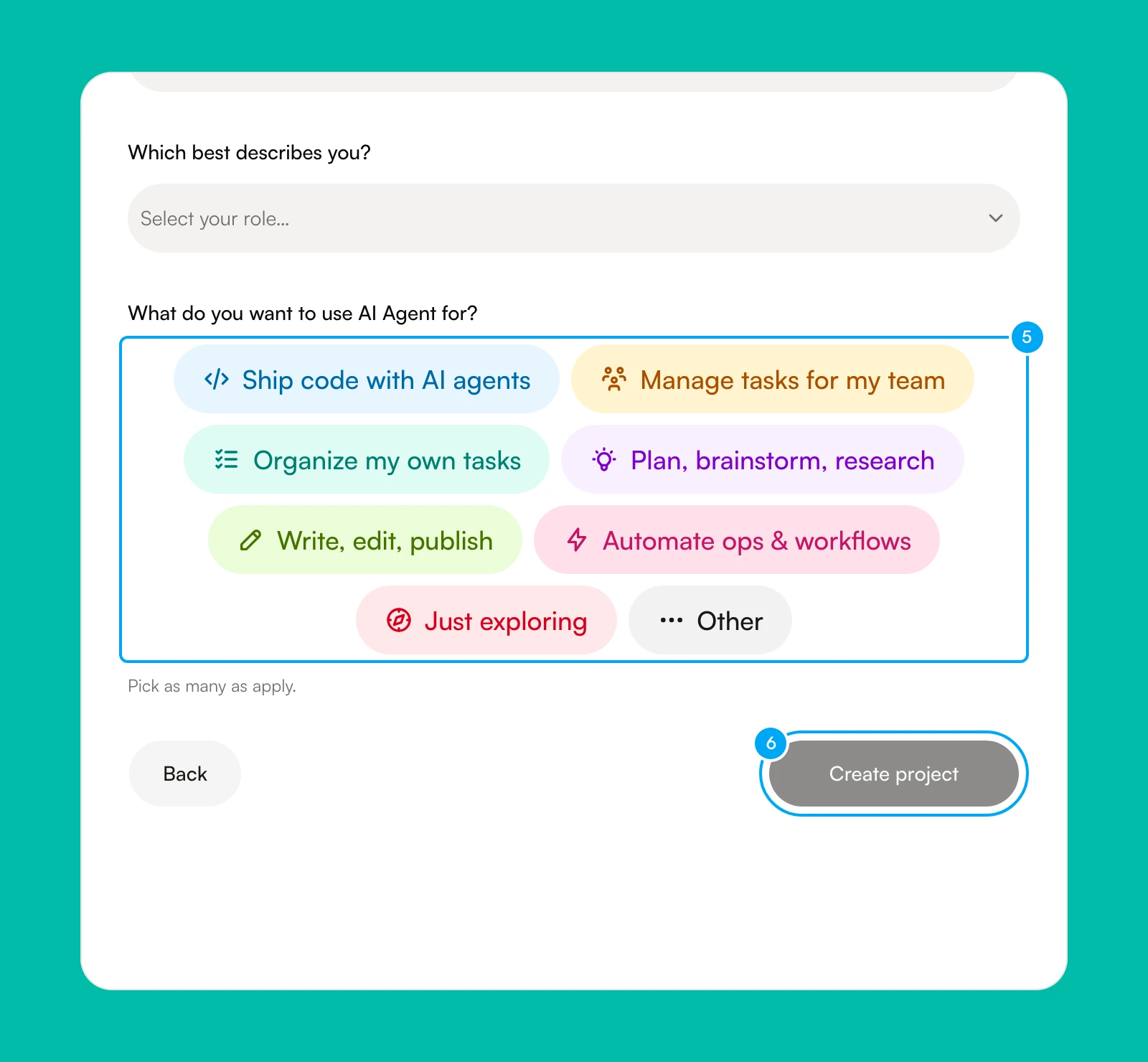
Create project creates your workspace. Every field on this screen is required. The answers shape the first experience; they do not lock the workspace to one use case.
Build your personal agent
- On Build your personal agent., enter a name in Name.
- Under Tone, choose a preset, or describe how the agent should talk.
- Under Avatar, choose a look.
- Click Continue.
You can refine the agent’s instructions and capabilities later from Agents.
Choose specialists
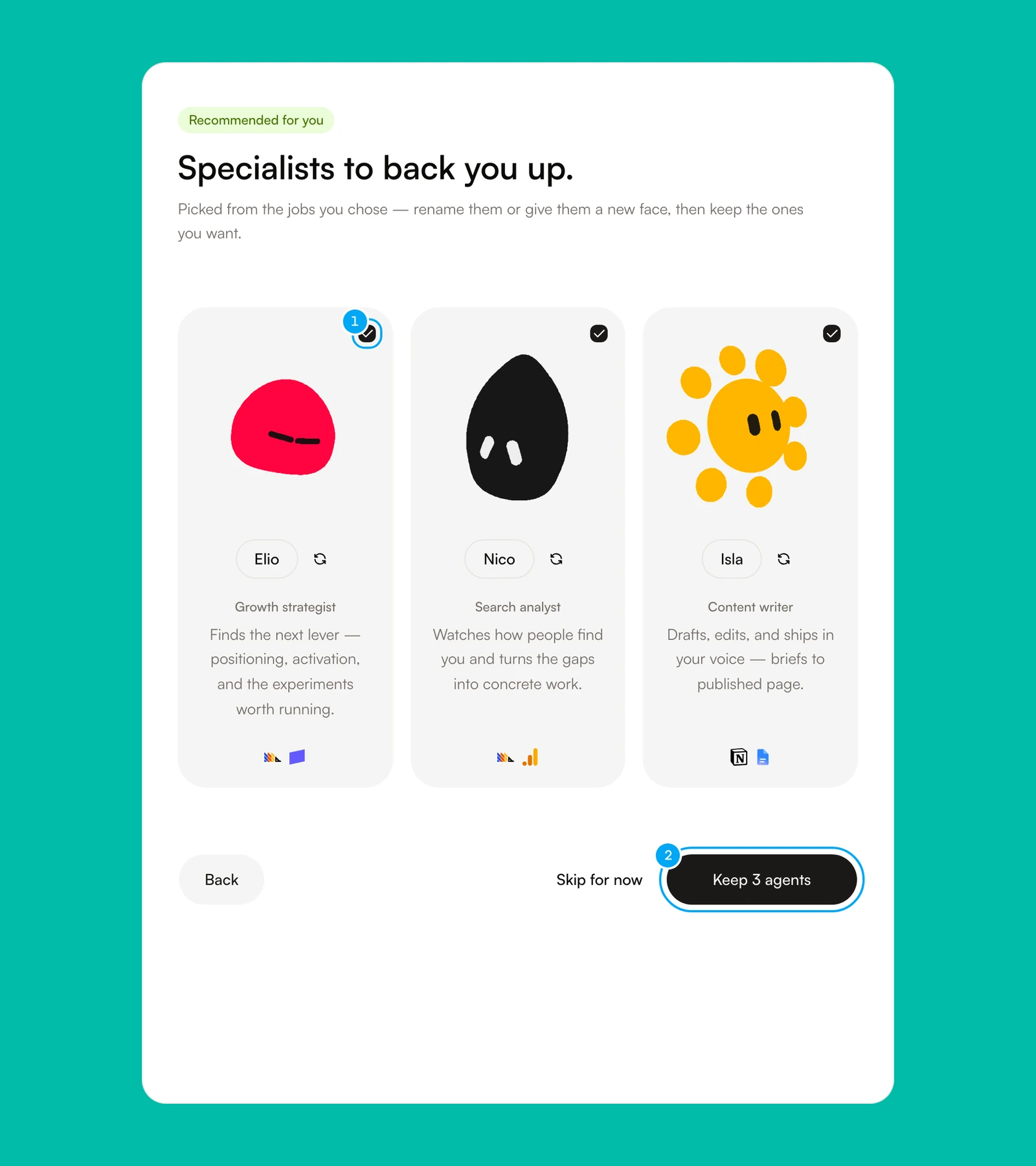
The next screen, Specialists to help your agent, recommends agents that do the deeper work behind it. They come from the jobs you chose. You can rename a specialist or change its look.
- Clear the box next to any specialist you do not want.
- Click Keep N agents (the button shows the number you kept), or click Skip for now to create none.
Connect tools
Connect tools for your team. is marked Optional setup. It lists recommended connectors for the jobs you chose. Choose a connector, finish its authorization flow, or click Skip for now and connect later from the Connections tab on Agents. A connection gives the workspace access to an account. You still control which agents and tools may use it, as connection tool access explains.
Review the business profile
AI Agent builds a profile from the information you gave it. The next screen shows the profile in tabs, under your agent’s name followed by knows your business. Building takes about 15–30 seconds. Click Continue anyway if you do not want to wait. The profile keeps building in the background.
- Review the profile tabs and correct anything that is wrong.
- Click Find a first market insight to start a public competitor scan. This is optional.
- Click Continue, or click Create a task to open the Board.
Continue opens a summary screen, Everything you just set up. Click Continue again to reach the plan screen.
Choose a plan
- On Choose your plan, choose Monthly or Yearly.
- Click the button for the plan you want, for example Choose Pro, and complete checkout.
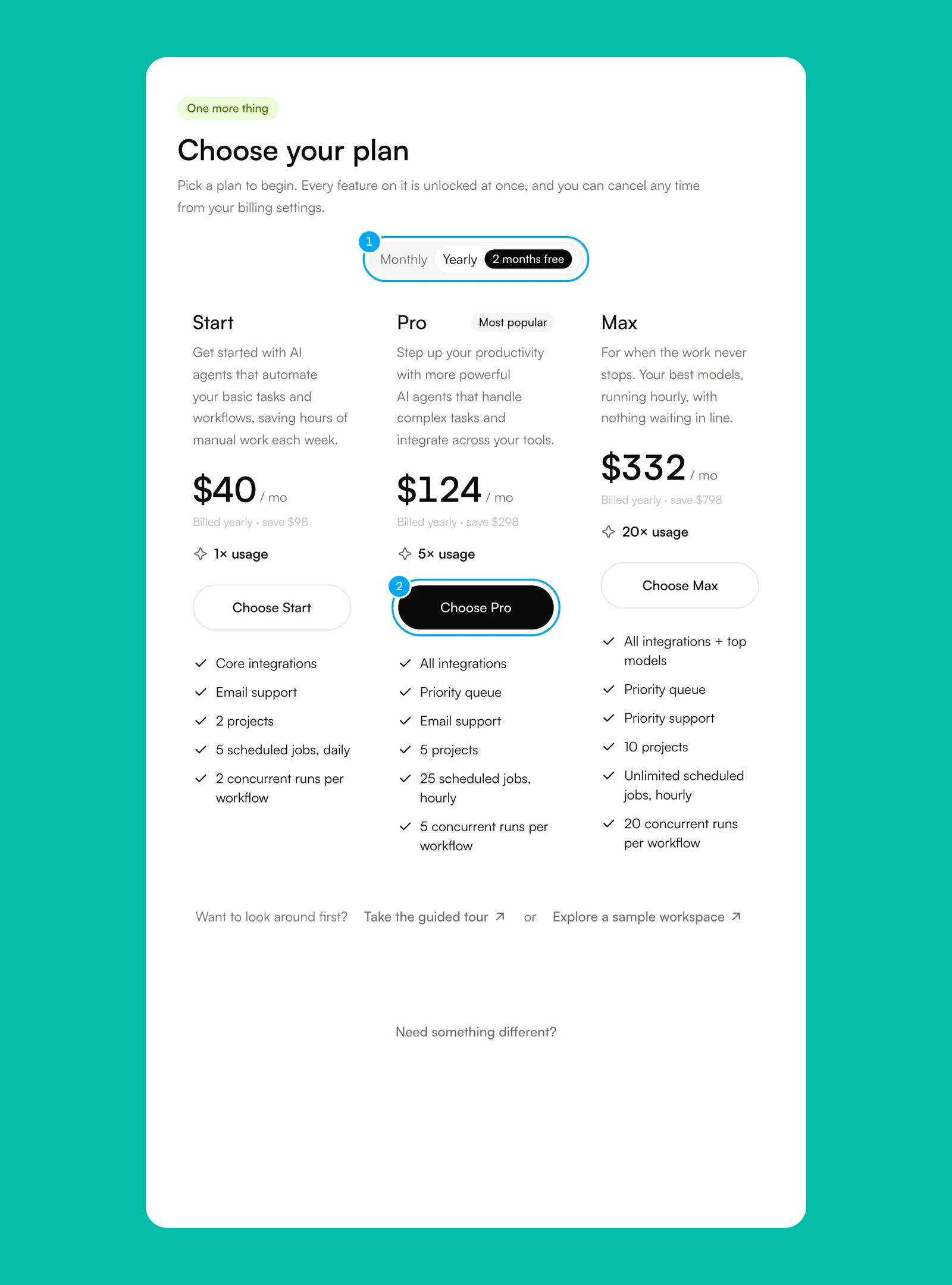
The plan screen has no decline button. It appears only when your workspace has no paid plan. You can compare plans, change them, or cancel later in Settings → Billing. Read plans, credits, and usage for what each plan includes.
After checkout, Where do you want to start? offers shortcuts that match the jobs you chose. Pick one, or click Skip for now.