The Inbox collects items that need your attention. It is a review queue, while the Board is the source of tracked work.
Where to find it
Open Inbox in the sidebar. The number next to Inbox counts the items you have not read.
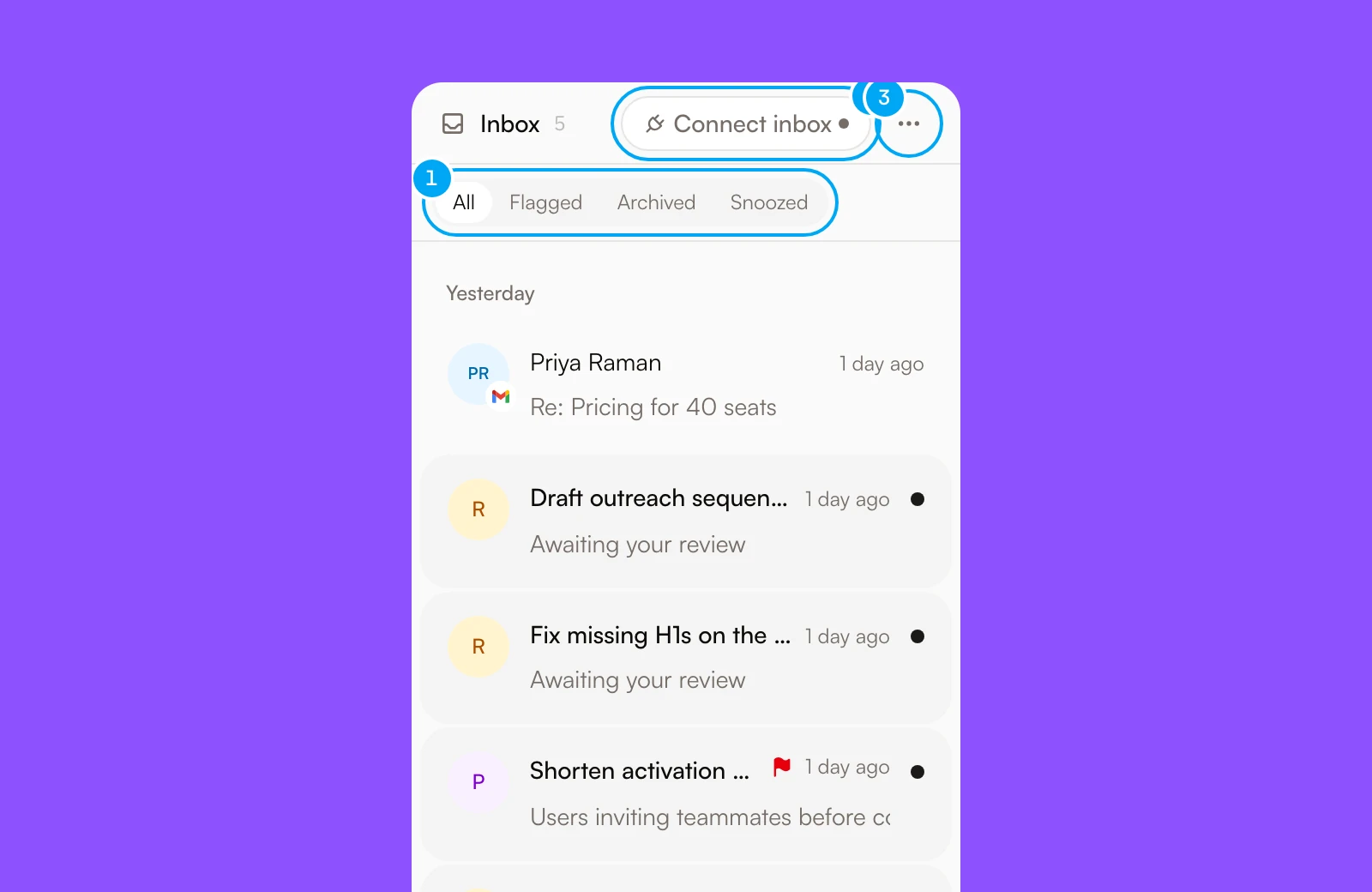
The top of the Inbox has three controls:
- All, Flagged, Archived, and Snoozed choose which items the list shows.
- Connect inbox opens Connect your inbox, where you connect a Gmail account. Once Gmail is connected, the button reads Gmail.
- Inbox options holds Unread only, Mark all read, and Notification settings.
Select an item to read it in the panel on the right. Opening an unread item marks it as read.
Inbox
Review messages, proposals, ticket reviews, and errors before deciding what happens next.
What appears in the Inbox
In the list, a letter or a channel icon marks what kind of item it is:
- Review — a ticket in To do or In review that waits for your decision;
- Ticket error — a run on a ticket failed;
- Message — an inbound message from a connected Gmail account or a Telegram conversation;
- Proposal — a change an agent proposes. The panel shows what kind of proposal it is, its status, and its details. You apply a proposal from its card in chat, not from the Inbox.
Approvals for an agent’s external actions do not appear here. They show in the ticket or chat they belong to, and a workflow that waits at an Approval block shows under Workflows in Approvals waiting. An email reply draft shows inside the message it answers.
Organize the queue
Use the tabs at the top of the list to view:
- All current items;
- Flagged items you marked for follow-up;
- Archived items removed from the active queue;
- Snoozed items hidden until later.
Right-click an item to open its menu. An unread item offers Mark as read, and a read item offers Mark as unread. For a Message or a Proposal, the menu also has Archive, Snooze until tomorrow, and Flag important. A Message also offers Create team-visible ticket. Review items and errors cannot be archived, snoozed, or flagged. A Review item stays while its ticket is in To do or In review.
In Inbox options, choose Unread only to hide items you have read, or Mark all read to clear the unread count.
Respond to messages
Gmail and customer Telegram conversations appear in the same Inbox. Open a message to read its thread.
For an email, the panel pins a reply area to the bottom. If a draft is waiting, it shows there with its approval controls. If not, Draft a reply with AI lets you add optional context and click AI draft. The AI writes a reply for your approval. A waiting draft shows Save edits, Reject, and Send reply. Hold Send reply until it completes. The reply then waits a few seconds, and you can click to undo it before it goes out.
A human Telegram reply can be sent from the conversation panel.
Turn attention into work
Open the message
Review the message and its original conversation context.
Decide whether it needs tracking
Keep lightweight communication in the Inbox. Create a ticket for work that needs ownership or a status.
Create the ticket
- In the side panel beside the message, click Create ticket.

Create ticket makes a ticket in To do, titled with the message subject, and opens it on the Board. The side panel notes that creating a ticket makes the message visible to the whole team. A message that already has a ticket shows Open ticket instead.
This explicit handoff prevents every message from becoming a hidden or duplicate task.