Create a focused agent before assigning it recurring work. A narrow role is easier to test and makes its tool access easier to review.
Create the agent
- In Agents, click New agent.

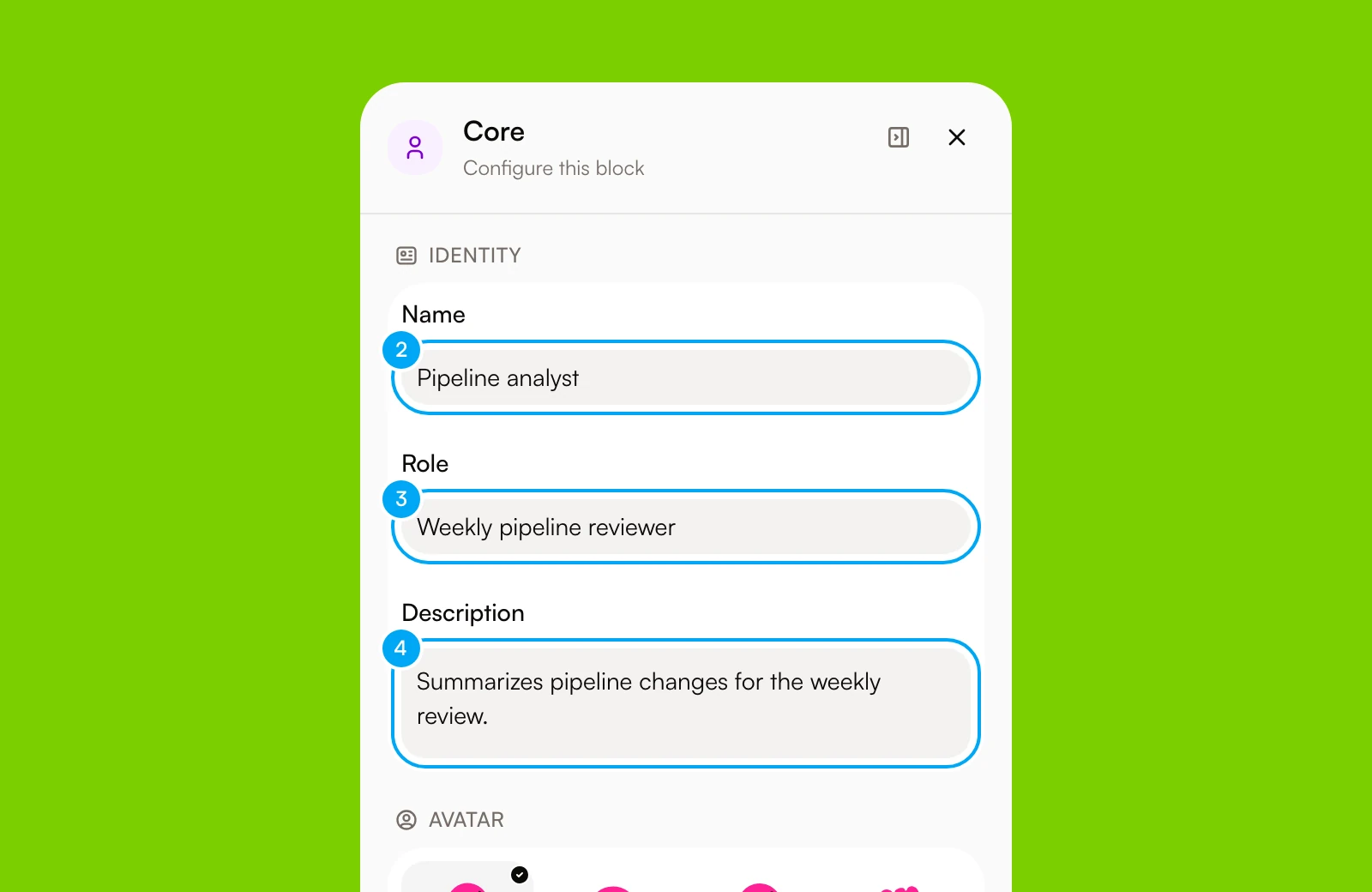
The agent builder opens with a Core block selected. The panel on the right holds the agent’s settings.
- In Name, enter a recognizable name for the agent.
- In Role, enter the responsibility it owns.
- In Description, add optional context for teammates.
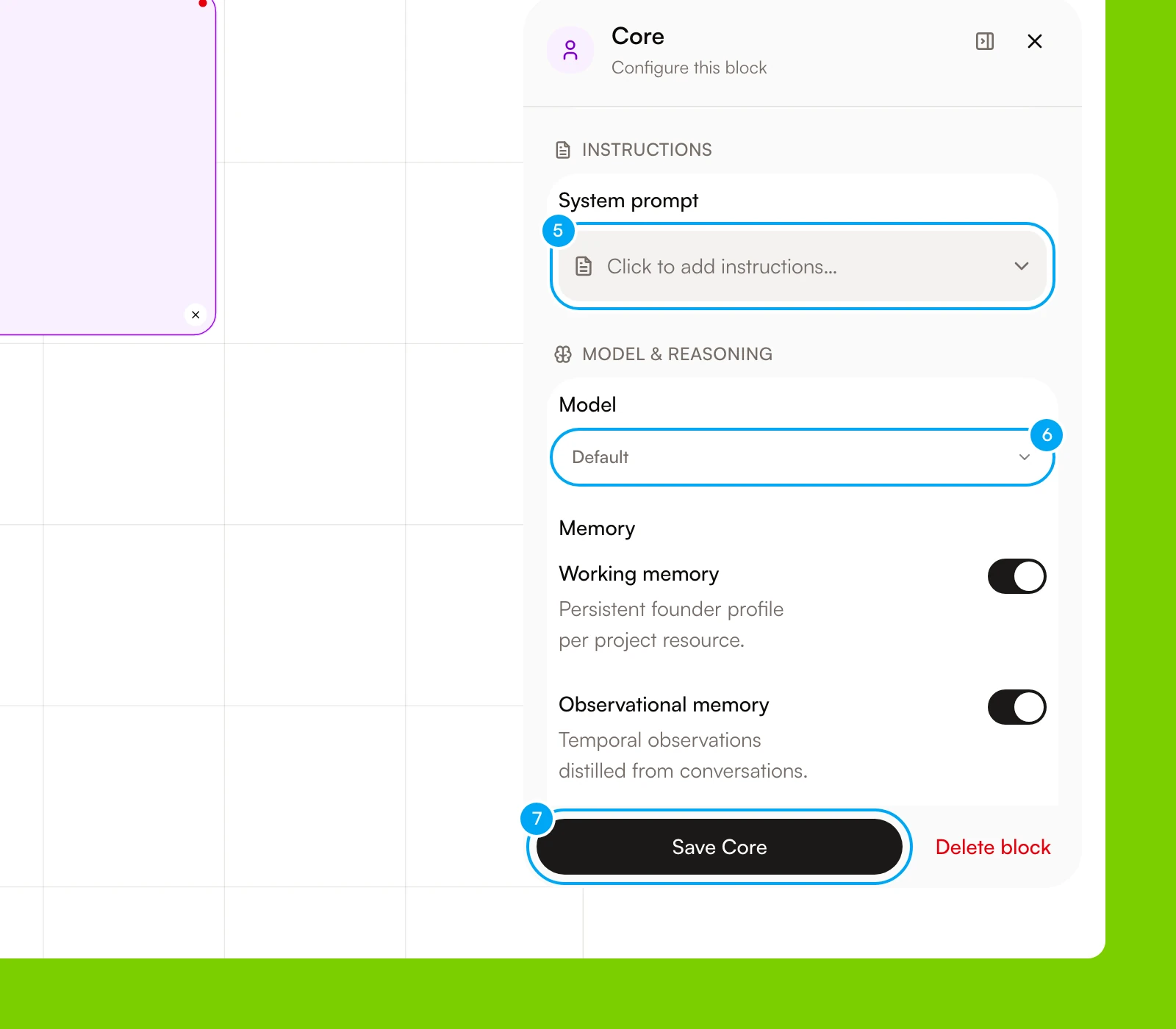
- In System prompt, click Click to add instructions…, then describe the result, boundaries, and working style you expect.
- In Model, choose the model the agent should use.
- Click Save Core.
- At the top right, click Save.
Name and role are required. You can change every other setting later. After you click Save, the agent’s page opens. To add docs or a connection before you save, drag a Docs, Skill, Connection, or Toolkit block from Blocks onto the canvas.
Add docs and connections
- On the agent’s page, stay on the Overview tab.
- In Docs, click Attach, select the docs the agent needs, then click Stage.
- In Connections, click Attach, select one account for each provider, then click Stage.
- Click All tools next to an account. Under Reads, Actions, and Destructive, clear every tool the agent does not need.
- In the Unsaved changes bar, click Save.
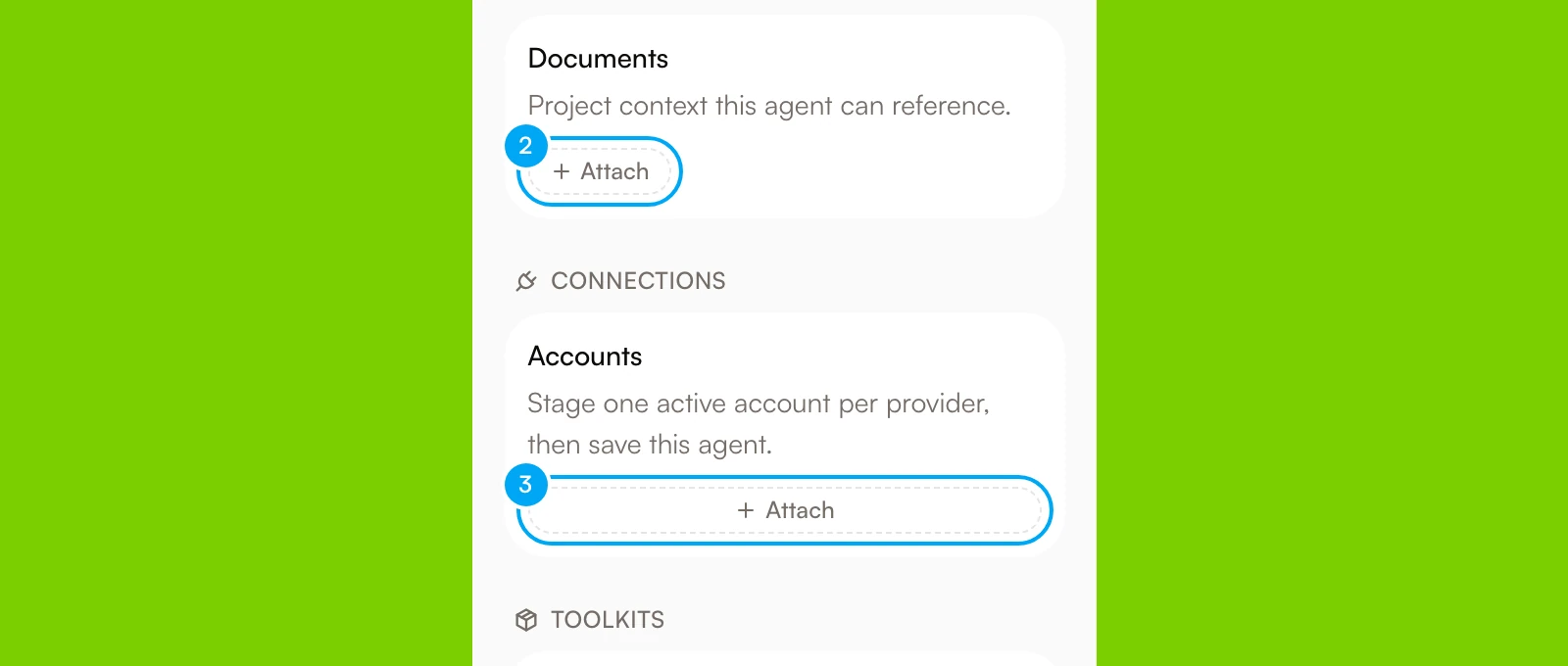
Attach only the docs and connection accounts the role requires. All tools is the default: the agent can use every tool the connection allows. The connection sets the ceiling. Destructive tools stay off until the connection allows them, and the tick boxes under All tools can only narrow what the connection allows.
Test a representative request
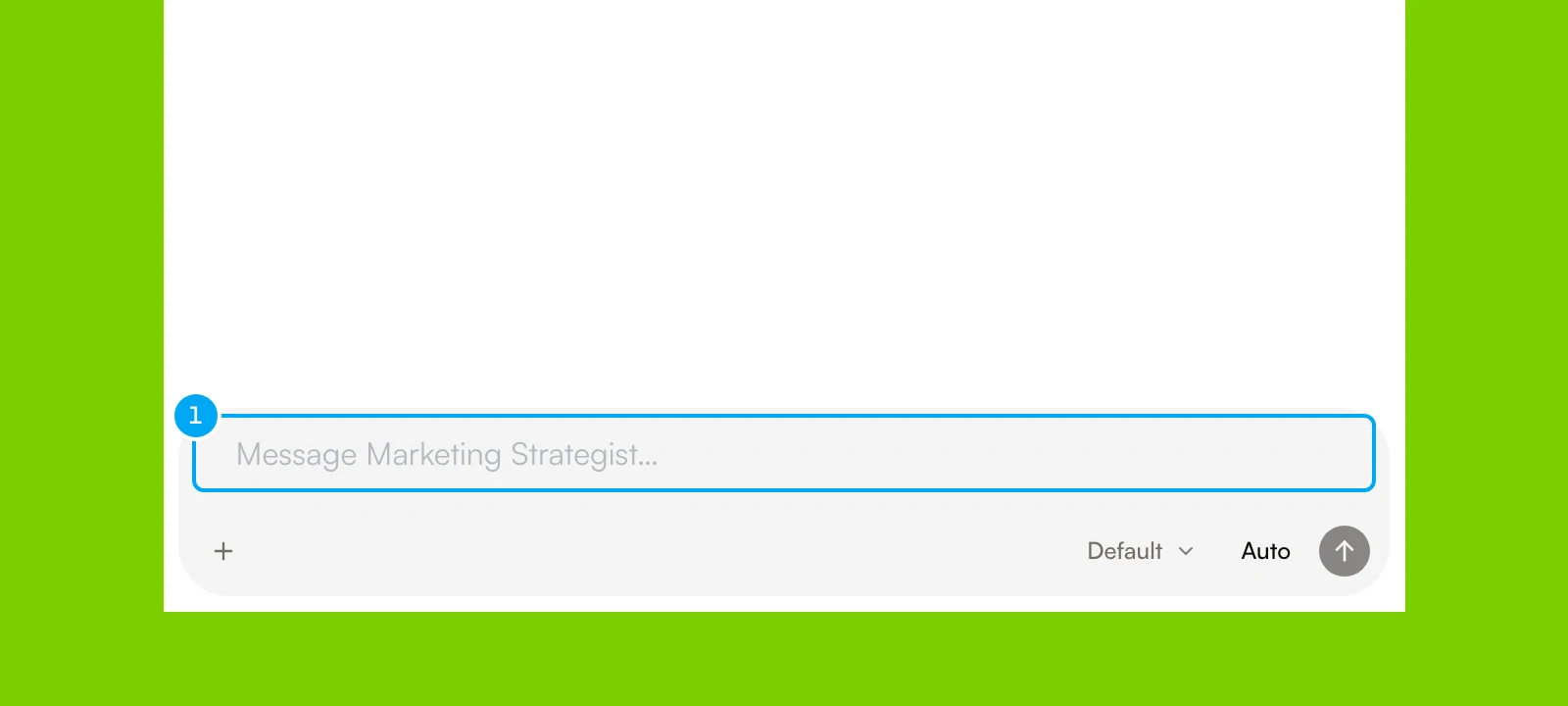
- In the message box at the bottom of the chat pane, send a small request that reflects the agent’s real job.
Check that the agent:
- follows the intended scope;
- uses the expected docs;
- selects the correct connected account;
- proposes external changes for review instead of silently applying them;
- produces a result in the format your workflow needs.
The Memory, Tasks, Traces, Evals, and Activity tabs beside Overview show the agent’s memory, tasks, run traces, evaluations, and activity. Refine the instructions or access, click Save, then repeat the test until the behavior is consistent.
Put the agent to work
Use the agent directly for one-off work, assign it to a ticket, or select it in a workflow or Autopilot. Keep the role focused even when the surrounding workflow becomes more complex.
Manage agents
The Agents list has an Active view, an Archived view, and a search box. Rows sort by the number of runs in the last 30 days, then by newest. Built-in agents come first and carry a system badge. An agent is either Personal or Shared. Change this in Visibility on the Overview tab.
Click Agent actions on a row to Duplicate the agent or archive it. Archive an agent when you may need it again: it can no longer be assigned or mentioned, and its history stays. An archived agent appears under Archived, where you can Restore it or Delete permanently. Delete it only when its configuration is no longer needed.