A connection is one external account. Connecting it adds the account to the project. An agent you create cannot use it until you attach it to that agent. Built-in agents marked system, such as Assistant, can use every connection in the project.
Connect an account
- In Connections, click the provider’s card.
- Click Connect followed by the provider name, for example Connect Notion. For a provider that uses a key, click Use API key instead.
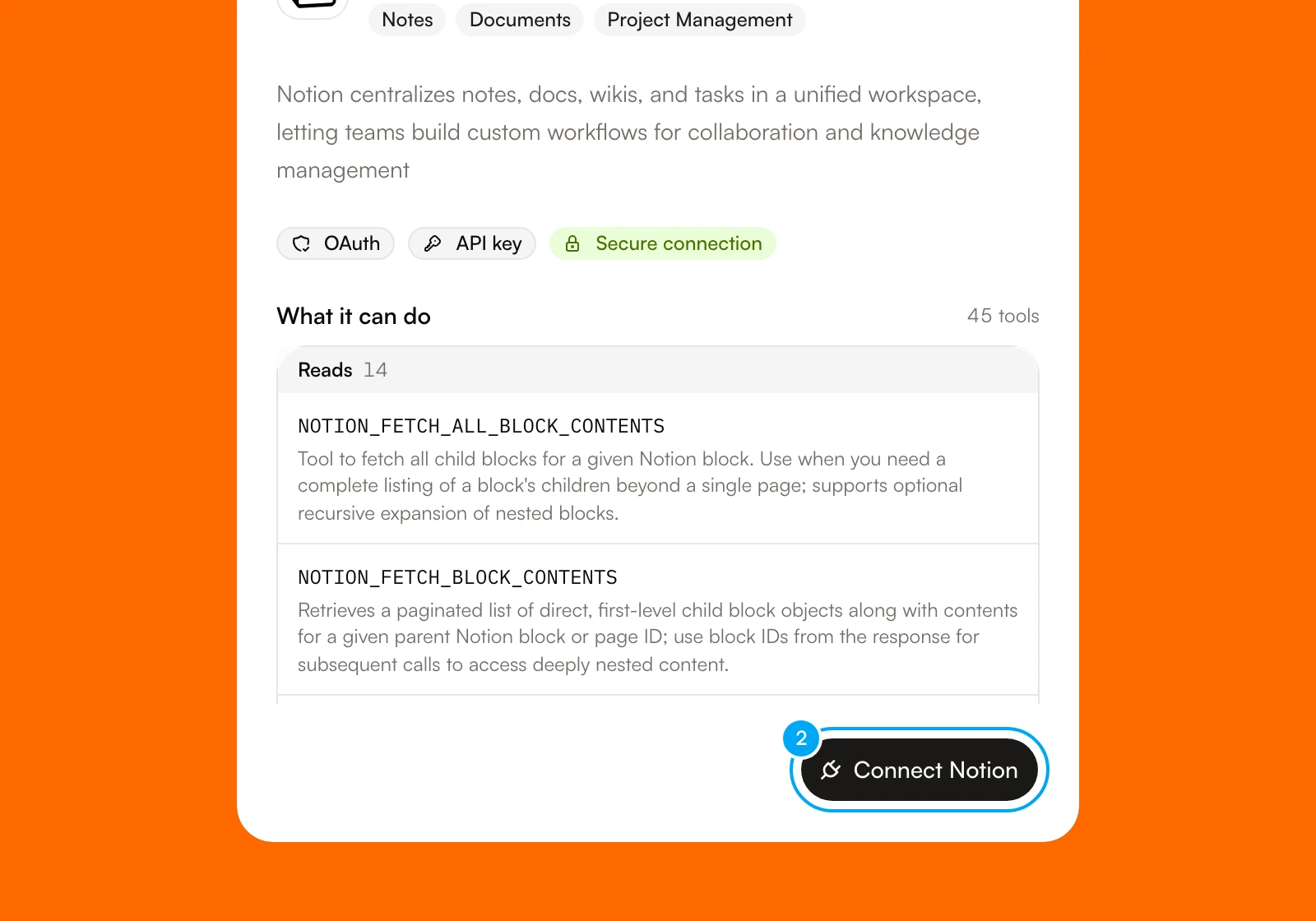
- Finish at the provider. For a sign-in provider, choose the account on the provider’s page and approve access. For a key, paste it in API key and click Connect.
When you return, the card is in the Connected section. Use a dedicated account with the least access that the job needs when the provider supports it. See Browse connection providers for how each provider connects.
Some sign-in providers can hold more than one account. In the dialog of a connected provider, click Connect another account. The dialog then shows how many accounts exist, and each agent picks one under its Connections settings.
Read the status
- In Connected, find the provider’s card.
- Read the badge in the top right corner of the card.
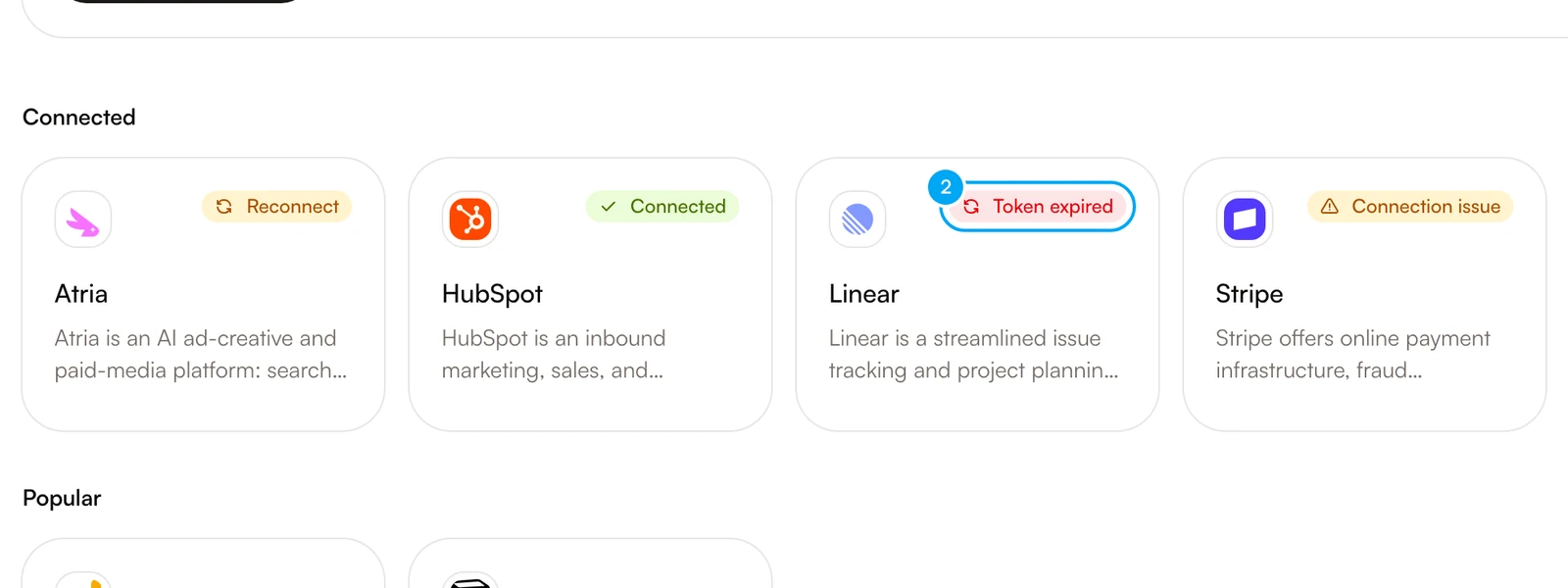
| Badge | Meaning | What to do |
|---|---|---|
| Connected | The account works. | Nothing. |
| Token expired | The saved sign-in no longer works. | Click the card, then click Reconnect. |
| Reconnect | The provider rejected the saved credential when AI Agent last used it. | Click the card, then click Reconnect. |
| Connection issue | AI Agent could not load the provider’s tools, but the provider did not reject the credential. The cause can be a provider outage, a missing permission, or a billing issue at the provider. Reconnecting may not help. | Click the card, then click Test. Check the provider’s own status and permissions. |
| Needs attention | The provider reports an error for this account. | Click the card, then click Reconnect. |
| Coming soon | AI Agent does not support this provider yet. | Nothing. |
Test an account
- Click the provider’s card.
- Click Test. A message says Working with the number of tools available, or explains what failed.
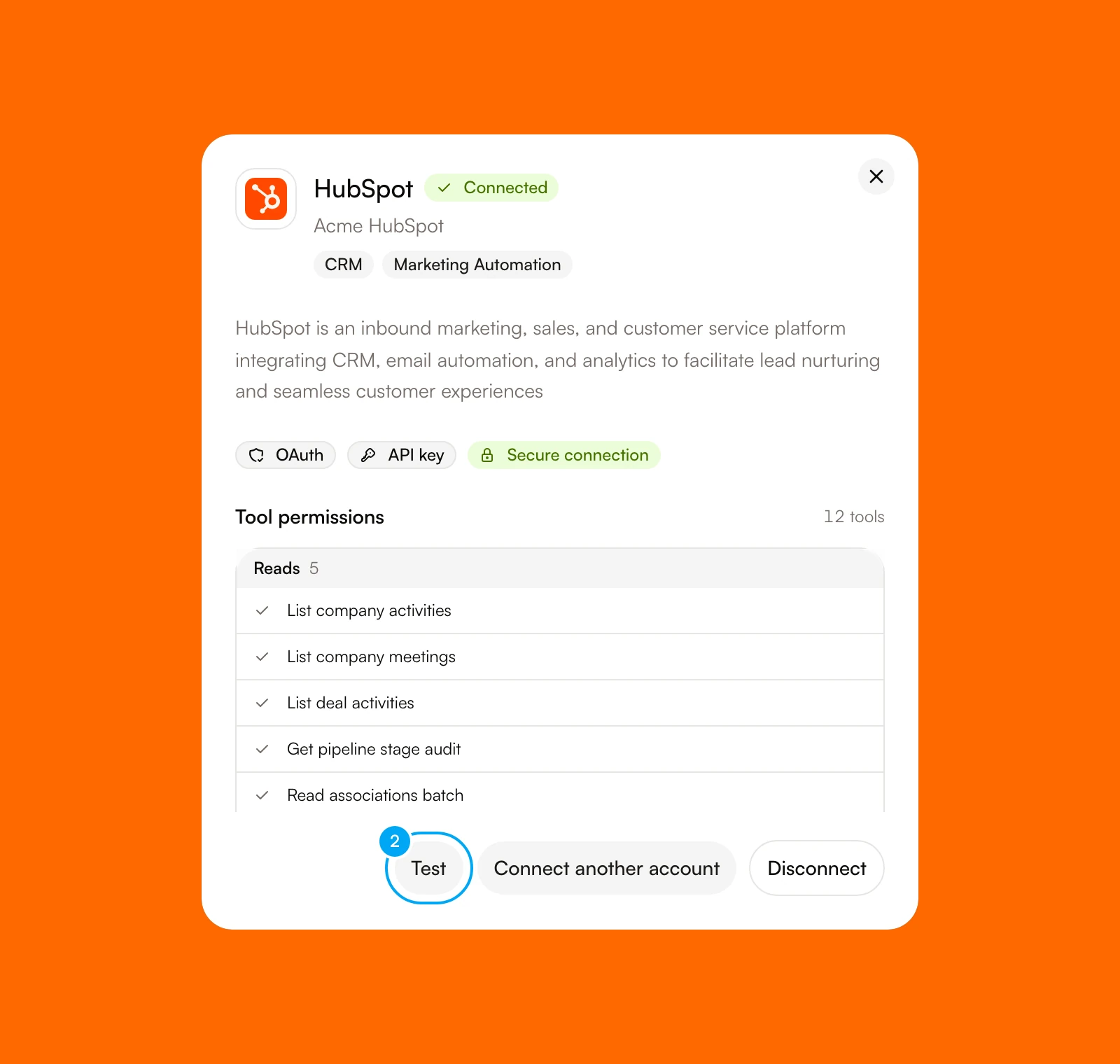
Test appears for an account that AI Agent can check. It does not change anything at the provider.
Disconnect an account
- Click the provider’s card.
- Click Disconnect.
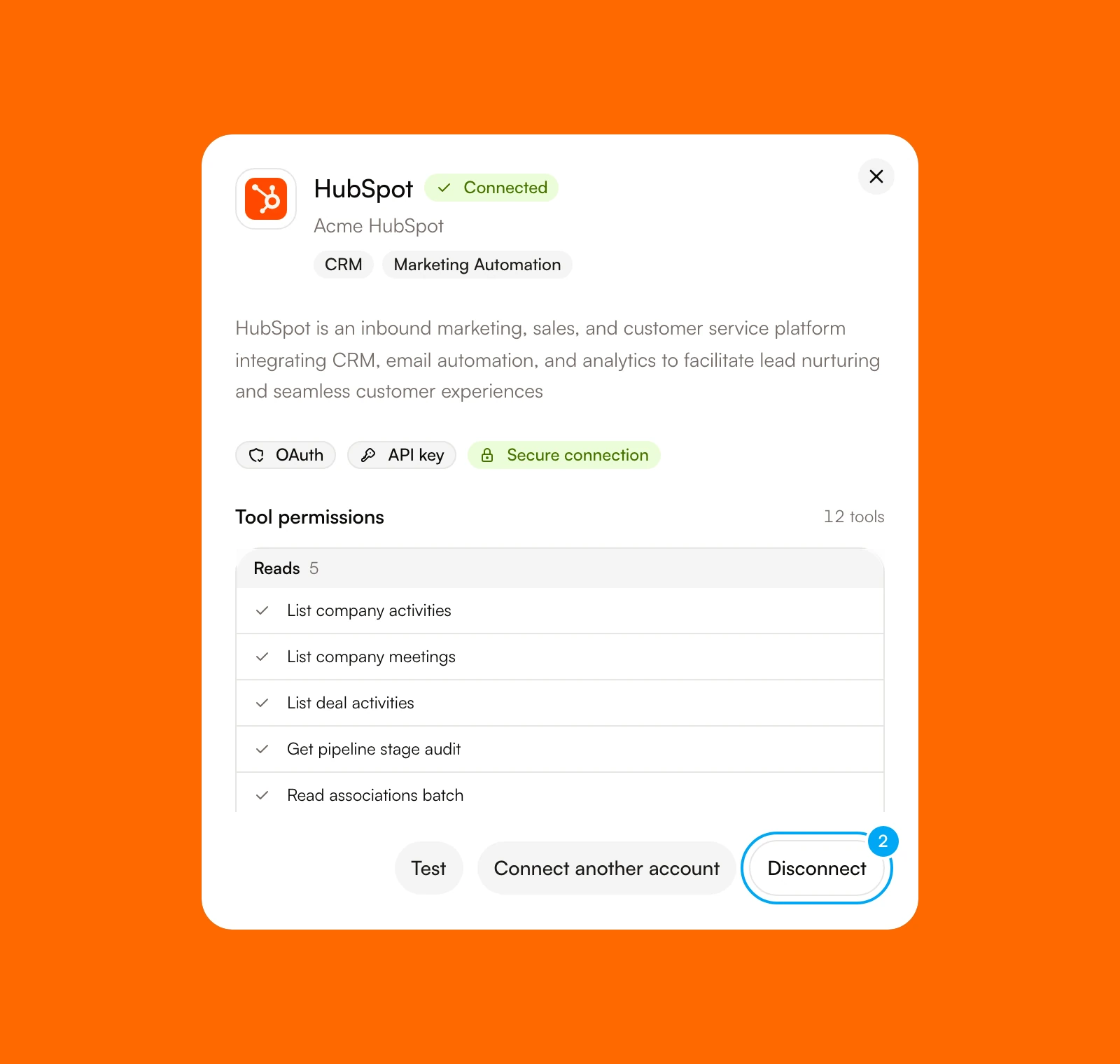
Most providers disconnect at once and show Disconnected. Agents and workflows that use that exact account lose access, so check them first. A connection that belongs to a teammate’s personal account shows Personal to a teammate instead of Disconnect.
GitHub asks for confirmation first.
- In Disconnect GitHub?, click Disconnect.
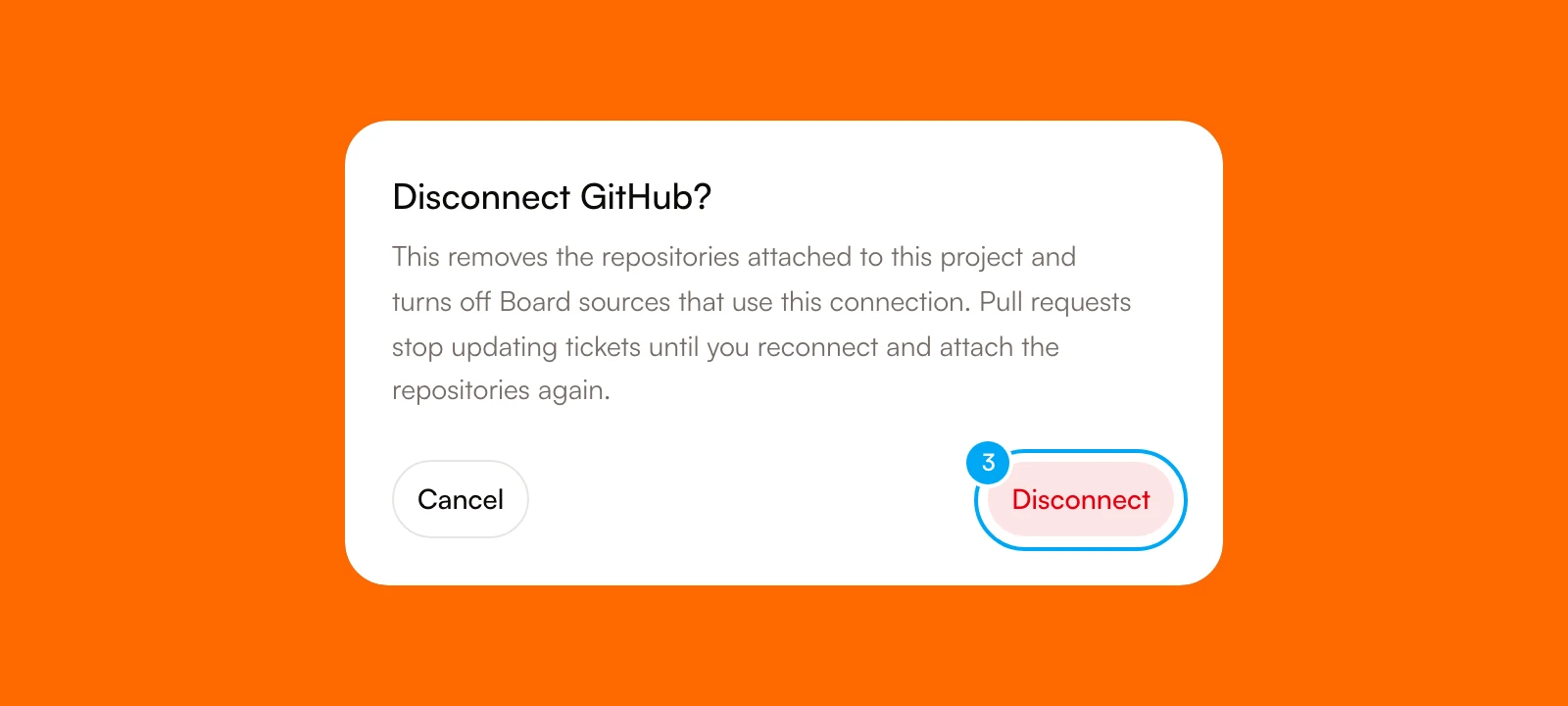
Disconnecting GitHub removes the repositories attached to the project and turns off the Board sources that use the connection. Pull requests stop updating tickets until you reconnect and attach the repositories again. AI Agent also tries to delete the webhooks it created on those repositories and to revoke its access in GitHub. The rules for pull requests and tickets are in Board and tickets.
For other providers, disconnecting in AI Agent stops its use in AI Agent only. To invalidate the grant at the provider as well, revoke AI Agent’s access in the provider’s settings.
When a member leaves
When a member is removed from the workspace, their personal connections are disabled. Shared connections that they created stay in place.
Next step
After you connect an account, attach it to the agents that need it and review the tools before you save. See Control connection tool access.