Connect Gmail to bring email into the Inbox. Matching threads arrive as Inbox items. AI Agent can also draft a reply for each one, and nothing sends until you review and send it.
Connect your Gmail account
- In the sidebar, click Inbox.
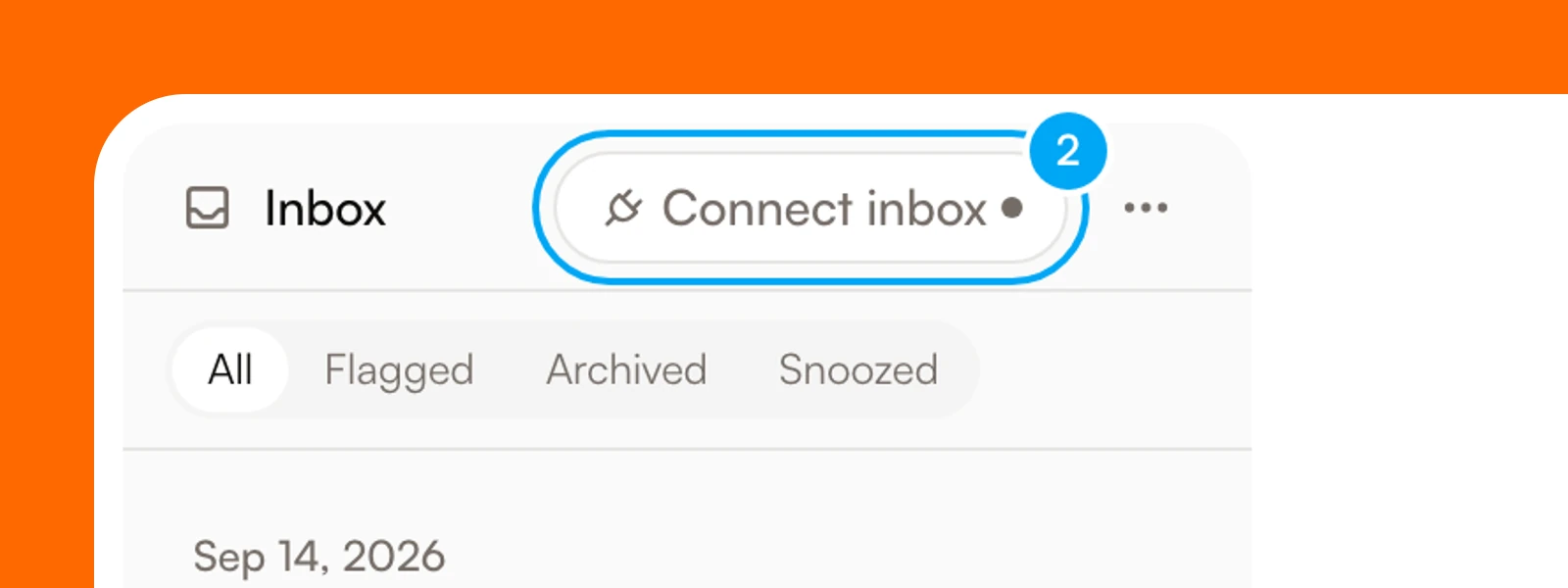
- Click Connect inbox.
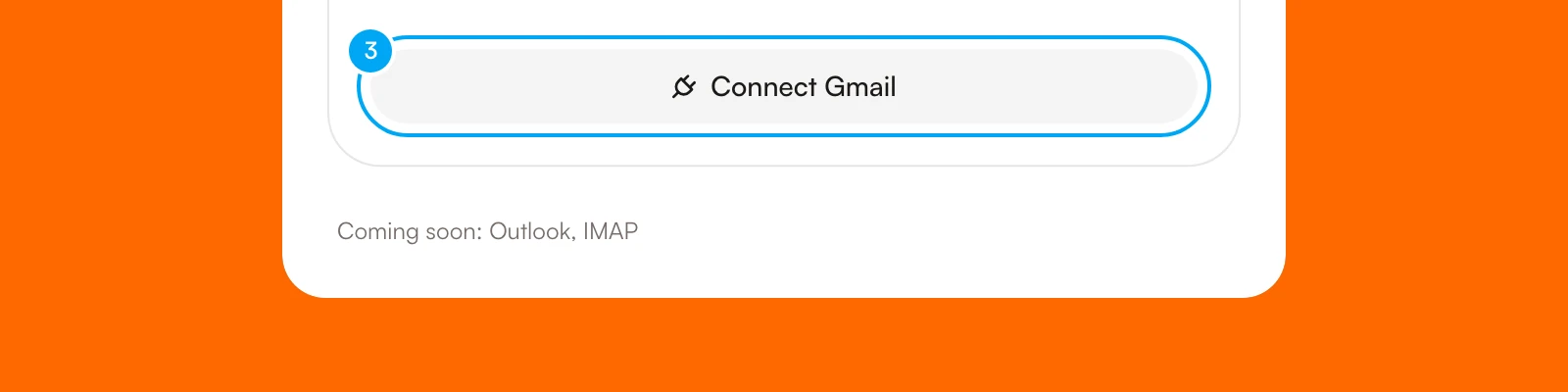
- In Connect your inbox, click Connect Gmail.
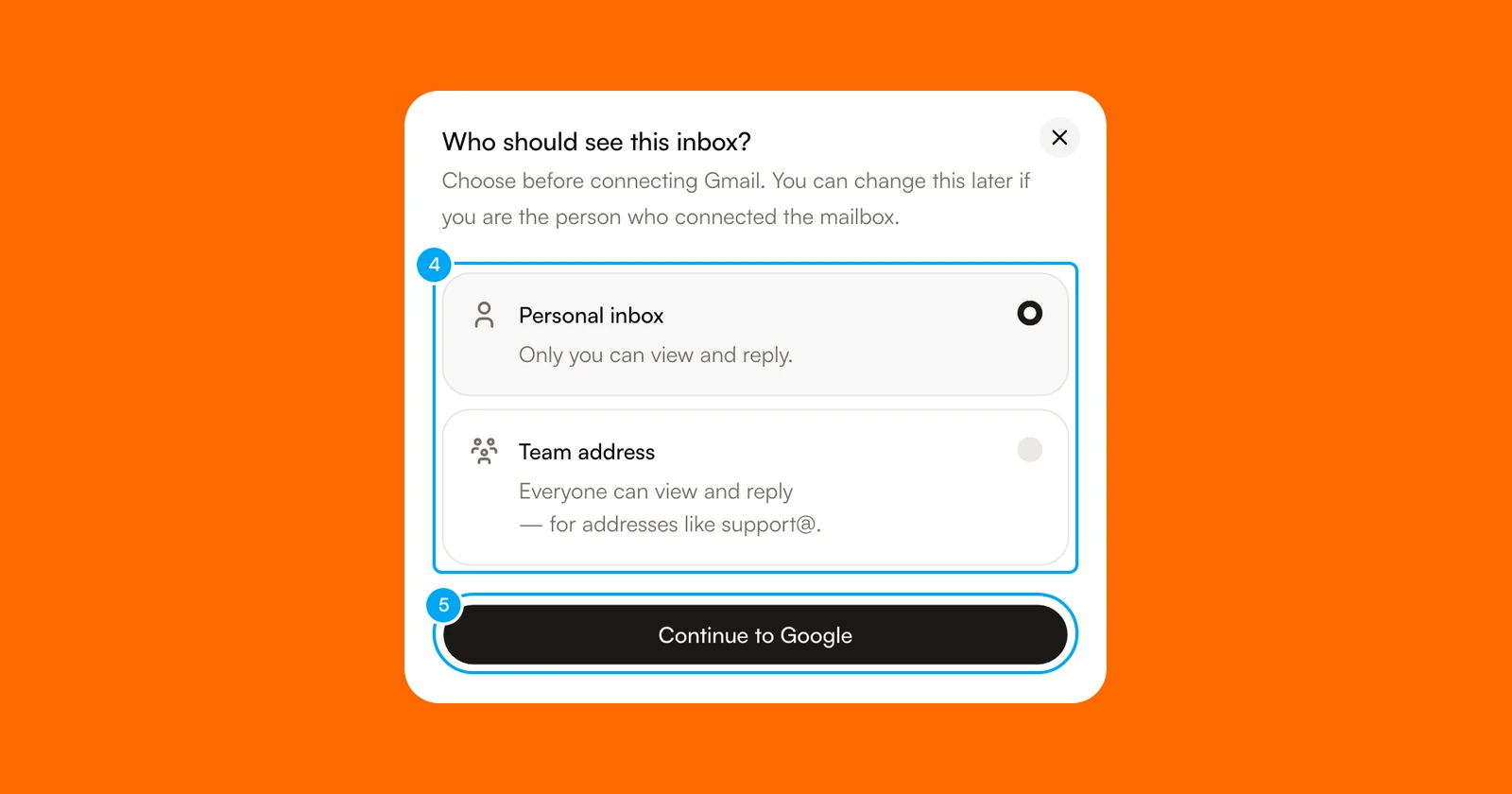
- In Who should see this inbox?, choose Personal inbox or Team address. A personal inbox is visible only to you, and only you can reply. A team address is visible to everyone, and everyone can reply. Use it for addresses such as support@.
- Click Continue to Google, choose the Google account, and approve access.
When you return, check that the card shows the Gmail address you meant to connect. Only the person who connected the inbox can change its visibility later.
Choose which email arrives
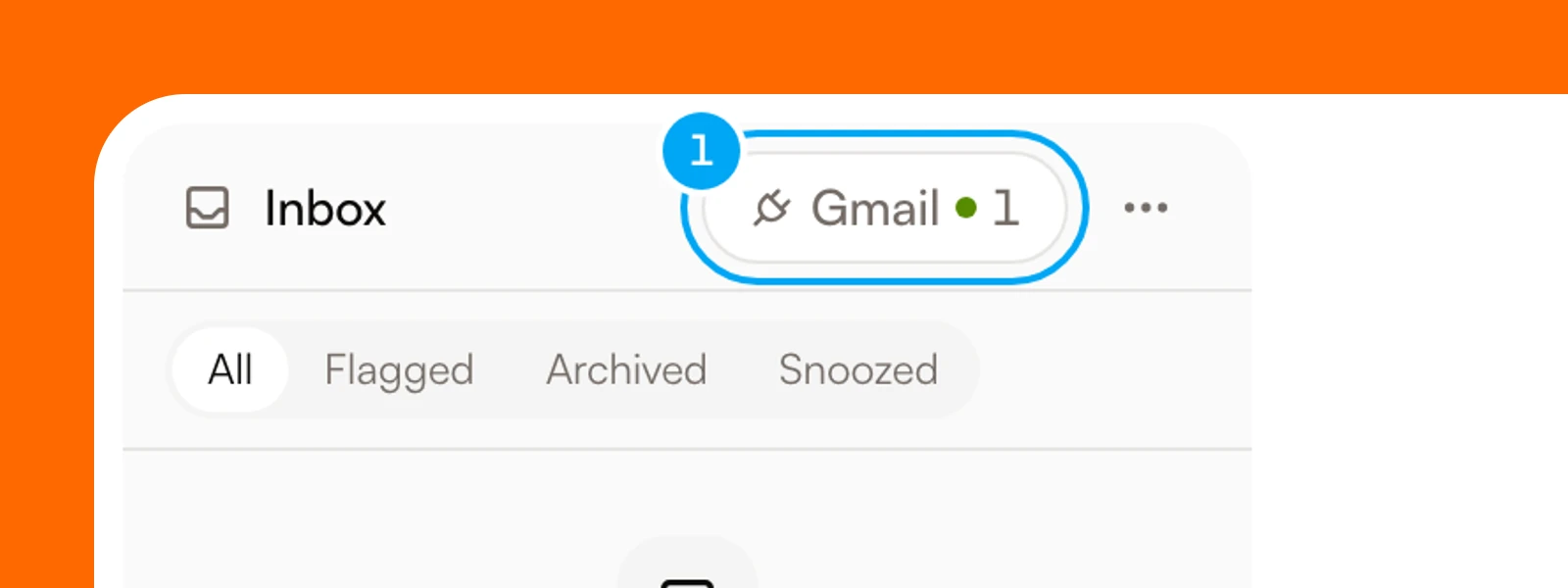
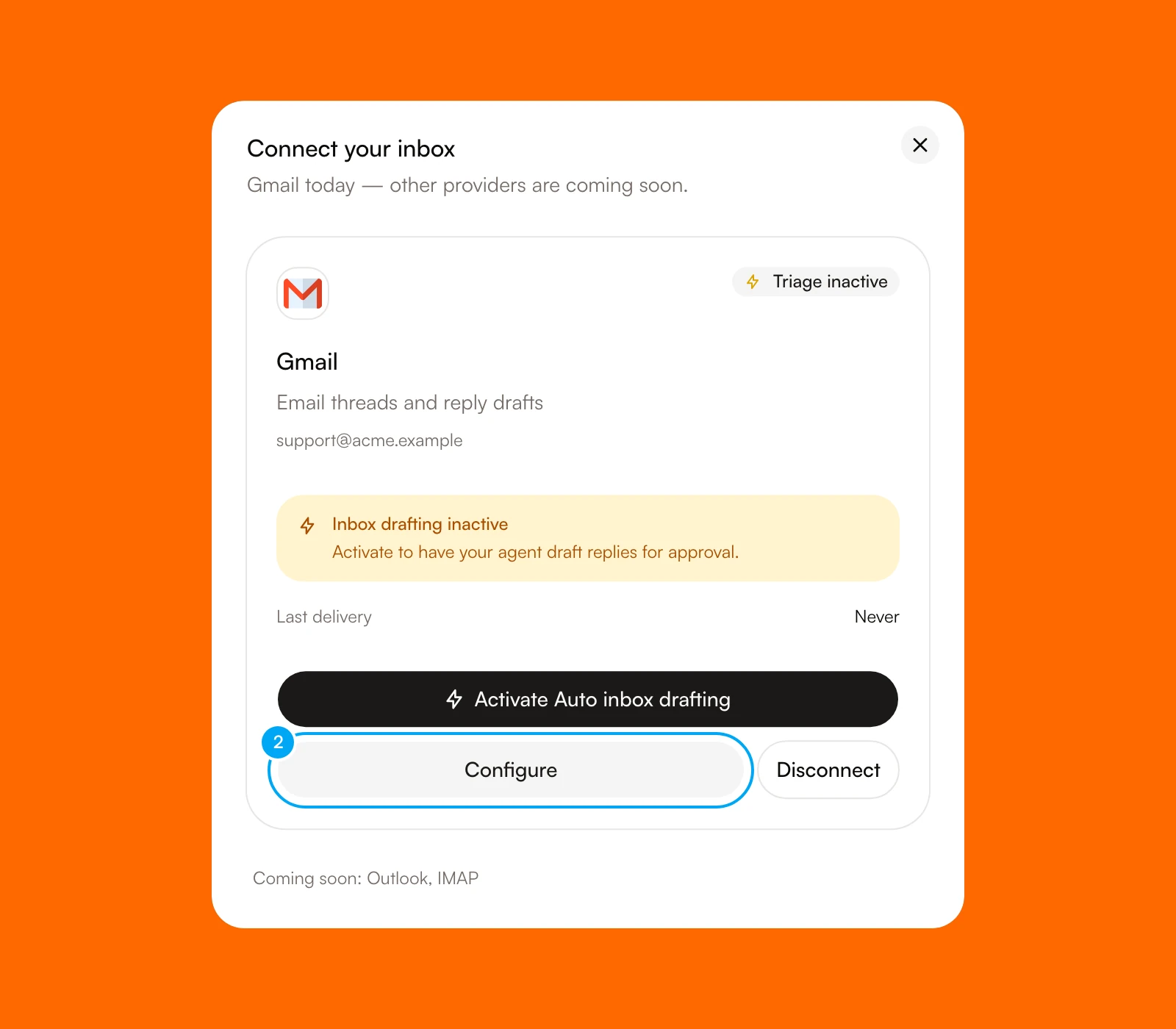
- At the top of the Inbox, click Gmail. The button reads Connect inbox until a Gmail account is connected.
- In the Gmail card, click Configure.
- In Filter, choose a preset or Custom Gmail search.
- In Check frequency, choose Every minute, Every 5 minutes, or Every 15 minutes.
- Click Save settings. The button stays disabled until you change a setting.
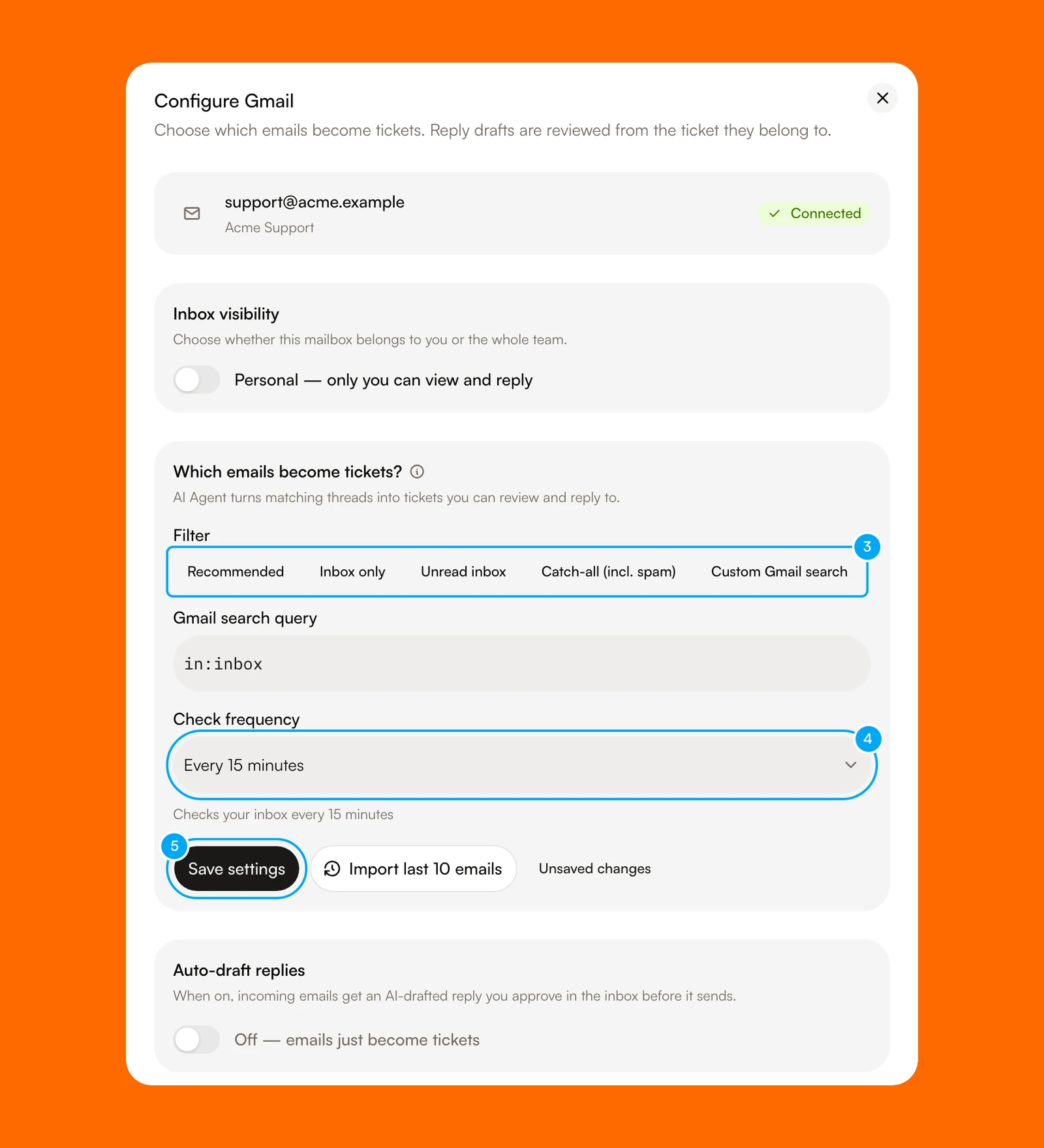
The presets cover this mail:
| Preset | Mail it includes |
|---|---|
| Recommended | Your everyday inbox. It skips Promotions, Social, Spam, and Trash. |
| Inbox only | Everything in your inbox, including Promotions and Social. |
| Unread inbox | Only unread inbox mail. It still skips Promotions, Social, and Spam. |
| Catch-all (incl. spam) | Every folder except Trash, including Spam. It is the noisiest choice. |
| Custom Gmail search | Mail that matches a query you write, in the syntax of Gmail’s own search box. |
To bring in recent mail at once, click Import last 10 emails.
The Configure Gmail dialog describes matching mail as tickets. Matching threads become Inbox items. They are not tickets. To make a ticket from an item, open the item and click Create ticket in the panel on the right. A ticket makes the message visible to the whole team. See Turn an Inbox message into work.
Choose whether to draft replies
In Configure Gmail, the Auto-draft replies switch controls drafting. It is off for a new connection in most cases. It starts on only when the Triage & draft emails suggestion on the Connections page is already on for the project, your plan allows inbound auto-reply, and, for a personal inbox, you turned that suggestion on yourself. The card also offers Activate Auto inbox drafting as a shortcut.
When the switch is on, choose When to draft:
- Always draft drafts a reply to every incoming email.
- Draft when relevant drafts only when the agent judges that a reply is worth sending. The rest are triaged without a draft.
Auto-draft needs a plan that includes inbound auto-reply, which starts with the Start plan. See Plans, credits, and usage.
Review a draft before it sends
Check the draft
Sending changes your Gmail account, so check each part first: the connected Gmail account, every recipient including CC and BCC, the subject, the message, and the thread the reply belongs to.
- In the Inbox, click the item. The draft appears under the message as a card that shows the recipients, the subject, and the reply.
- To change the draft, edit the message. Click Edit subject or Add Cc/Bcc for the other fields. Then click Save edits. The button stays disabled until you change something.
- To discard the draft, click Reject. Reason for rejecting is optional.
- To send the reply, press and hold Send reply.
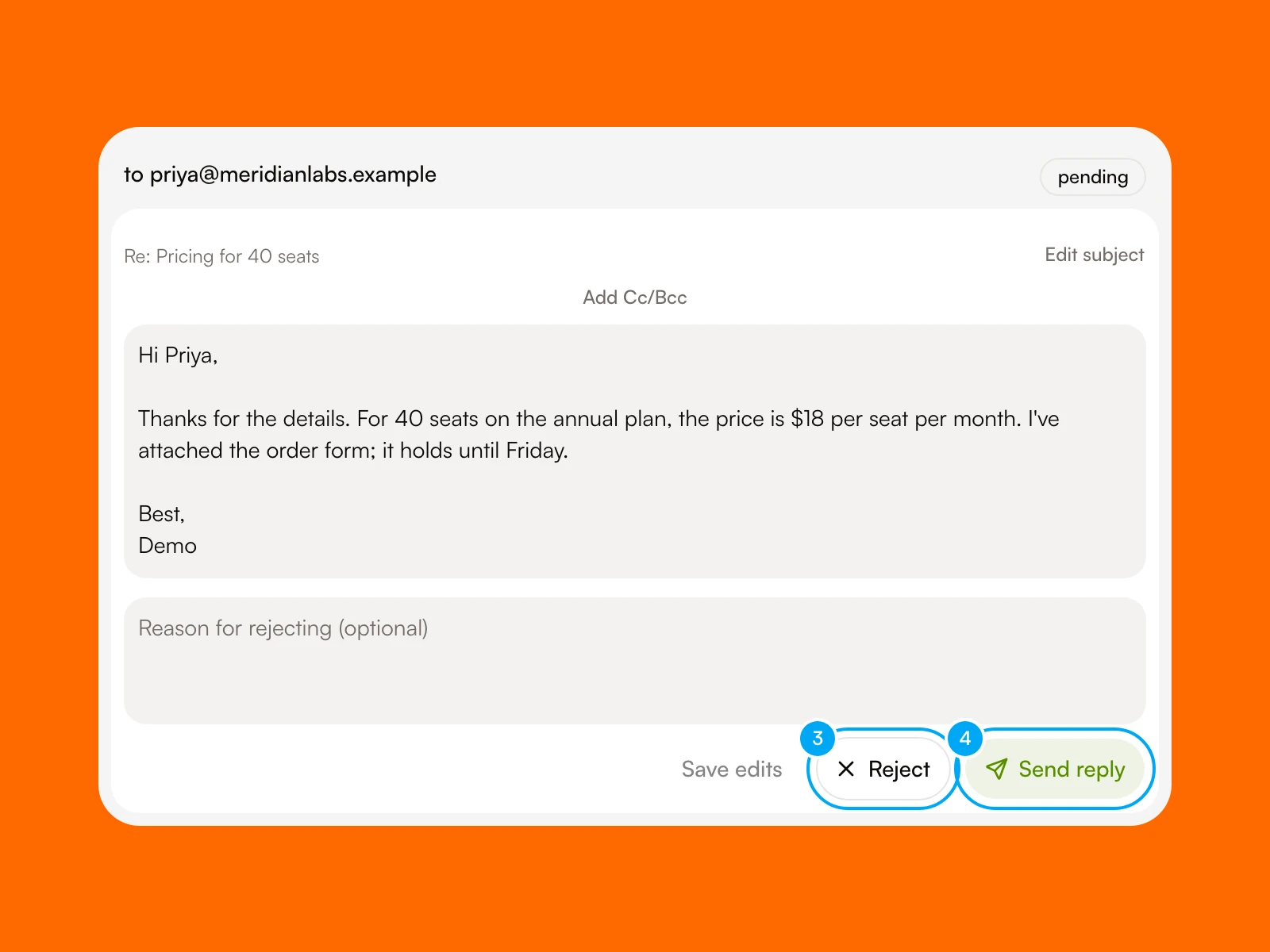
If undo is on in your preferences, the button then reads Click to undo with a countdown, and you can cancel before the reply goes out. Send reply stays disabled while you have edits that you have not saved.
Use Gmail with an agent
An inbox that you connect as a Team address can be attached to an agent like any other connection. See Control connection tool access. You cannot attach a personal inbox to an agent as a connection.
Check that mail is arriving
At the bottom of Configure Gmail, Connection health shows Receiving live updates when new mail reaches AI Agent as it arrives. If it shows another status, open it and click Sync updates.
Disconnect or reconnect
The Gmail card shows one of these badges: Connected, Syncing…, Connecting…, Disconnected, Error, or Token expired. For Error or Token expired, click Reconnect Gmail and approve access again.
To stop mail from arriving, click Disconnect, then confirm Disconnect Gmail?. AI Agent stops receiving email from the account. Existing tickets, drafts, and audit history stay, and a message offers a few seconds to undo. A teammate’s personal inbox shows a note instead: only that teammate can change its settings.