The Inbox holds what needs you: review items, execution errors, product proposals, and messages from connected channels. Use it to triage communication quickly and to turn messages that require tracked work into tickets on the Board.
Connect your inbox
Skip this step if the Inbox already shows Gmail at the top right.
- In Inbox, click Connect inbox.

In Connect your inbox, follow the prompts to sign in to Gmail. Connect Gmail covers the details.
Triage the message
Use the tabs above the list to switch between All, Flagged, Archived, and Snoozed. Point at a row to see Mark read and Archive. Right-click a row for more actions. The menu lists the ones that apply to that row:
- Mark as read when you have reviewed it;
- Flag important, or Remove importance when it no longer needs attention;
- Snooze until tomorrow;
- Archive when no further work is needed.
With an item open, press E to archive it or H to snooze it.
These actions organize an Inbox item. They do not create project work unless you click Create ticket.
Draft or send a response
- Open the email.
- In Draft a reply with AI, add any context the draft needs, such as your pricing. This is optional.
- Click AI draft.
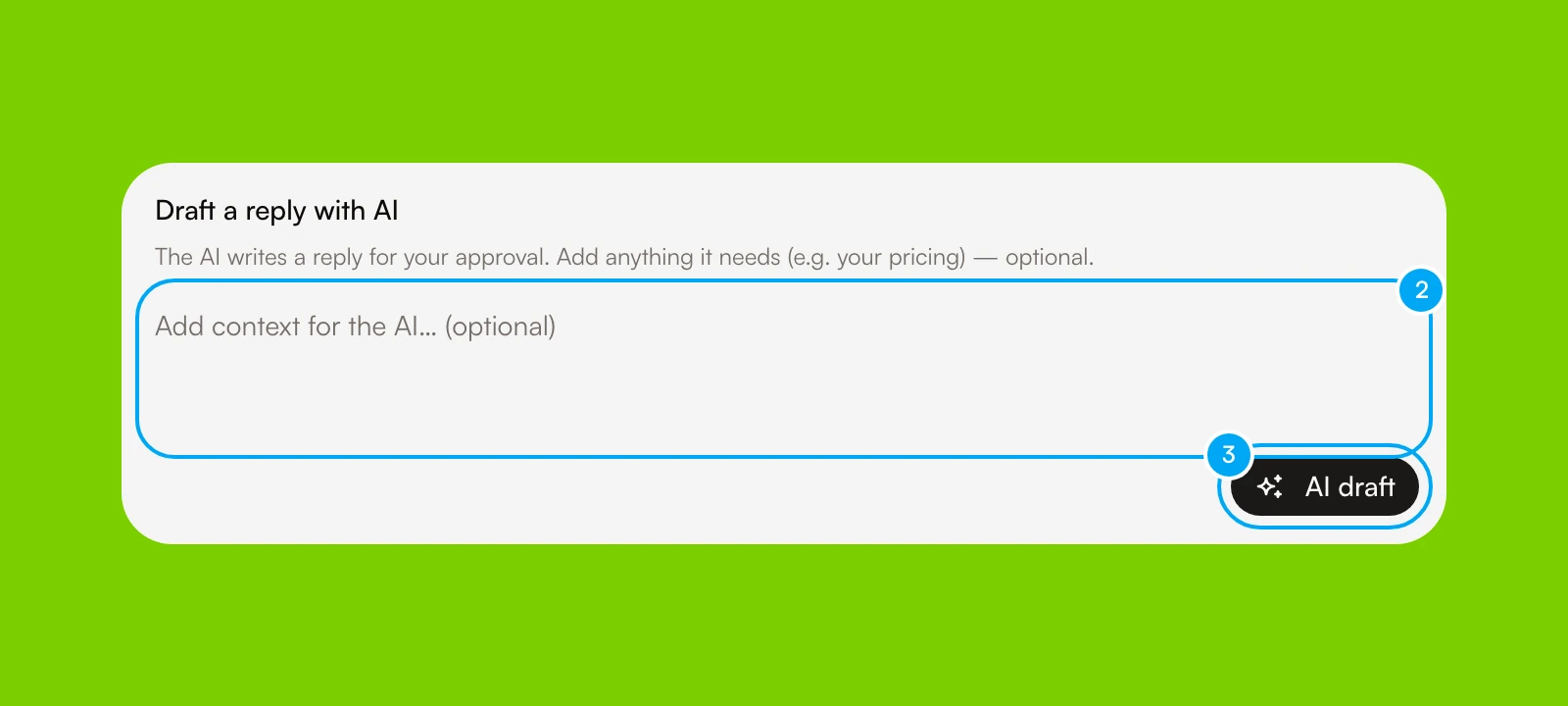
A draft card appears with Save edits, Reject, and Send reply. Review the recipient and the body before you send. Review and execute an action covers the card.
For a chat channel such as Telegram, type your reply in the message box, or use AI draft. The reply options depend on the connected channel account and its tool access.
Turn the message into a ticket
- Open the message.
- In the properties panel on the right, click Create ticket.
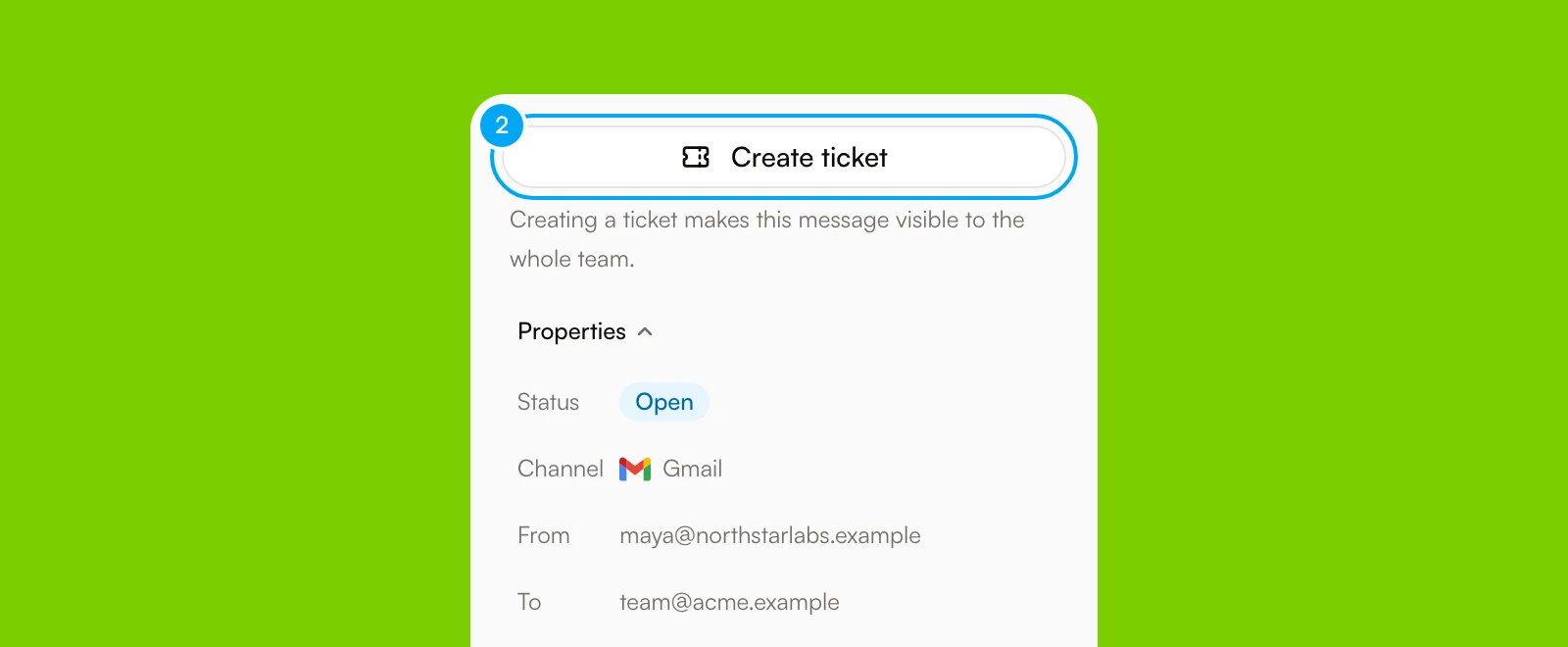
Creating a ticket makes the message visible to the whole team. The panel says so under the button. To do the same from the list, right-click the row and choose Create team-visible ticket.
AI Agent builds the ticket for you. Its title is the email subject, or the message preview when there is no subject. Its description holds the sender, the recipients, a preview, and the thread. Its status is To do. The Board opens with the new ticket selected. The Inbox item now shows Open ticket instead of Create ticket, and a second click does not create a second ticket. Open the ticket to edit the title and details, add steps, attachments, comments, or agent work.
Continue from the right place
Manage execution and status from the linked ticket. Return to the Inbox for channel communication and message-level triage. This keeps one tracked work item without losing its source conversation.
Expected result
Limitations
- Reading, flagging, snoozing, or archiving a message does not create a ticket.
- Creating a ticket is a deliberate click. A Gmail thread that reaches the Inbox does not become a ticket on its own.
- Create ticket is available for channel messages, such as email.
- Reply capabilities depend on the connected channel account and its tool access.