Start with the exact word on the connection’s badge, or with the message you saw. The badge decides whether to reconnect the account or only test it.
Where to find it
Click Agents in the sidebar, then click the Connections tab. Click a provider’s card to open its dialog. The badge is next to the provider’s name. Connected providers appear in the Connected section at the top.
Gmail does not have a card here. It connects from the Inbox: the header pill reads Connect inbox, and Gmail after you connect. See Gmail.
Read the badge
| Badge | What it means | What to do |
|---|---|---|
| Connected | The provider’s tools load. | Nothing. |
| Token expired | The saved access has expired. | Click Reconnect. |
| Reconnect | The provider rejected the saved credential. | Click Reconnect. |
| Needs attention | The last sync with the provider reported an error. | Click Reconnect. |
| Connection issue | The provider’s tools failed to load for a reason other than a rejected credential, such as a temporary outage, a missing permission, or a billing problem at the provider. | Click Test. The dialog offers Test, not Reconnect. |
| Coming soon | AI Agent does not support the provider yet. | Nothing. Check back later. |
Fix the matching symptom
The connection needs fresh authorization from the provider.
- Click the provider’s card.
- Click Reconnect and complete the provider’s authorization flow.
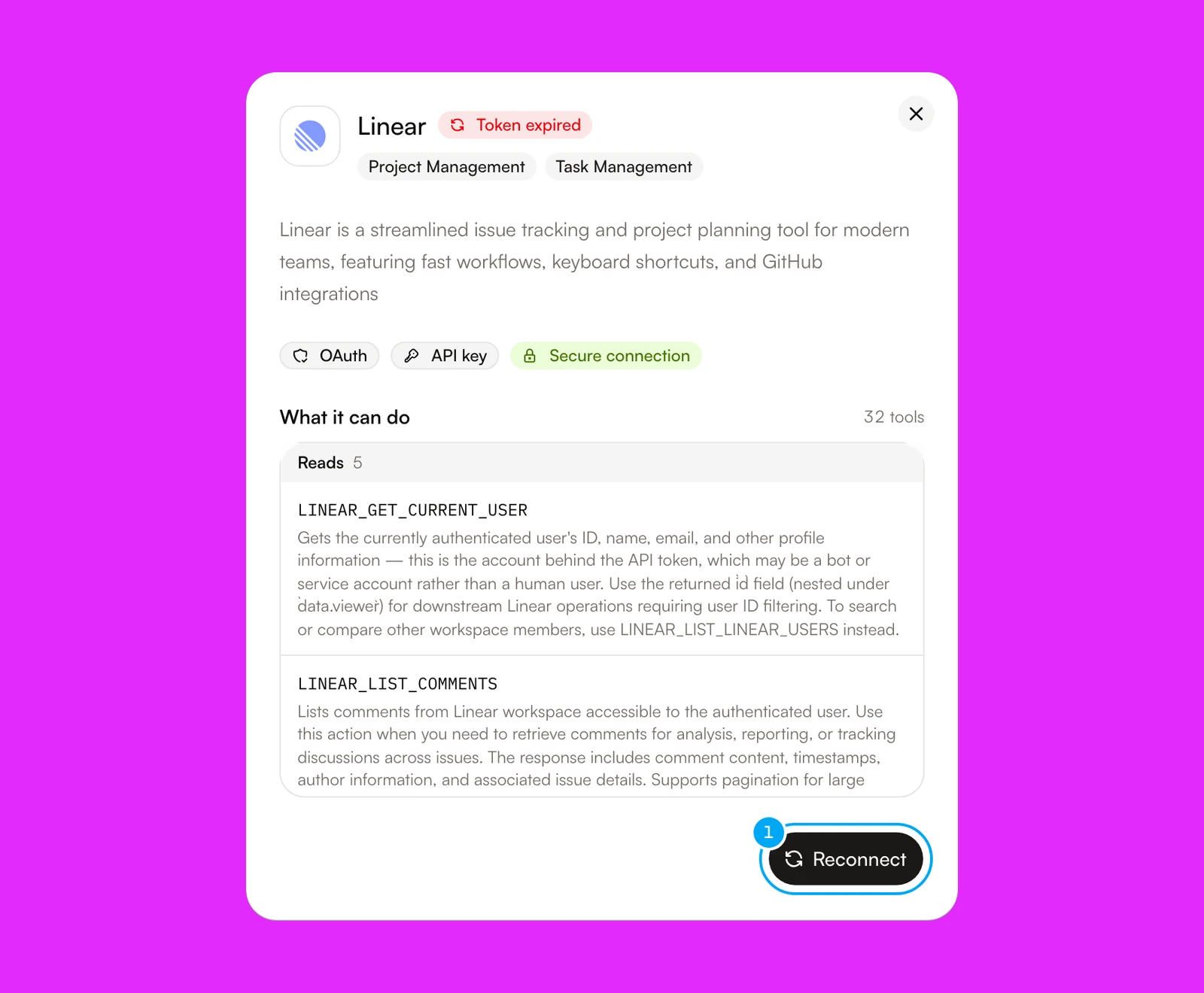
Review the permissions the provider shows during authorization. An account can be active and still lack a provider-side permission that one action needs.
To confirm the fix, check that the badge reads Connected. Then click Test.
Reconnecting does not fix a temporary outage, a missing permission, or a billing problem at the provider. Test the connection first.
- Click the provider’s card.
- Click Test.
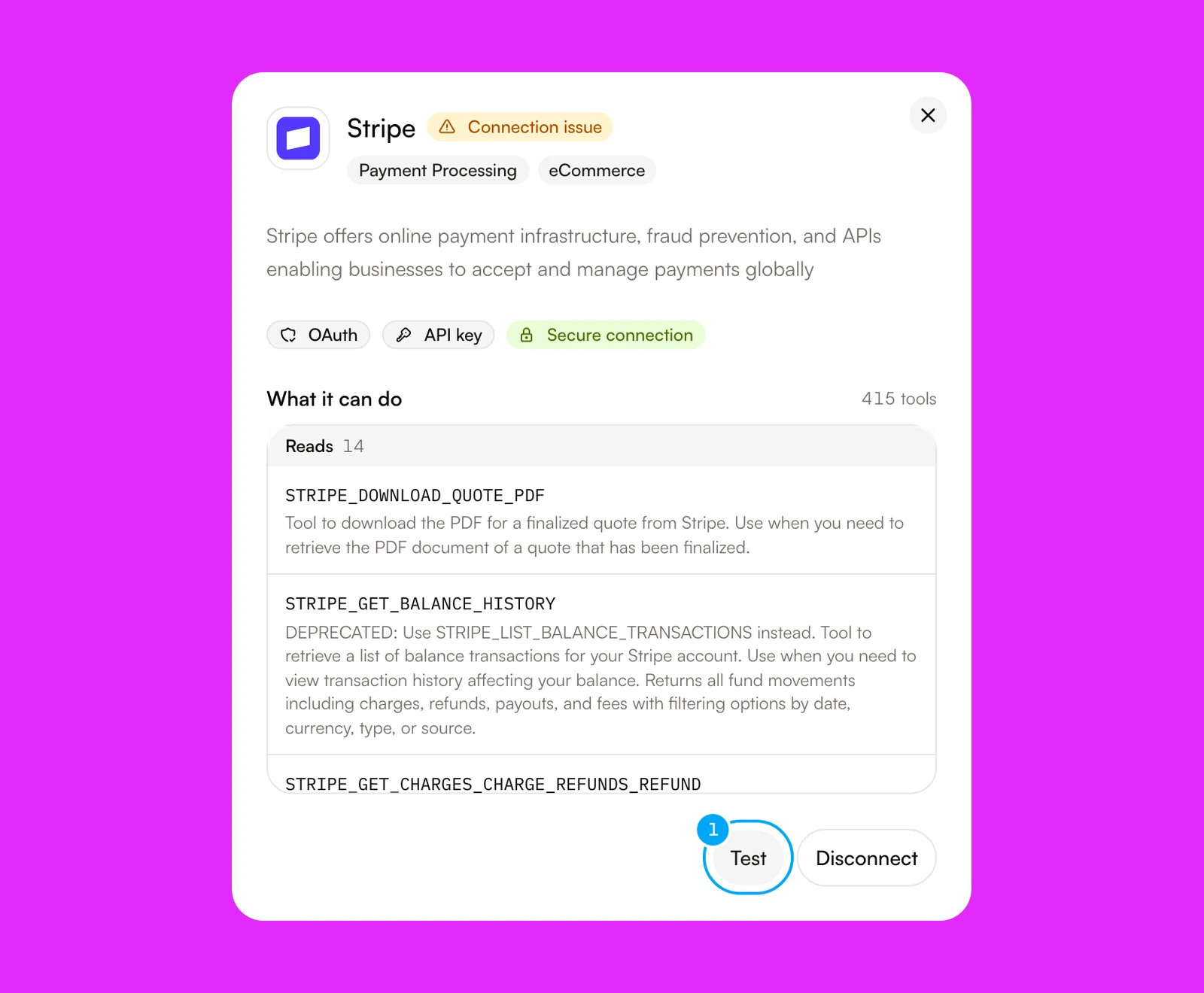
Test loads the provider’s tools and reports the result in a message:
- “Working — N tools available” means the connection is healthy. The badge returns to Connected.
- “The last attempt to load this provider’s tools failed…” means the problem remains. Check the provider’s status page, then check that the connected account has the permissions the task needs and that its billing is in good standing. Test again.
- “This provider rejected the saved credential. Reconnecting will fix it.” means the cause was the credential after all. The badge changes to Reconnect. Click Reconnect.
- “Couldn’t reach this provider to verify it. Try again.” means AI Agent could not run the check. Try again later.
After the provider’s authorization page, AI Agent returned to Connections with a message in the form “Provider failed to connect” or “Connection failed: reason”. The text after the colon is the reason the provider returned.
Open the provider’s card and click Connect provider again. Approve every permission the provider asks for. If the reason names a permission or an approval that your provider account needs, ask the provider’s administrator.
To confirm the fix, look for “Provider connected successfully” and check that the card is in the Connected section.
An agent uses one account for each provider. When a provider has more than one account, the agent must name the one to use.
- Open the agent and click Overview, then find Spec and its Connections section.
- Next to the wrong account, click the X to remove it.
- Click Attach connection account, choose the intended account, and click Stage.
- Click Save in the Unsaved changes bar.
To confirm the fix, run the agent again and check that the action uses the intended account.
Connecting an account does not attach it to every agent. Attach the account to the agent:
- Open the agent and click Overview, then find Spec and its Connections section.
- Click Attach connection account.
- Choose the account and click Stage.
- Click Save in the Unsaved changes bar.
The dialog lists only active accounts that are not attached yet. It says “No additional active connection accounts to attach.” when none are left.
Two settings decide which tools an agent can use:
- The connection’s Tool permissions, in the provider’s dialog. Reads are always on. Actions and Destructive tools require your approval, and Destructive tools are off by default. A tool that AI Agent cannot classify appears under Actions.
- The agent’s own list of enabled tools, under Connections in its Spec. It shows All tools unless someone enabled fewer.
To enable a tool on the connection, open the provider’s dialog, tick the tool under Tool permissions, and click Save permissions. A message says “This connection is personal to another member” when the person who connected the account is someone else. Ask that person. To enable a tool for one agent, click the All tools button next to the account in the agent’s Connections section, tick the tool, and save the agent.
See Control connection tool access for how the two layers work together.
The account belongs to a teammate and is personal to them. You cannot change or disconnect it. Ask the teammate. If the dialog offers Connect another account, use it to add your own.
AI Agent does not support this provider yet. Click Request this connection and fill in the request form to ask for it.
Actions require approval. Open the pending approval, confirm the provider, the exact account, and the proposed change, then approve or reject it. Reconnecting an account does not approve a pending action.
An AI feature that uses a connection, such as a drafted reply or ticket triage, needs an active subscription. Choose a plan in Settings, then Billing. See Plans, credits, and usage.
Turning on automatic reply drafts for a connected inbox needs a plan with Inbound auto-reply: Start or higher. See Plan limits.