Connect an AI assistant such as Claude or ChatGPT to AI Agent so it can work in your workspaces for you: check and update tickets, ask your agents for help, and run workflows. The assistant signs in as you, can do only what you approve, and works only in workspaces you belong to.
AI Agent runs a remote MCP server for this. The only thing you need to enter is its URL:
https://aiagent.app/mcpWhat a connected assistant can do
When you connect, AI Agent shows a consent screen with the permissions the assistant asks for. Each permission has a tick box. Read your workspaces is always on. Clear Make changes or Run agents and workflows to withhold them. Click Allow access to approve, or Deny access to refuse.
| Permission | What it allows |
|---|---|
| Read your workspaces | See tickets, agents and their conversations, workflows and their runs, tables and their records, knowledge, projects, approvals, inbox messages, members, connected accounts (never their credentials), your computers, and the credit balance in workspaces you belong to. |
| Make changes | Create and update tickets, comments, labels, subtasks, and projects; mark inbox messages read, archive, snooze, or flag them; and cancel workflow runs, as you. |
| Run agents and workflows | Ask an agent to do work and get its reply, have a ticket’s agent start working on it, start workflow runs, draft a reply to an inbox message, create a workflow from a short brief, and write table records (which can trigger agent columns and table workflows). These spend your workspace credits. |
A connected assistant cannot:
- approve or reject an action that is waiting for review — you decide that in AI Agent;
- send a reply for you — a drafted reply waits until you approve it;
- turn on a workflow’s schedule or trigger — a workflow it creates stays paused until you turn it on;
- change billing, members, or connection credentials;
- see workspaces you are not a member of.
AI Agent does not issue API keys or personal access tokens. Every assistant connects through your sign-in and your approval.
Before you start
- An AI Agent account that belongs to at least one workspace.
- An assistant plan that supports custom MCP connectors. Check Anthropic’s custom connector guide or OpenAI’s developer mode guide. On team and enterprise plans, an admin may need to allow custom connectors first.
Connect
Add a custom connector
In Claude, add a custom connector and enter https://aiagent.app/mcp as the remote MCP server URL. Leave the optional OAuth client ID and secret empty: Claude registers itself with AI Agent. Anthropic’s guide shows where connectors live on your plan.
Sign in and approve
Choose to connect. AI Agent opens in your browser. Sign in if asked, check the permissions on the consent screen, and approve them.
Use it in a conversation
Turn on the AI Agent connector in the conversation where you want to use it.
Add the server
Run this in your terminal:
claude mcp add --transport http aiagent https://aiagent.app/mcpSign in and approve
Start Claude Code, run /mcp, choose aiagent, and finish signing in to AI Agent in your browser. The Claude Code MCP guide covers the sign-in options.
Turn on developer mode
Turn on developer mode in ChatGPT’s settings. OpenAI’s developer mode guide lists the plans that include it and where the setting is.
Create an app for AI Agent
Create an app for a remote MCP server. Enter https://aiagent.app/mcp as the server URL and choose OAuth for authentication. You don’t need a client ID or secret: AI Agent supports both client metadata documents and dynamic client registration.
Sign in and approve
When ChatGPT sends you to AI Agent, sign in if asked, check the permissions on the consent screen, and approve them.
Connect a coding agent with one prompt
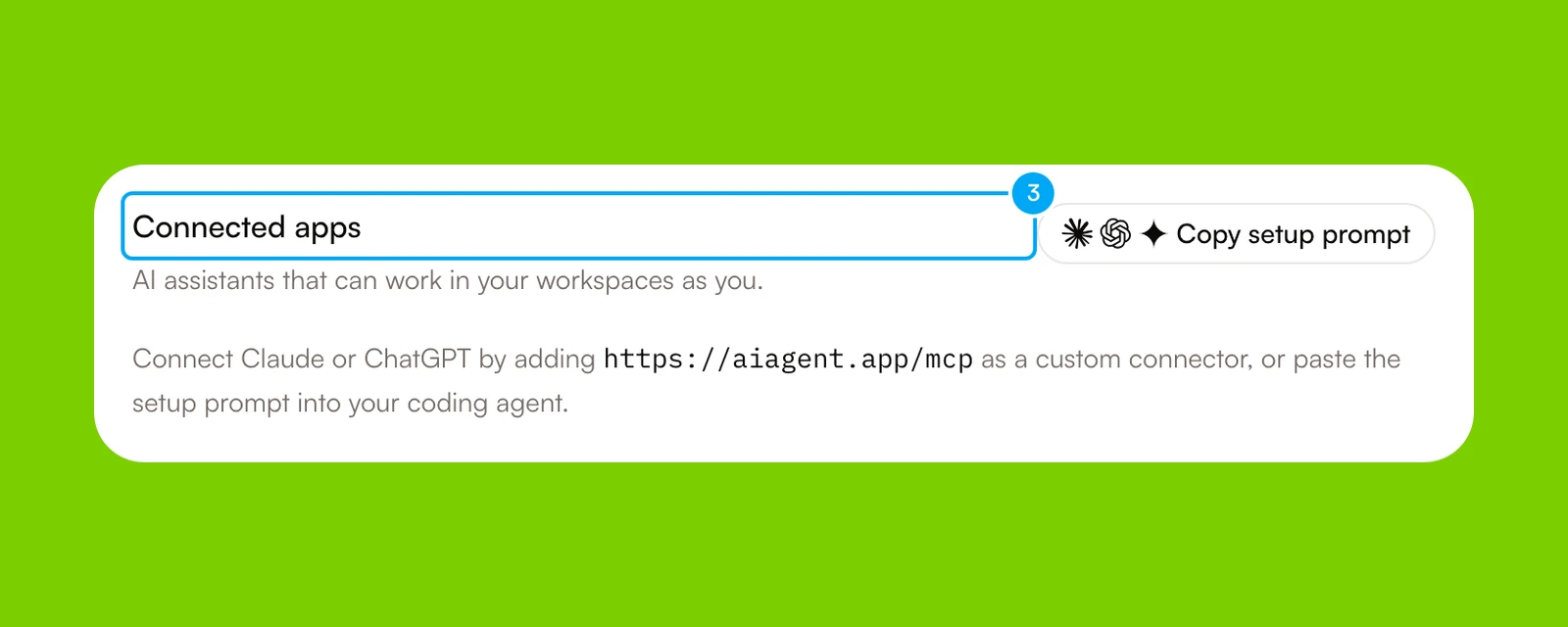
AI Agent can write the setup commands for you. Click your name at the bottom of the sidebar, then click Settings. In My account, click Profile. In Apps → Connected apps, click Copy setup prompt, then paste the prompt into your coding agent. The prompt holds the setup for Claude Code, Codex, Gemini CLI, Cursor, VS Code with Copilot, and OpenCode. Finish signing in in your browser when the agent asks.
Verify the connection
Ask the assistant:
List my AI Agent workspaces.It answers with the workspaces you belong to. Then check that AI Agent lists the assistant.
Find the assistant in Connected apps
- Click your name at the bottom of the sidebar, then click Settings.
- In My account, click Profile.
- Scroll to Apps. The assistant is listed in Connected apps.
Work with a connected assistant
- Name the workspace. The assistant looks up your workspaces first, then works in the one you name.
- Runs cost credits. Asking an agent or starting a workflow spends workspace credits, as it does in the dashboard. A run can finish after the assistant replies; ask it to check the run.
- Reviews stay with you. When an agent proposes an action that needs review, it waits for your decision in AI Agent. Approve or reject it in the Inbox, on the ticket, in the chat, or in the workflow run.
- Changes are recorded. Each change the assistant makes is written to the audit log of the workspace it changed. The entry names your account and the connected app. The Audit Log is a Labs feature: turn on Show Labs features and Activity in Settings → Labs to see it.
Disconnect
Revoke the assistant
- Open Settings → Profile and scroll to Apps.
- In Connected apps, click Revoke on the assistant’s row.
- In the confirmation dialog, click Revoke. To keep the app, click Keep it connected.
The assistant’s next request is refused. To use it again, connect it and approve it again.
Removing the connector in Claude or ChatGPT stops that assistant from using it, but revoking it in Connected apps is what ends its access to AI Agent.
Fix a connection problem
Finish signing in in the browser window the assistant opened, with the account you use for AI Agent. If you declined the consent screen, connect again and approve.
The assistant can only use workspaces you belong to. Ask it to list your workspaces and pick one from that list.
The task needs a permission you did not approve, such as running agents and workflows. Approve it when AI Agent asks, or leave it off and do that part in the dashboard.
The assistant sent too many requests in a short time. Tools that spend credits are limited to 20 calls per minute and 200 per hour for each person, and all tools together to 120 calls per minute. Wait the number of seconds shown, then try again.