Approvals keep external changes under human control. A card asks you to approve an action that an agent proposes. A workflow can also pause at an Approval block until you decide.
What waits for you, and what does not
Two rules decide whether a write waits for a person.
- An agent proposes, you approve. When an agent acts in Chat, on a ticket, in a workflow Agent step, or in an Autopilot, each action and each destructive tool call becomes a card. Nothing runs until you approve it.
- A workflow author allows chosen writes once. Three kinds of workflow step run without a person after a one-time permission:
- a Tool step that calls a write action on a connected app;
- a Send step that emails people outside your organization;
- an HTTP step that uses a method other than
GET.
When you set a workflow trigger live, AI Agent lists these steps in an Allow these writes? dialog. The dialog states that the workflow will make these changes in your connected apps without asking again. Each row names one write. A write on a connected app shows the action name and the key it is stored under, for example HUBSPOT_CREATE_CONTACT_FROM_NL. An outside email step shows Email people outside your organization.
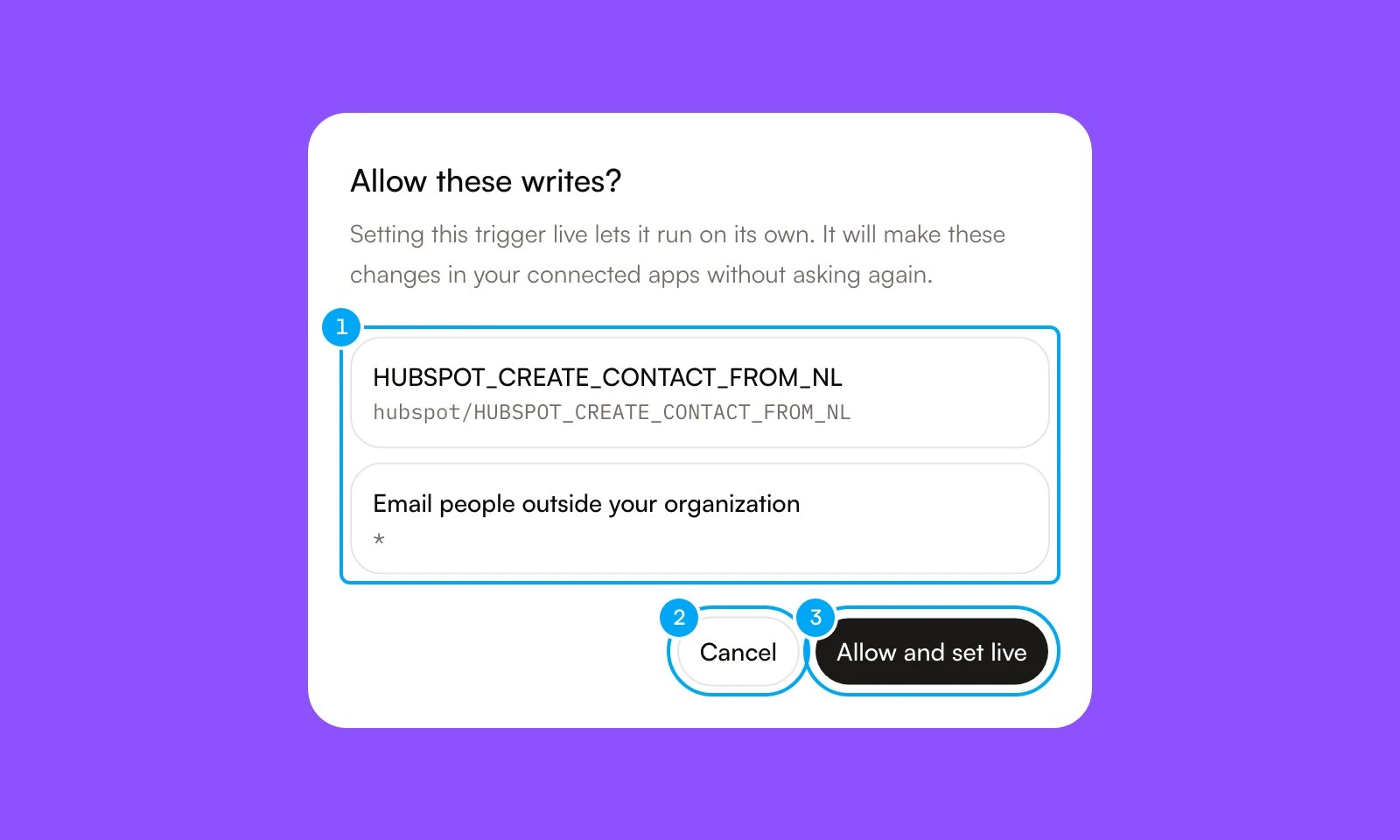
- The list of writes the workflow will make on its own.
- Cancel keeps the trigger paused and grants nothing.
- Allow and set live grants the permission for these writes and sets the trigger live.
A step whose permission was never granted, or was revoked, does not run.
Some steps can never run unattended. When a workflow contains one, the dialog reads This workflow can’t go live and names the reason on each step: Destructive write, Manual-only action, Unsupported backend, or No connection bound. Move a destructive or manual-only action into an Agent step, where it waits for approval. Connect the missing account for a step marked No connection bound.
Review or revoke a granted permission
Open the workflow
In Workflows, open the workflow. With no block selected, the panel on the right shows Granted permissions and the date each one was granted.
Revoke a permission
Click Revoke next to a permission, then confirm. If the workflow is live and still needs that permission, it pauses until you grant the permission again.
When approval is required
Connection tools are grouped into three levels:
- Reads retrieve information without changing the connected service.
- Actions create, send, or update information and require approval.
- Destructive tools can remove or irreversibly change data and require both explicit access and approval.
If a tool cannot be classified safely, AI Agent treats it as an action rather than silently allowing it as a read. A tool missing from the catalog counts as a read only when its name has a read verb and no write or destructive verb. To configure which accounts and tools an agent can use, see Connection tool access.
How a proposal moves
Approval applies to the displayed proposal. Approving continues that exact action; rejecting stops it before execution.
flowchart LR
Proposal["Proposed action"] --> Review["Review account and change"]
Review --> Decision{"Approve?"}
Decision -- "Yes" --> Execute["Execute displayed action"]
Execute --> Outcome["Success or failure"]
Decision -- "No" --> Rejected["Rejected before execution"]
Review an external action
On a ticket, the card sits under Needs you.
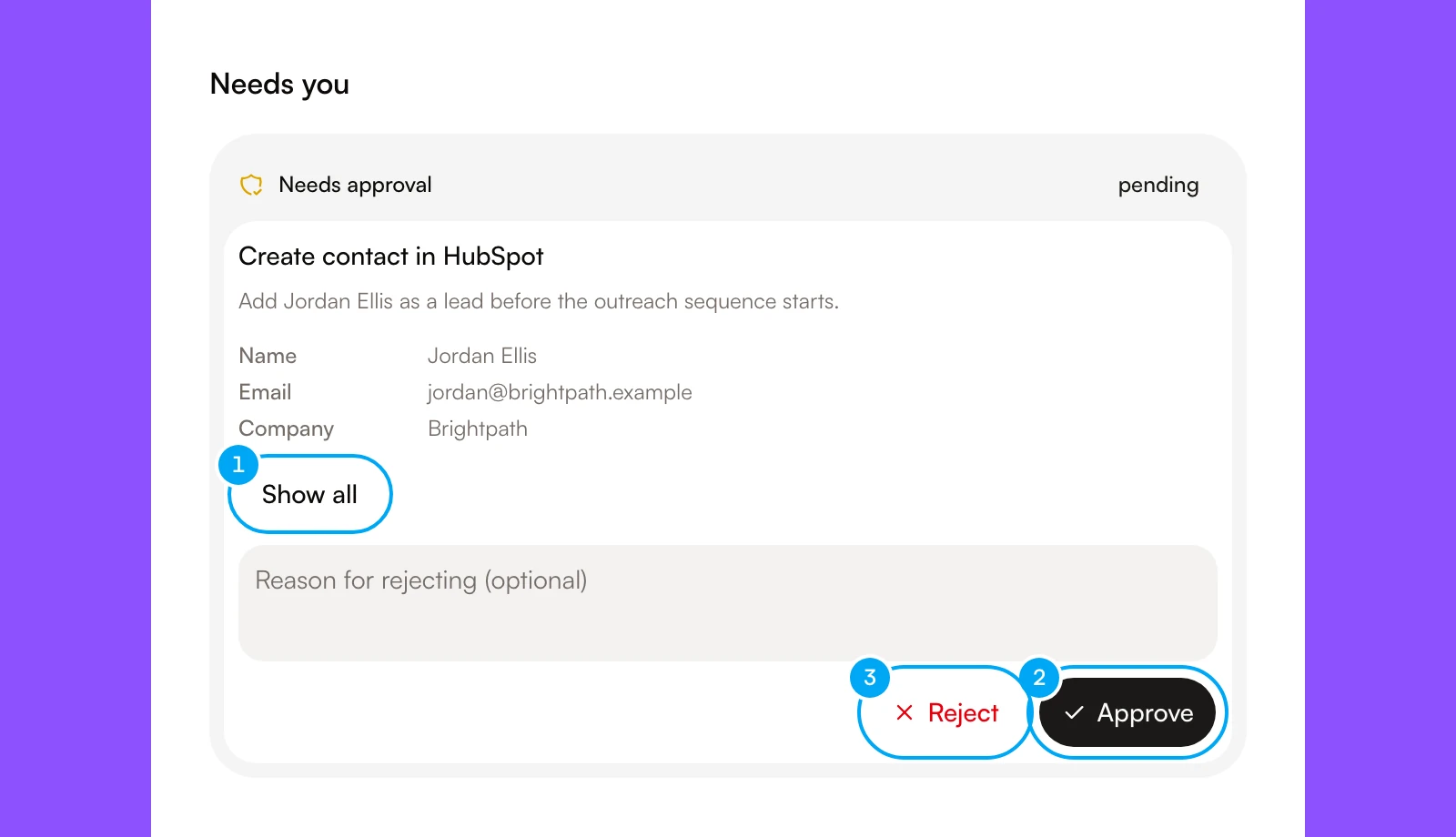
- Show all lists every argument of the action in full, including empty values.
- Approve runs the displayed action.
- Reject stops it.
Confirm the account
Verify the provider and exact connected account shown on the card.
Inspect the change
Review the action summary and every displayed field, recipient, record, or piece of content. Choose Show all on the card to see every argument in full, including empty values.
Compare it with the request
Check that the proposed change matches the original task and intended scope.
Approve or reject
Choose the approve button to execute the displayed proposal, or Reject to stop it. The button reads Approve & run in Chat and Approve on a ticket. On ticket cards, Reject also accepts an optional reason. Email reply drafts offer Send, Save edits and Reject.
Approval and execution are connected: after approval, the action moves into execution and then reports success or failure. Rejecting it prevents execution. If approving or sending fails, the card shows an error. If you edit an email draft before approving, the email goes out with your edited text.
Review a workflow step
A workflow can pause at an Approval block. The waiting step appears in the run detail and in Approvals waiting on the Workflows page.
- In Workflows, find the step under Approvals waiting. The row shows the workflow name and the message of the Approval block.
- Click Approve or Reject. The workflow resumes from that point with your decision.
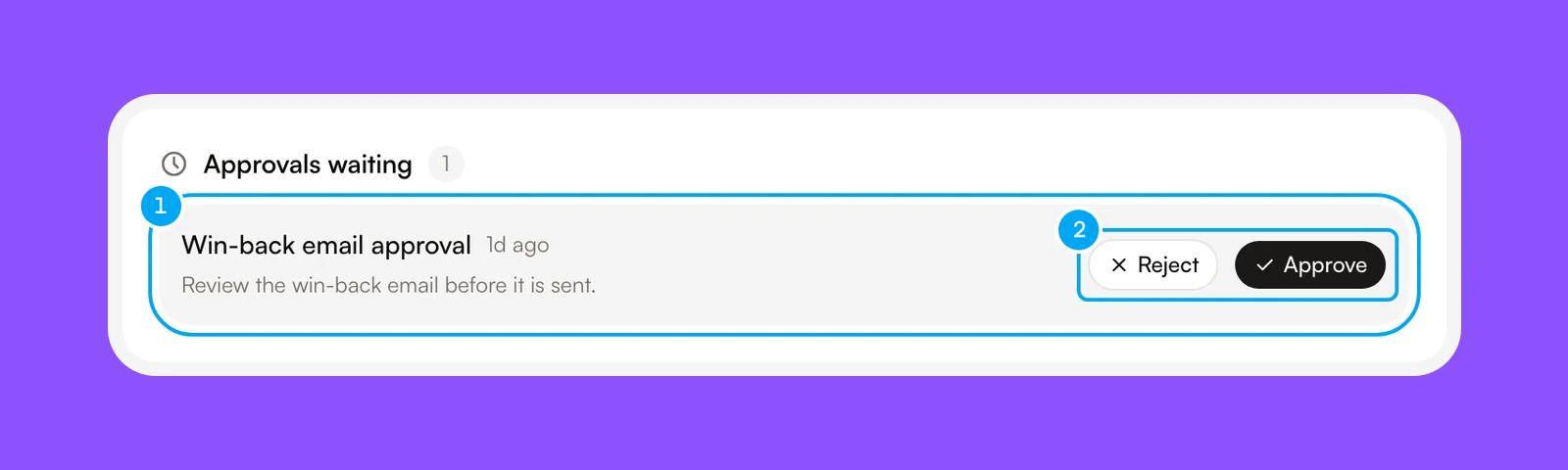
To inspect the completed steps and the proposed output first, open the run detail.
An Autopilot has no Approval block. It runs one agent, and that agent’s actions follow the first rule above.
Approval states
An action card moves through these states:
- Pending — waiting for a decision
- Executing — approved and currently running
- Executed — completed successfully
- Rejected — stopped by a reviewer
- Failed — execution returned an error