Projects are an organizational surface for focused initiatives. A project gives an initiative its own identity, a brief, a board, and progress information, without creating another workspace.
When to create a project
Create a project
Use one when work has its own outcome, priority, owner, or progress view, such as a product launch or content program.
Keep work on the workspace Board
Use the main Board when tickets do not need initiative-level grouping or a separate progress view.
Use one project when the work shares the same goal and board. Split it when the outcomes need separate ownership or progress views.
Create a project
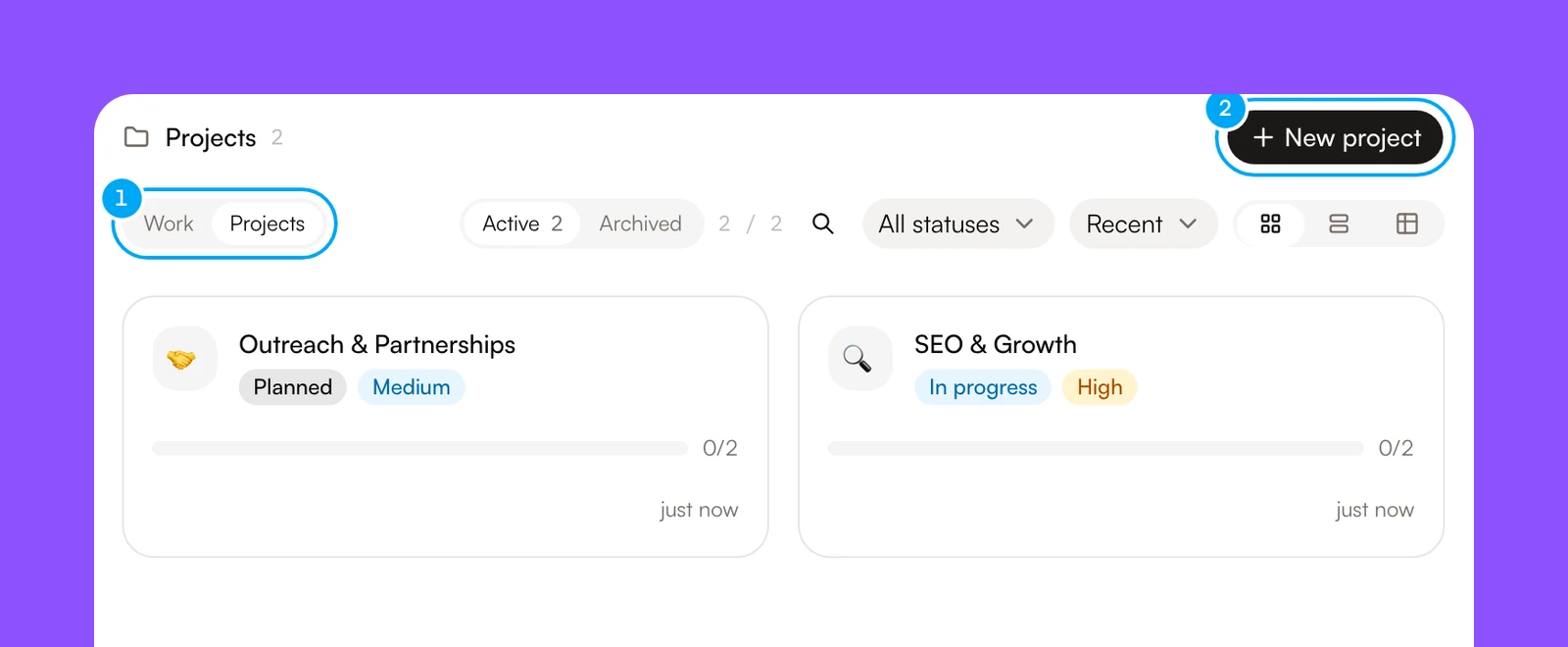
Open the Projects tab and start a project
- In Board, choose the Projects tab.
- Click New project.
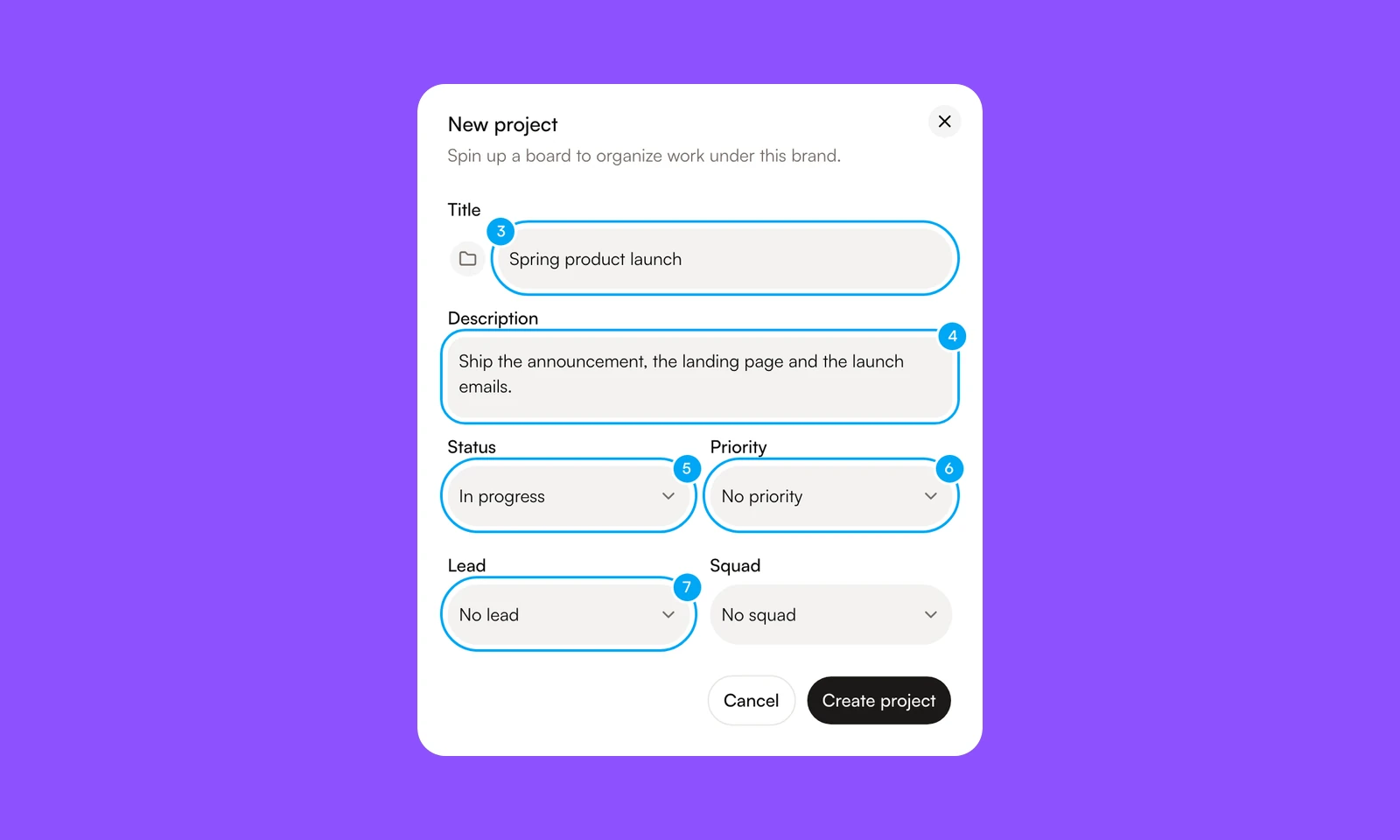
- In Title, enter a name for the initiative. Optional: click the icon button beside it to choose an icon and a color.
- In Description, say what the project is for.
- In Status, choose Planned, In progress, Paused, Completed, or Cancelled.
- In Priority, choose No priority, Urgent, High, Medium, or Low.
- Optional: in Lead, choose a member or an agent. In Squad, choose the squad that leads the project.
- Click Create project.
The project’s page opens on the Overview tab. The other tabs show the project’s tickets as a Board, List, Table, Calendar, or Gantt, and Activity shows what changed.
Overview shows the brief under About, ticket progress, open tickets by status, and Recent activity. View all opens the Activity tab. The Properties panel beside it changes the status, priority, lead, squad, Start date, and Target date, and shows when the project was created. Below the properties, Autopilots lists the workflows scoped to the project, and Knowledge lists its docs.
A project date is a calendar day. Everyone in the workspace sees the same day, whatever their time zone. When the project has a target date, Coming up shows it, and the Gantt tab marks it with a line. To change the title, icon, or brief, click Edit project (the settings button) in the page header.
What belongs in a project
A ticket joins a project when you set its Project property, or when you create it on the project’s Board tab. Tickets without a project stay on the workspace Board.
Projects and the workspace
Your workspace remains the home for shared agents, workflows, connections, and docs. Two things can be scoped to a project:
- Docs. In Add knowledge, Add to lets you choose Brand knowledge for the whole workspace, or one project.
- Workflows. In the builder, the Project setting assigns a workflow to a project, and its tickets go to that project’s board.
The Projects tab shows your projects as a grid, a list, or a table. Each project shows its status, ticket progress, and lead. The table adds a Target date column. The view you choose is remembered in this browser. Search by title, filter by status, and sort by Recent, Name, Progress, or Target date.
On a project’s page, click the star to pin the project. A pinned project appears in the Pinned group of the sidebar. Pins are saved in the browser you pin from, so another browser or device starts without them. Use the … menu to copy a link to the project.
Archive a project from the … menu on its page. An archived project is hidden from the list, and it stops feeding agent knowledge context. Its tickets and workflows keep their history, and you can restore it from the Archived view. Deleting an archived project is permanent: its docs move back to the workspace, its workflows lose their project link, and its tickets move to the workspace Board.
Use a project for useful organization, not as a required foundation for every automation.