This tutorial shows how to build a supervised weekly review yourself. The exact tools and fields depend on the connection you select. Treat it as a pattern to build and test. It is not a preconfigured report that knows your metrics.
What you will build
The workflow has four stages:
- collect the latest performance signals;
- compare them with the previous period;
- draft a concise review with recommended next actions;
- pause for approval before sharing or updating another service.
Prepare the connection
- In Agents, click the Connections tab.
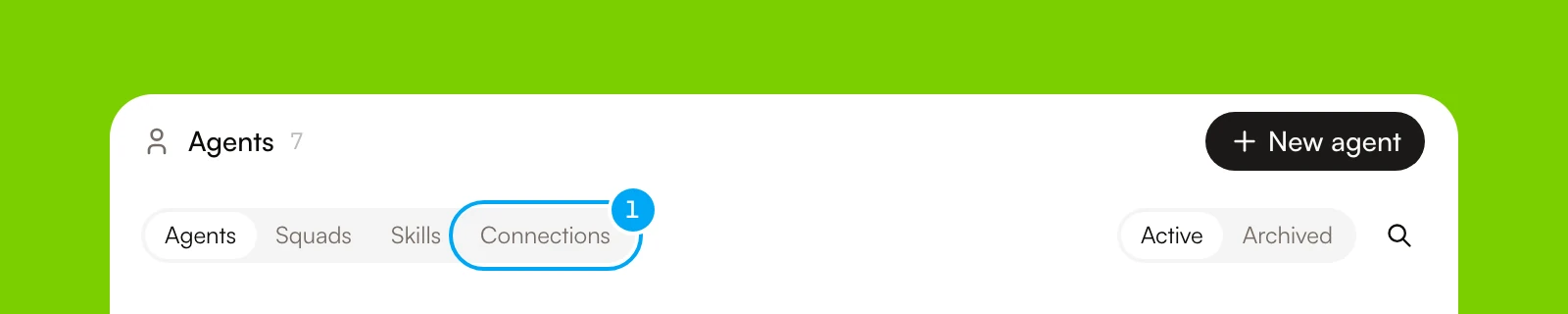
Connect the account you plan to use. Confirm that it exposes the read tools and data your review needs before you build the workflow. When you attach the account to the agent, begin with reads. Add an action only if the final workflow must publish or update something.
Configure the analyst agent
Create an agent named Growth analyst. Create and test an agent shows each field. In its instructions, define:
- the metrics that matter to the project;
- how to separate an observation from a recommendation;
- the time window to compare;
- the short format the weekly review should follow.
On the agent’s Overview tab, attach the analytics connection under Connections. Click All tools next to the account and keep only the tools the agent needs. Click Save.
Build the workflow
- In Workflows, click New, then click Workflow.
- Click Blank workflow. The builder opens with a workflow named Untitled workflow.
- Click the title and rename the workflow to Weekly growth review.
- In Blocks, click Tool to add one block for the current period and one for the comparison period. Click Agent to add the Growth analyst step.
- In a block’s text field, click Insert data to pass an earlier block’s output into a later block. Do not copy values by hand.
- Click Approval to add a review step before any action that shares the report or changes a connected service.
Save and publish the workflow
The builder saves a draft a few seconds after each edit. Before the workflow can run or go live, publish the draft.
- Click Save.
- In the Unpublished draft bar, click Review changes.
- Click Publish, keep paused.
Publishing leaves the workflow paused. Activation is a separate step. Build and test a workflow shows the publish dialog.
Test on demand
- Click the Run tab, then click Run.
If Start has input fields, Start workflow run opens. Enter the values and click Start run. In the run, confirm that:
- every step completed in the expected order;
- the agent used the intended time windows;
- the summary identifies what moved and why it may have moved;
- the final action waits for approval.
Adjust the agent instructions or workflow inputs until the result is consistent.
Schedule it
- Click the Build tab, then click the Start block.
- In Trigger, click Manual trigger.
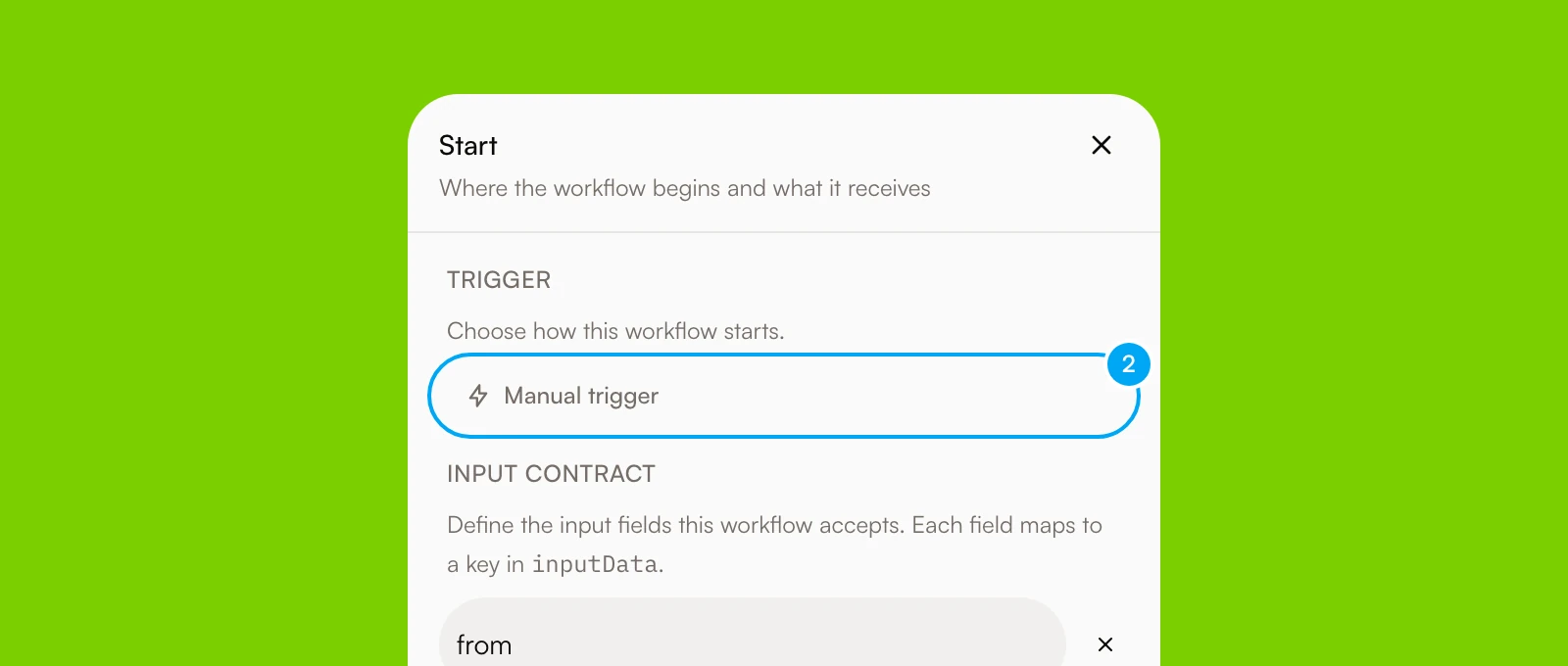
- In Trigger, choose On a schedule.
- In Repeat, choose Weekly. Then set the day, the time, and the timezone.
- Click Save trigger draft.
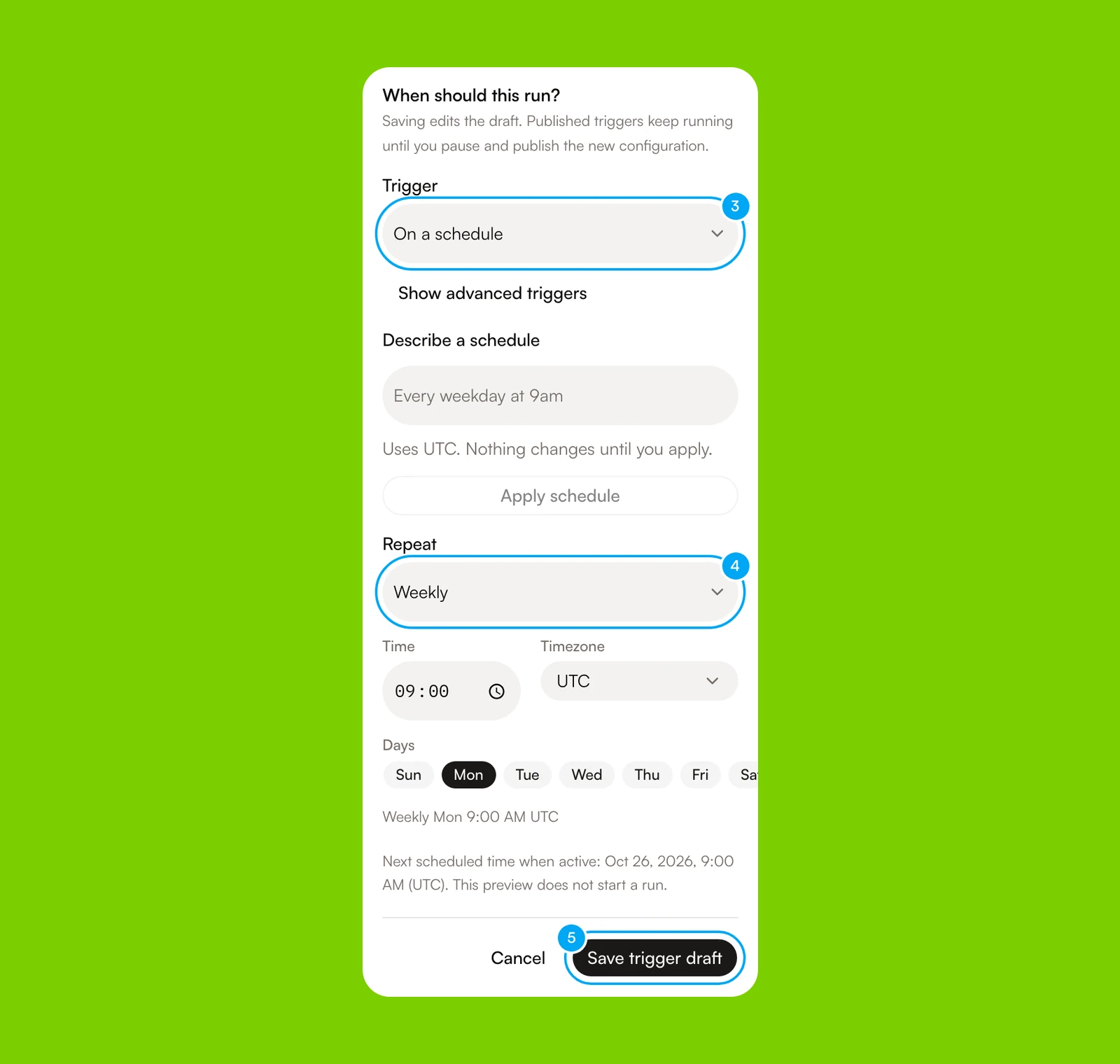
A trigger change edits the draft. The published workflow keeps its old trigger until you publish again.
- In the Unpublished draft bar, click Review changes, then click Publish, keep paused.
- Click the Trigger paused switch. It changes to Trigger live.
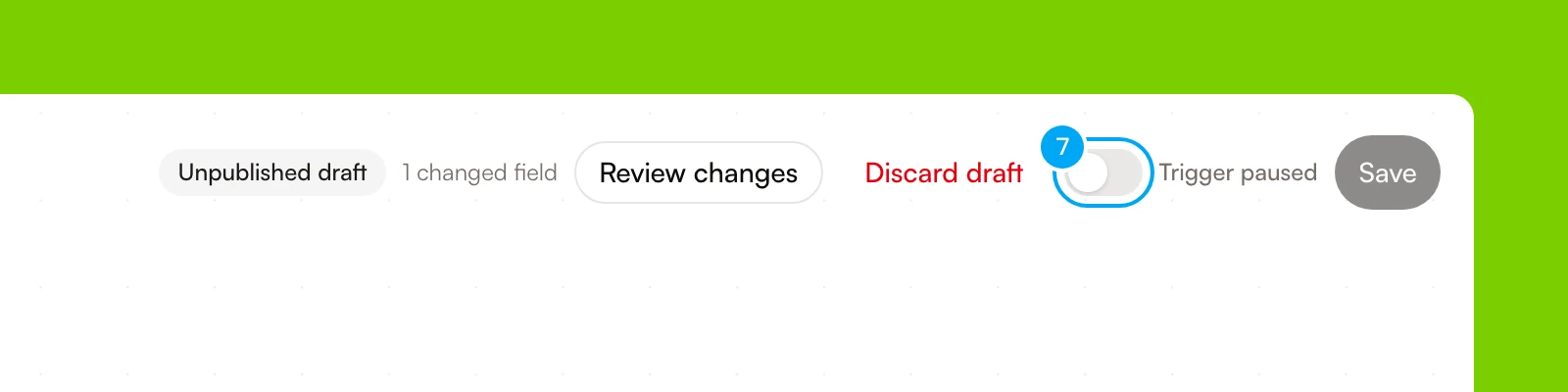
Turn the trigger live only after one representative manual run succeeds. If the workflow contains a step that writes to a connected app, Allow these writes? opens first. Read the list, then click Allow and set live. Your plan limits the number of scheduled jobs and how often they can run. See Plans, credits, and usage.
Review each run
- In Workflows, click the Runs tab.

Open a run to inspect its steps. Review the draft, then approve or reject the pending action in the run, in Approvals waiting on the Workflows tab, or in the Inbox. If the source data or expected report changes, return to the workflow rather than patching the output by hand.