AI Agent pauses supported external actions for human review. Approval cards can appear in Chat, on a Ticket, in a Workflow run, in the Inbox, and in the Approvals card on Home. Workflow approvals also appear in Approvals waiting on the Workflows tab.
Review the proposal
- Open the approval card. On a ticket, the card is labeled Needs approval. In Chat, it reads Protected action · external write.
- Check the provider, the exact account, the action, and the fields it sets.
- Click Show all to see every argument in full, including empty values.
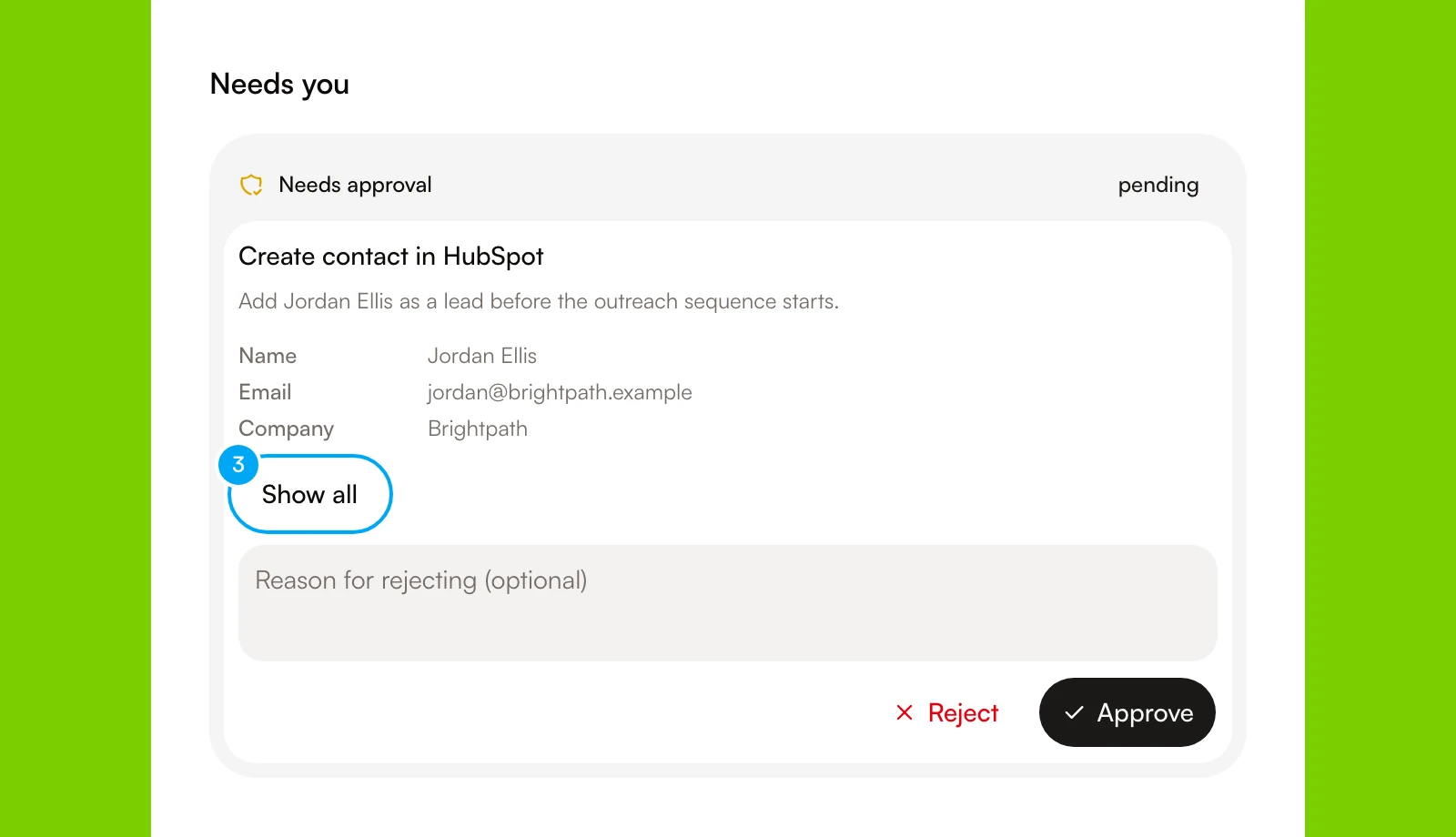
Confirm:
- the connected provider and exact account;
- the action the agent wants to perform;
- its arguments or field values;
- the recipient when the action sends something;
- the message subject and body when shown.
The available preview depends on the provider and action. Read every displayed field, and return to the surrounding conversation, ticket, run, or message when you need more context.
Approve or reject the action
- Click Approve only when the target account and proposed change are correct. In Chat, this button reads Approve & run. The card updates as the action runs and records whether execution succeeded or failed.
- To stop the action, click Reject. On a ticket, you can first enter a note in Reason for rejecting (optional).
Do not perform the same action manually while its approval is still pending. Otherwise both the manual change and the approved action may take effect.
Rejecting the card prevents that proposal from executing. It does not edit the proposal or automatically create a replacement. Add clearer instructions or correct the source information before asking the agent to prepare another action.
A ticket proposal that an agent is assigned to shows Add reason, Reject, and Approve and start instead. See Manage tickets on the Board.
Send a Gmail reply draft
An agent’s Gmail reply waits as a draft card in the Inbox or on the ticket. The card shows who the reply goes to, the subject, and the body.
- Read the reply in the body box. To change it, edit the text. Click Edit subject or Add Cc/Bcc to change those fields. Then click Save edits. Send reply stays off until you save your edits.
- Press and hold Send reply until it confirms.
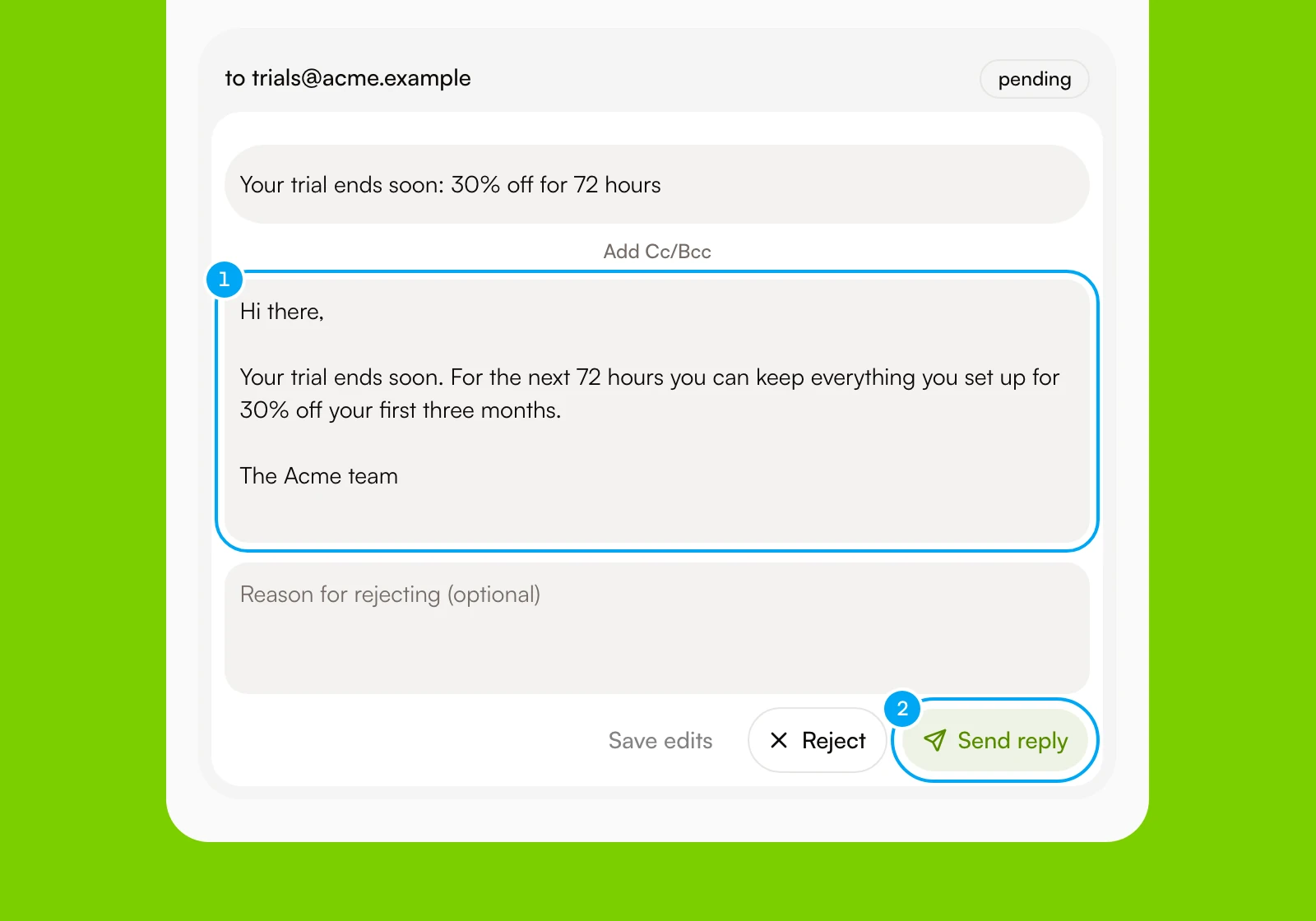
For a few seconds after you confirm, the button reads Click to undo. Click it to cancel the send and keep the draft. To turn the undo window off, clear Undo window on risky actions in Settings → Preferences. To discard the draft instead, optionally enter a note in Reason for rejecting (optional), then click Reject.
Check the execution outcome
Open the failure state and review the displayed error. Confirm that the connection is active, the exact account is attached to the agent, and its tool policy allows the action. Correct the problem before preparing or retrying the action.
Expected result
Limitations
- The preview is limited to the fields the provider and action expose.
- Approval confirms intent but cannot guarantee that an external provider will accept the request.
- Reconnecting an account does not approve a pending action or broaden its saved tool permissions.
- A write in a live workflow does not produce an approval card when you allowed it once at activation. See Approvals.