Two settings decide what an agent can do with a connected account:
- The connection sets a ceiling. It lists which tools any agent may ever call on that account.
- The agent chooses which accounts to use and which of the permitted tools to keep. An agent can narrow the ceiling but never go past it.
The three tool levels
Reads
Retrieve information without changing the provider. Reads are always on and run without approval.
Actions
Create, send, or update information. All Actions are on by default, and each one waits for your approval.
Destructive
Delete or irreversibly change information. These tools are off by default. Once you turn one on, it still waits for your approval.
AI Agent sorts each tool by the verbs in its name. A tool that it cannot sort counts as an Action, so it needs approval. Do not widen access only to make a failing task pass. Confirm what the tool does first.
Set what a connection allows
- In Connections, click the provider’s card.
- In Tool permissions, tick the Actions and Destructive tools that agents may use. The checkbox in each group’s header toggles the whole group.
- Click Save permissions. A message says Tool permissions saved.
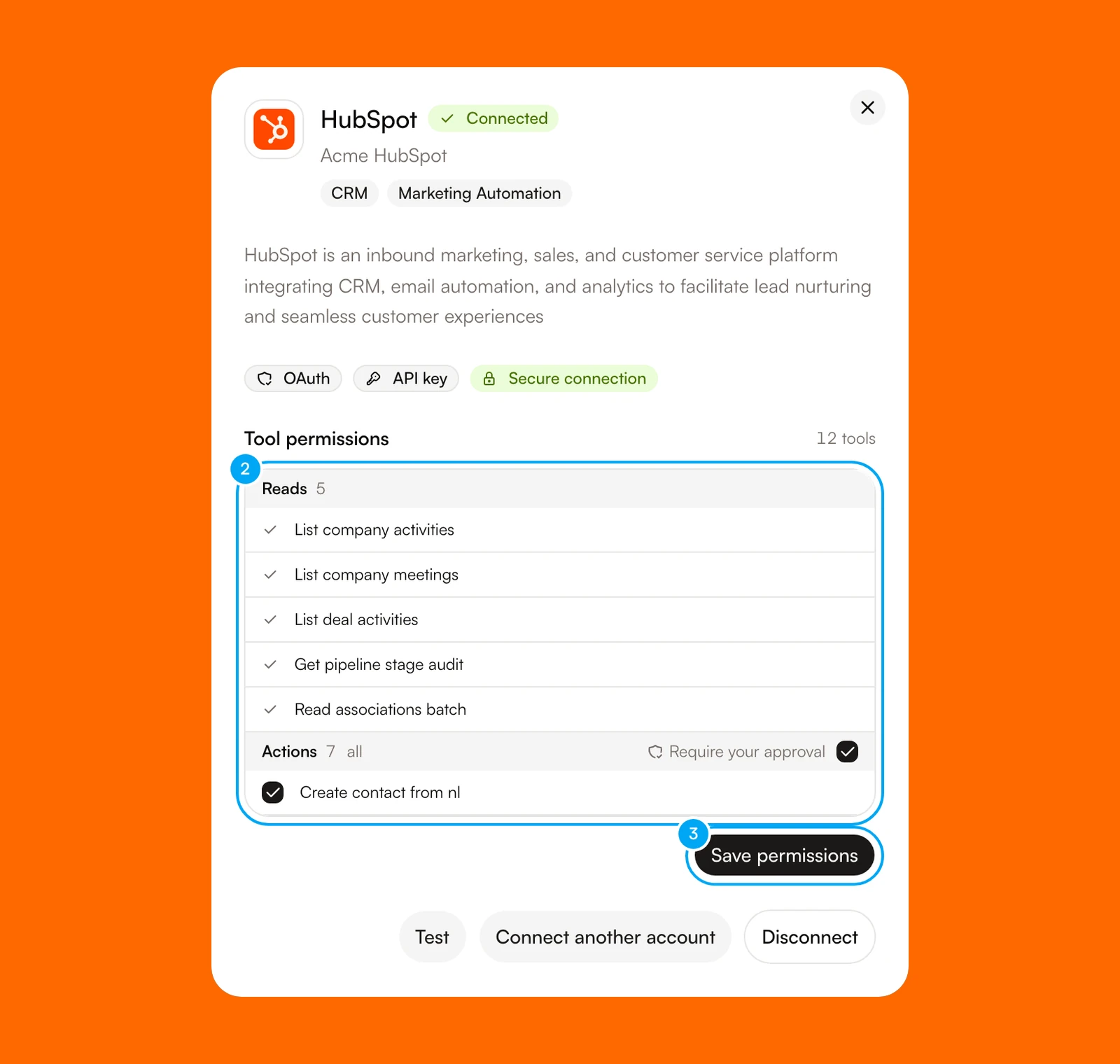
A group that has no tools does not appear. HubSpot, for example, shows Reads and Actions only. A provider that has Destructive tools also shows a Destructive group, and every tool in it starts off.
Tool permissions appears for most providers. A provider that AI Agent connects through its own link, such as GitHub, PostHog, or Stripe, shows What it can do, a read-only list, in its place. You can change permissions only on a connection you manage. A teammate’s personal connection shows Personal to a teammate.
Choose accounts and tools for one agent
An agent uses one active account for each provider. Connecting an account does not attach it.
- On the agent page, scroll the right panel to Connections under Spec, then click Attach.
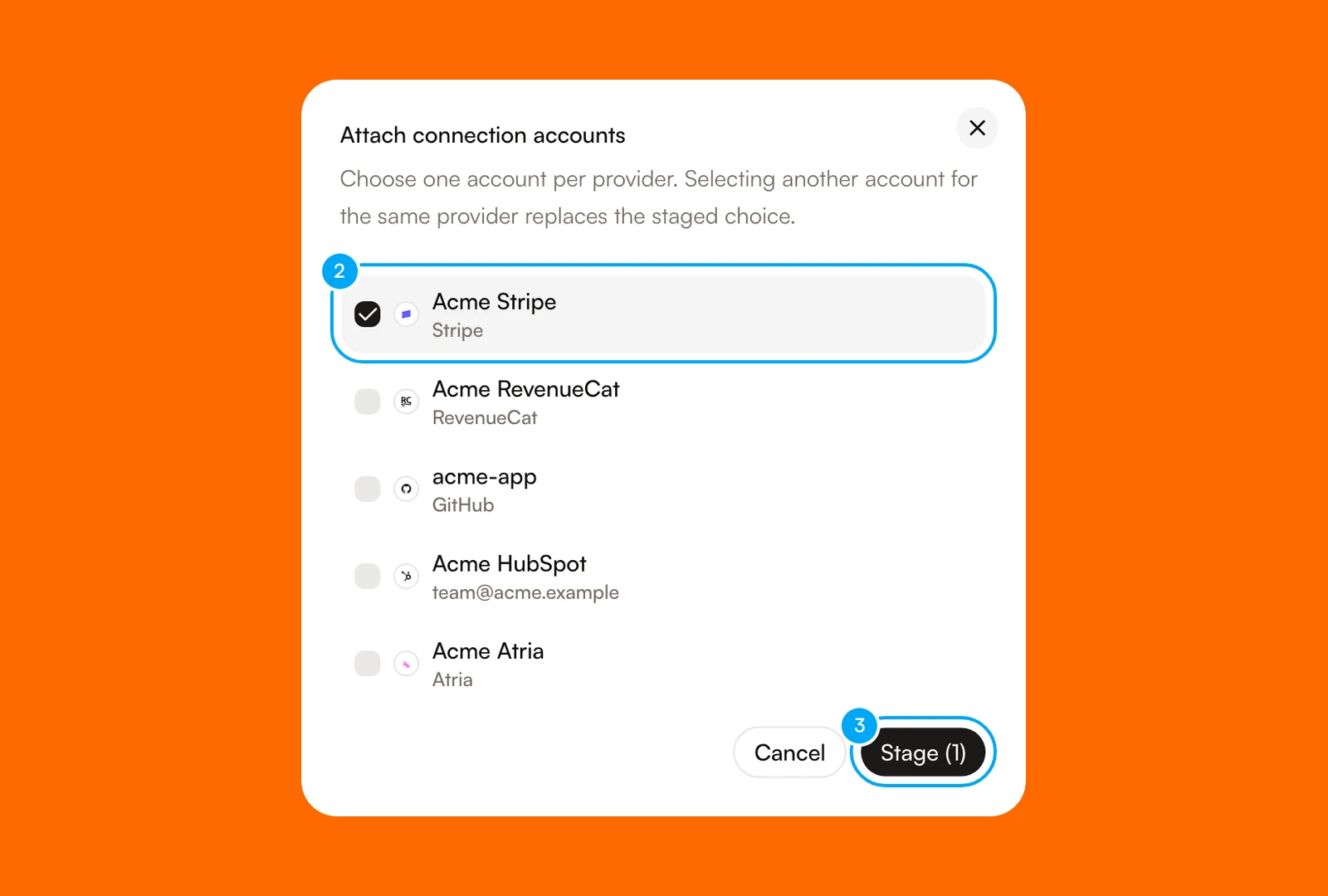
- In Attach connection accounts, choose one account for each provider. A second choice for the same provider replaces the first.
- Click Stage. The button shows the count, for example Stage (1).
- To limit the tools, click All tools on the account. Untick the tools this agent must not call.
- In the Unsaved changes bar, click Save.
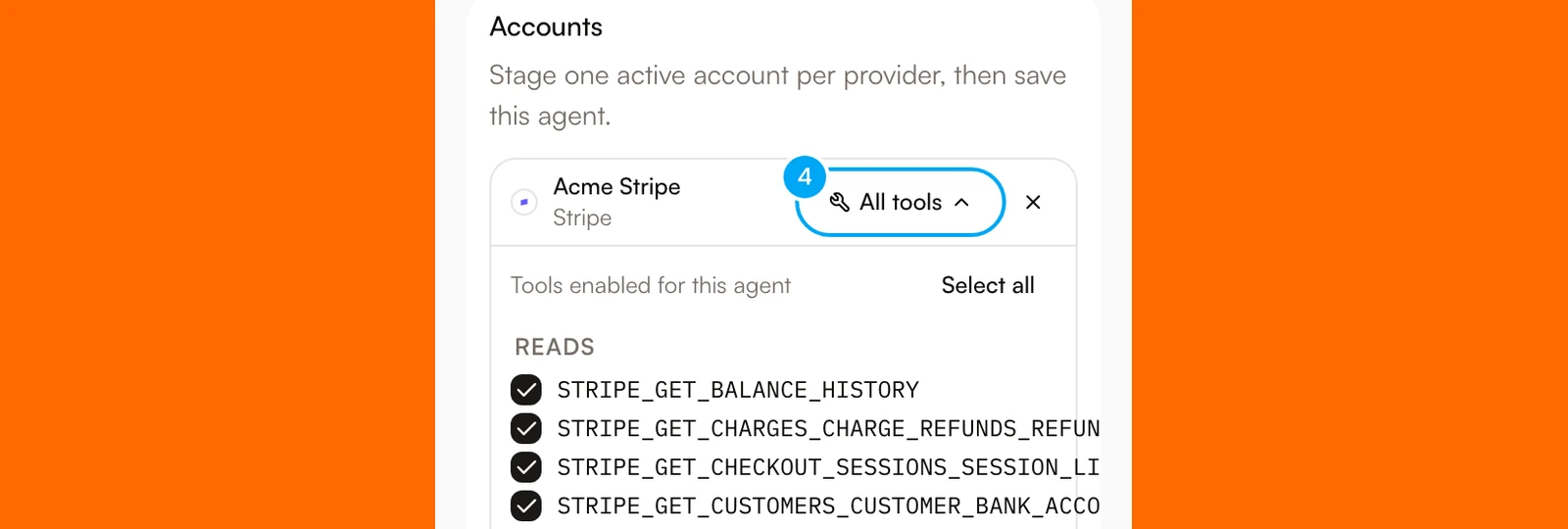
The list shows only the tools that the connection permits. A Destructive group appears only after someone turns those tools on for the connection. Select all returns the agent to every permitted tool, and the button then reads All tools again.
When a provider has several accounts, the agent needs one named account. Pick it here.
Test the access
- Ask the agent for a read, such as listing a few records, and check that the data comes from the account you chose.
- Ask for an action. Inspect the proposed account, arguments, and effect on the approval card before you decide.