Connections link AI Agent to external services. A connection is one account at a provider. Agents use only the accounts and tools that you attach to them.
To work the other way round, with Claude or ChatGPT acting in your AI Agent workspaces, see Connect Claude or ChatGPT.
Open Connections
- In the sidebar, click Agents.
- Click the Connections tab.
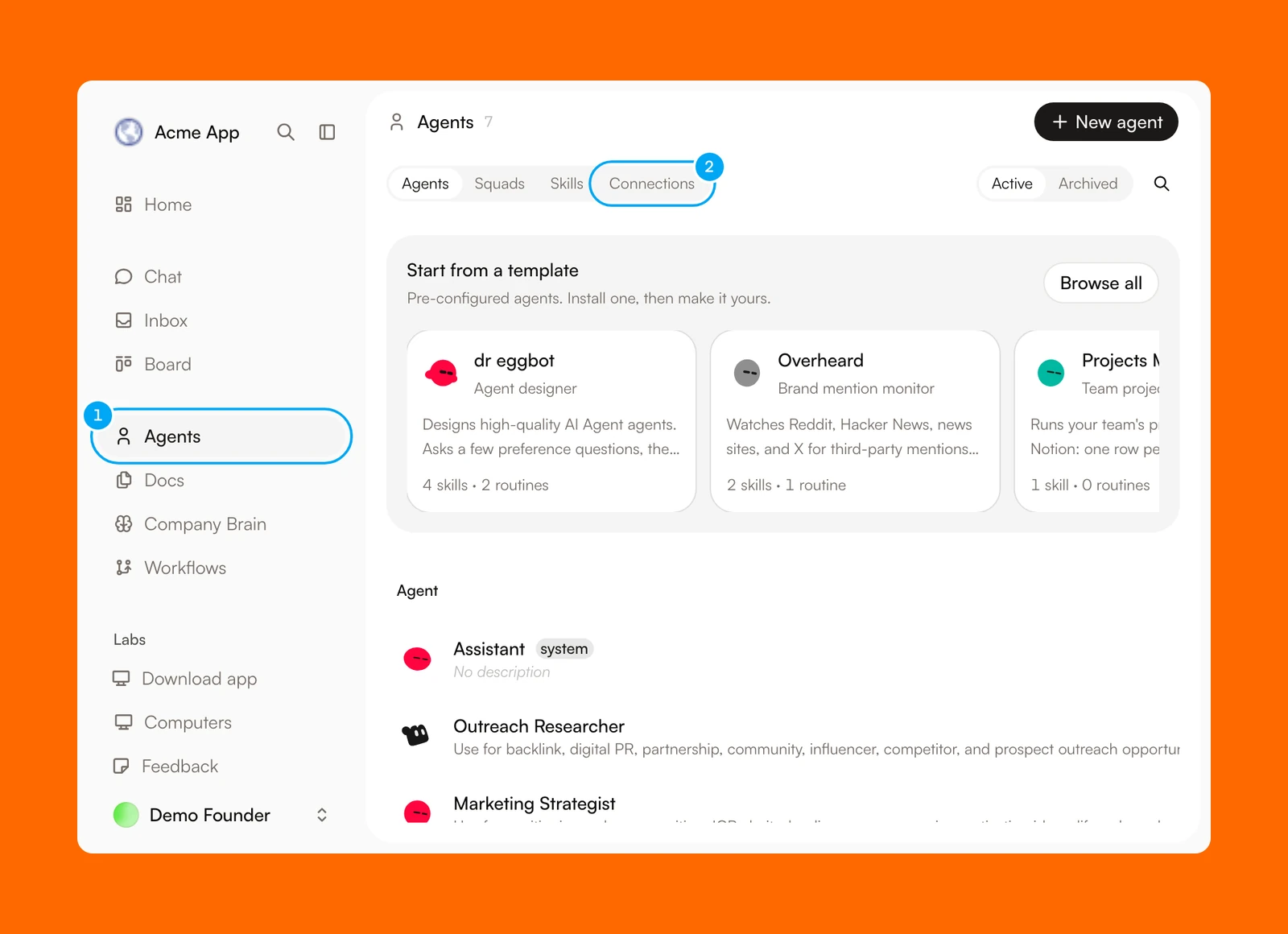
What the page shows
- Connected lists the providers that already have an account. It stays at the top, and each card carries a status badge.
- Popular suggests providers based on the role and job you chose during onboarding.
- Browse connections lists every available provider. Choose a category icon to narrow the list, or use the search button at the top right. The categories are Analytics, Revenue & Billing, CRM & Sales, Marketing & Email, Advertising, Creative & Media, Docs & Knowledge, Project & Issues, Social, Support, SEO & Web, Dev, and Comms & Calendar.
- What do you want your agents to do? sits at the bottom. Each suggestion lists the providers it needs. Enabling one turns on a ready-made Autopilot, so enable it only when you want that Autopilot to run.
- A Telegram card at the top links your own Telegram account. You can then message your assistant from your phone to create tickets, run workflows, and check status. The card is separate from the Telegram provider in the list.
A provider that cannot be connected yet shows Coming soon, or offers Request this connection when AI Agent does not support it. See Browse connection providers for the provider list and the ways to connect.
Who can use a connection
A connection is shared with the project by default. Members of the project can see it, and any agent that you attach it to can use it. A Gmail inbox is the exception: you choose Personal inbox or Team address when you connect it, and a personal inbox is available only to the person who connected it.
From connection to agent
An agent you create cannot use a new account until you attach it. Built-in agents marked system, such as Assistant, can use every connection in the project.
- Connect the account.
- Attach it to an agent and choose the tools that agent may call.
- Test the agent with representative work before you rely on it.
Continue
Browse providers
Find a supported service and see how its account is authorized.
Connect and disconnect
Connect, check, reconnect, or remove one account.
Connect Gmail
Bring email into the Inbox and review drafts before they send.
Control tool access
Set what each connection allows and which tools each agent can call.
Connection access and approvals
See how connection limits, agent access, and approvals work together.