A run is one execution of a workflow or Autopilot. Run history lets you verify what happened without relying only on the final output.
Where to find it
Open Workflows and choose the Runs tab to see recent runs across the workspace. Each workflow and Autopilot also keeps its own run history.
Inspect a run
Find the run
- In Workflows, click the Runs tab.
- To narrow the list, choose Running, Done, or Failed.
- Click a run to open it.
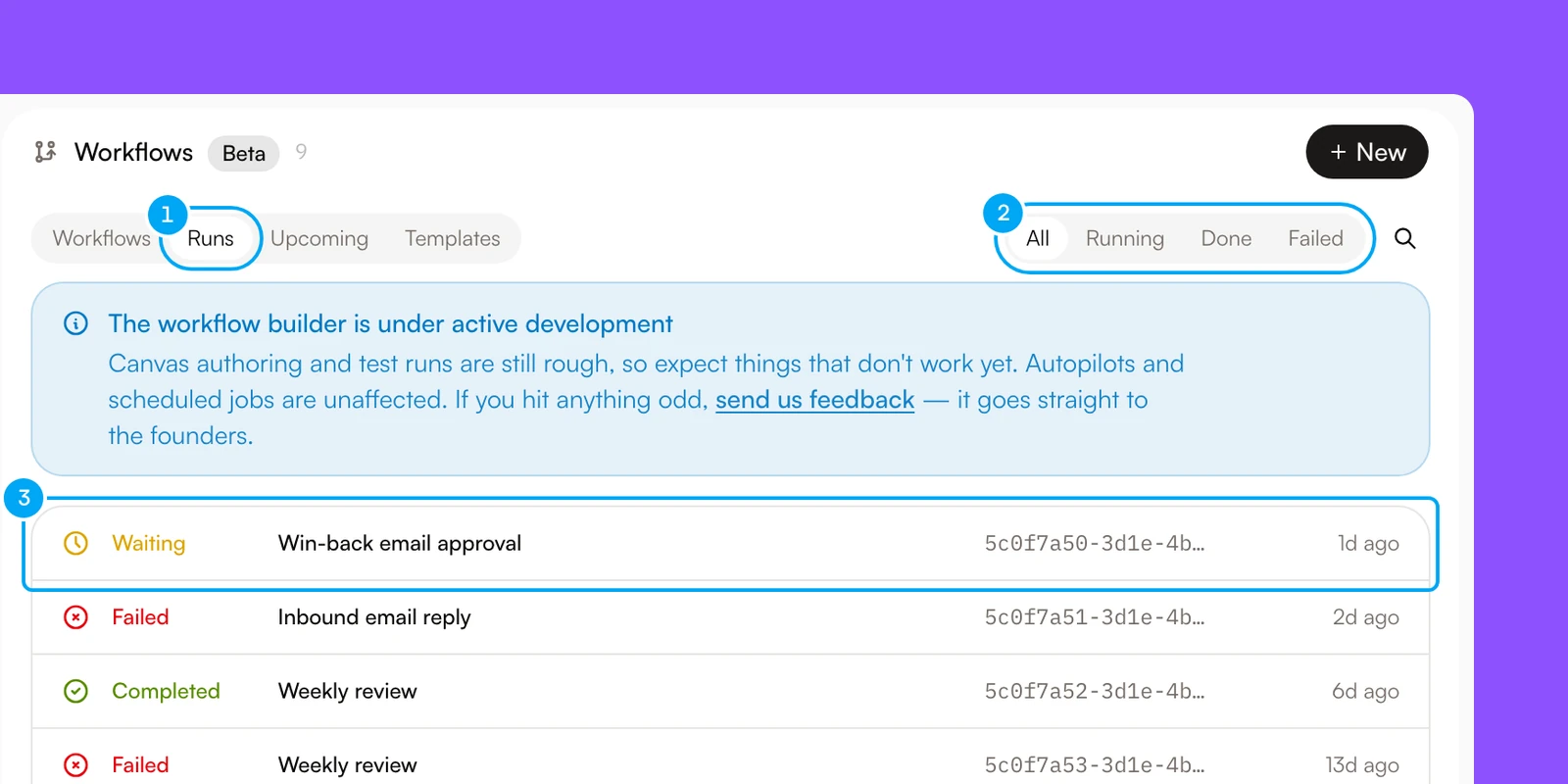
The list shows the latest 30 runs across every workflow and Autopilot in the workspace. A Waiting run counts as Running. Completed, Stopped, Filtered, Canceled, and Bailed runs count as Done. To see older runs, open the workflow or Autopilot and use its own run history. Upcoming lists the runs that are scheduled next.
Inspect the timeline
A run opens beside the Run history of its workflow. The header shows the run status and the run ID. Below it, each step lists its status, start and end time, duration, output, and any error.
- In Run history, click the run you want to read.
- Read the steps on the right.
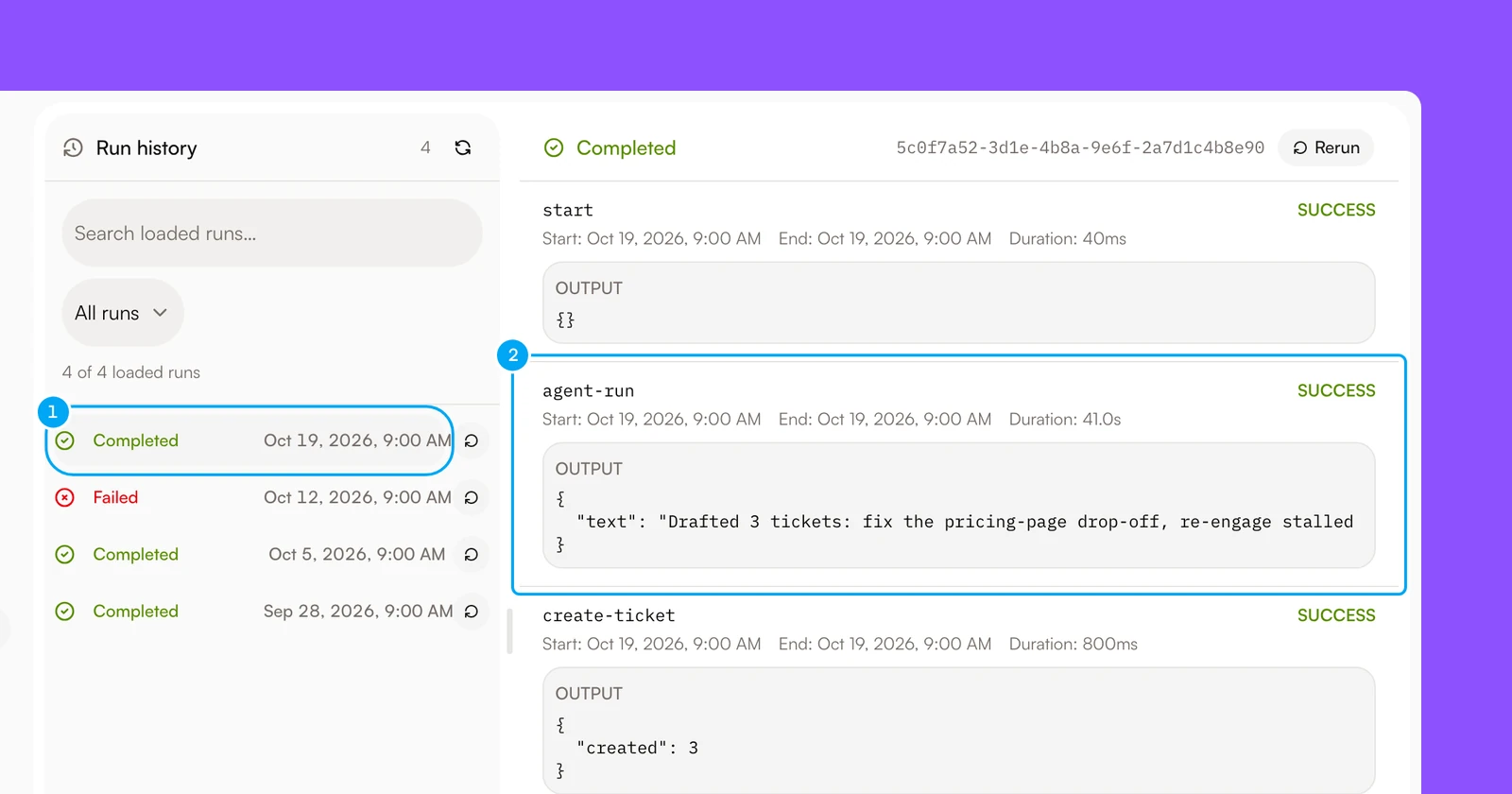
When the run has a workflow graph to display, the run also has Steps and Graph tabs. Select a step in the graph to jump to it in Steps.
Respond to a waiting step
A run that waits at an Approval block has the status Waiting. Its waiting step shows the message the workflow wrote for you, with Approve and Reject.
- Read the message on the waiting step.
- Click Approve to let the run continue.
- To end the run instead, click Reject.
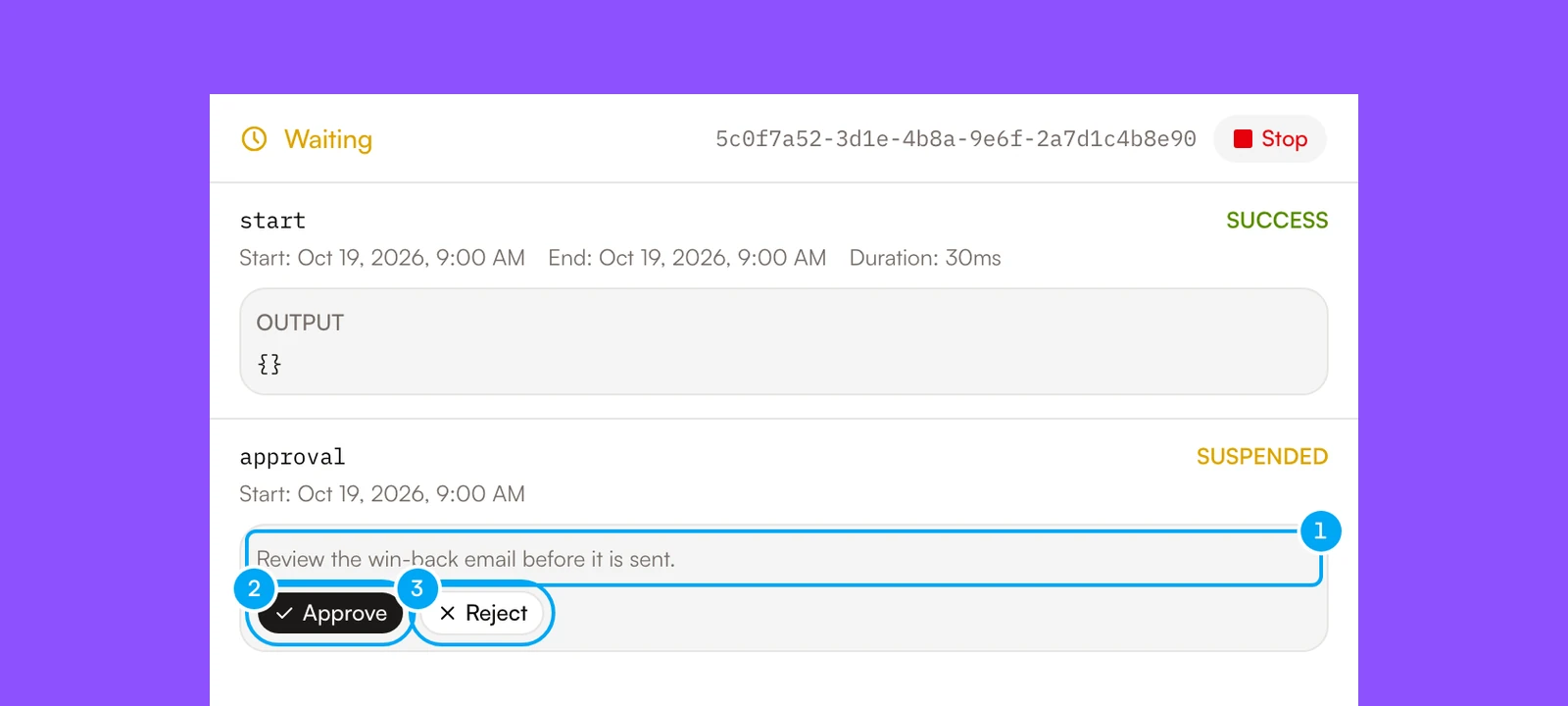
The workflow resumes from that step with your decision. Workflows also lists every run that waits for you under Approvals waiting. A step that waits for a set time or an event shows no buttons and resumes by itself. To end a run that is still in progress, click Stop in its header.
Diagnose a failure
Open the failed step before you change the workflow. Its error says what stopped the run. Correct the missing input, the connection access, or the step configuration. Then start a new run, or rerun the failed one.
- Open the failed run, and read the error on the failed step.
- Click Rerun.
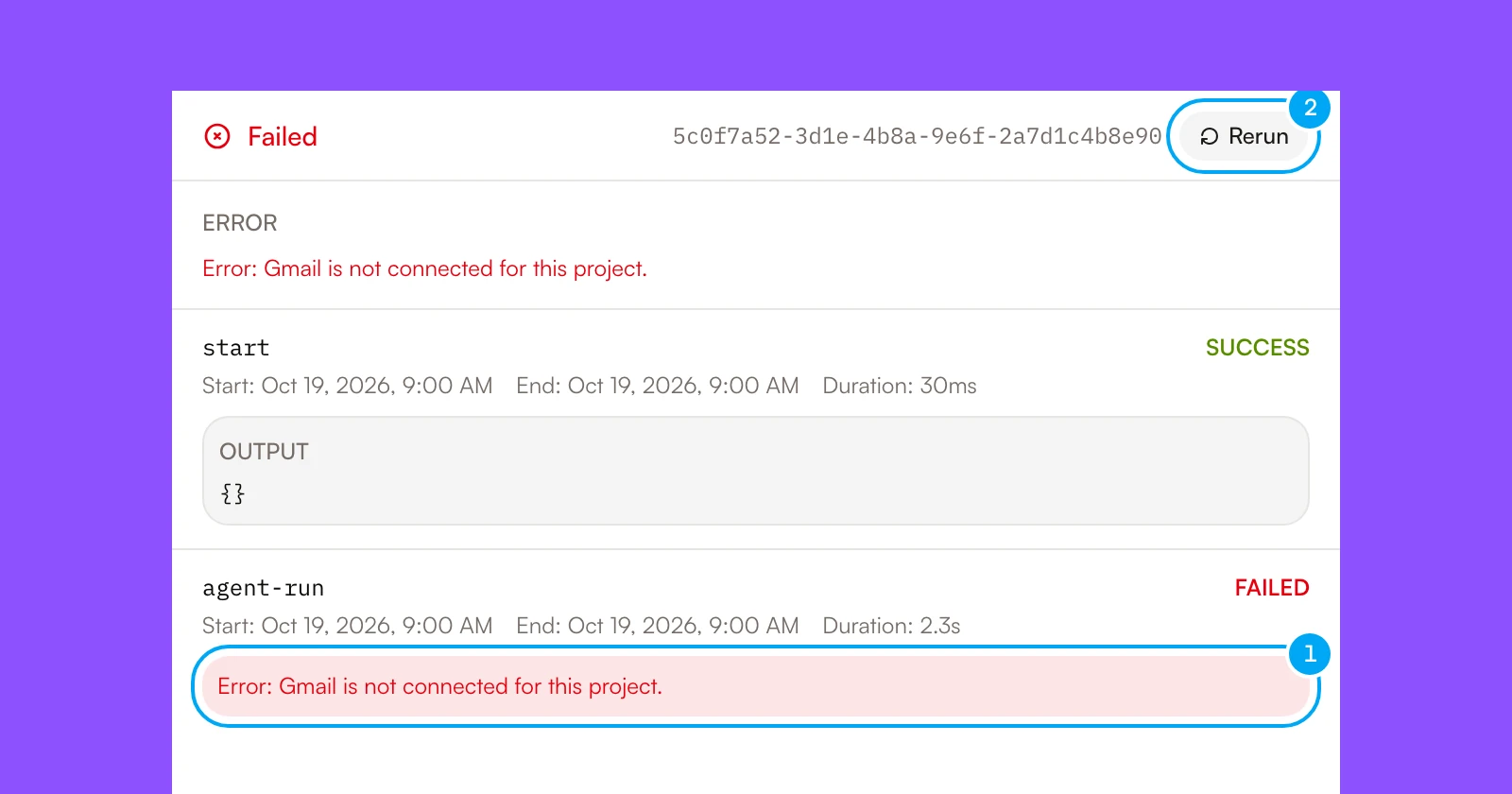
Rerun starts a new run with the same input, on the workflow’s current graph, so a fix you made since the failure applies. It is available on a finished run that kept its input. A run that replied to an Inbox message cannot be rerun: draft the reply again from the Inbox. If your plan’s limit for runs at the same time is reached, the new run waits and appears in the list when a slot frees up.
Understand common states
- Running — currently executing
- Waiting — paused for an approval, an answer, or a set time or event
- Paused — held and not running
- Pending — accepted but not started
- Completed — finished successfully
- Failed — stopped after an error
- Canceling… — a stop request is in progress
- Canceled — stopped on request
- Stopped — a step ended the run early on purpose, without an error
- Filtered — a filter ended the run because the input did not match
- Responded — a reply step ended the run after it replied
- Bailed — the run ended early, for example when an approval was rejected