The Board is where planned and active work becomes visible. Each ticket describes a unit of work that a person or agent can own, discuss, and move through a defined status.
Where to find it
Open Board in the sidebar. The Board lists every ticket in the workspace, including tickets that belong to a Project.
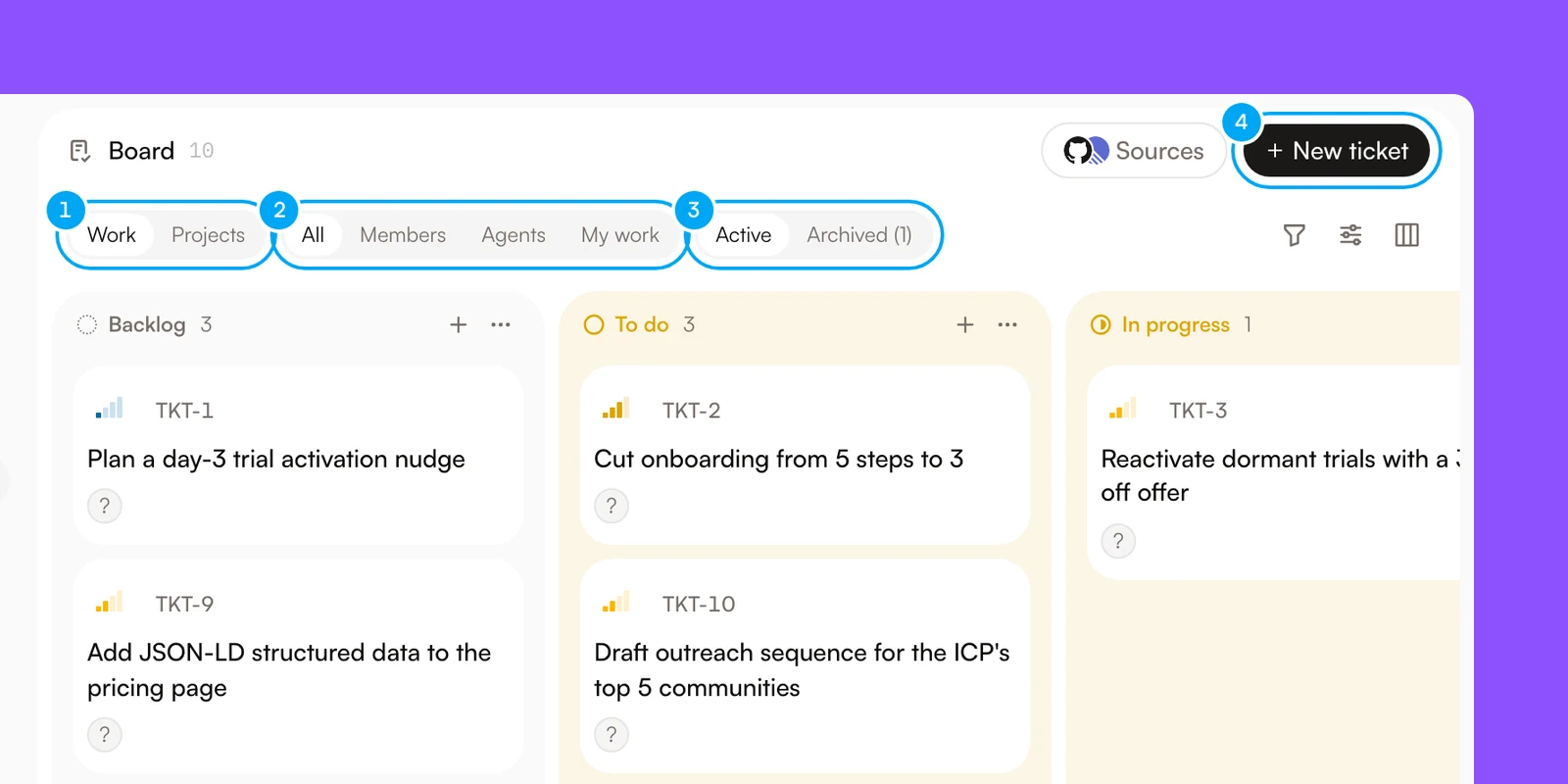
The header of the Board has four controls:
- Work and Projects switch between the workspace board and the boards of your Projects.
- All, Members, Agents, and My work limit the board to tickets by assignee. My work shows the tickets assigned to you.
- Active and Archived switch between open work and archived tickets. Archived shows how many tickets it holds.
- New ticket opens the form for a new ticket.
To the right of these controls, Filter tickets and Ticket display settings narrow and arrange the tickets. Change ticket view switches between Board, List, Table, Calendar, and Gantt.
Ticket status
A ticket is in one of six statuses. The Board shows them as columns, from left to right:
- Backlog — captured but not ready to start;
- To do — ready to be picked up. Tickets an Autopilot creates start here, and wait for your decision;
- In progress — actively being worked;
- In review — waiting for review. A finished agent run moves a ticket here from In progress. A run that stops to ask for input does not. An open pull request also moves a ticket here;
- Done — completed;
- Blocked — unable to continue.
A seventh status, Cancelled, has no column. A cancelled ticket moves to the Archived tab, and so does a Done ticket 14 days after it was completed.
To decide on a ticket in To do:
- Open the ticket.
- At the bottom of the ticket, click Approve. With an agent assignee, the button reads Approve and start.
- To cancel the ticket instead, click Reject.

Reject moves the ticket to Cancelled. Approve moves it to In progress. Approve and start starts the assigned agent, and the ticket moves to In progress when the run starts. A ticket that mirrors a GitHub or Linear issue has no Approve or Reject.
Move a ticket by dragging its card to another column, or change its status in the ticket. When you drag an open ticket into In progress, Start agent work? opens. Click Start work to run an agent on the ticket. Click Not yet to put the card back in its column.
Ticket details
A ticket can include:
- a title and description;
- priority, start date, and due date;
- one assignee, either a member or an agent;
- labels and Steps, a checklist of smaller items;
- comments, replies, and reactions;
- file attachments;
- linked GitHub issues or pull requests;
- activity and agent-execution history.
When an agent needs clarification or confirmation, the ticket shows a Needs you section. Respond from the ticket so the work can continue with the original context.
After a run, the ticket pins the agent’s Latest result above the activity, so a reviewer sees the outcome and its evidence first. Latest result is hidden while a newer run is in progress, has failed, or is waiting on a question.
Start and due dates
Set Start date and Due date in the ticket’s properties, or on its card. The picker offers Today, Tomorrow, Next week, and In 2 weeks, or you can choose any day.
A ticket date is a calendar day, not a moment. Everyone in the workspace sees the same day, whatever their time zone. A ticket turns overdue, and its due date shows in red, when its due day has ended in your own time zone. A Done or Cancelled ticket is never overdue.
The Calendar view shows each ticket on its due day, and the Gantt view draws a bar from its start date to its due date. Drag a ticket in either view to change its dates.
If a Telegram account is linked to the workspace, AI Agent sends a message there at 09:00 on the due day, in the workspace time zone. The message reads “is due today” and has an Open ticket button. When you set or move a due date, AI Agent sends no reminder if 09:00 on that day has already passed. It sends none for a ticket that is Done or Cancelled by then, or whose due date moved.
Ticket keys and pull requests
Every ticket has a key made of the ticket prefix and a number, such as TKT-42. You choose the prefix, up to four letters or digits, in Ticket prefix when you set up the workspace. The default is TKT. To find a ticket, press Cmd+K (Ctrl+K on Windows) and type its key. #42 and 42 also work, and so does the start of your prefix with a number, such as tk 42 for TKT-42. An exact match shows first.
For a GitHub repository attached to the workspace:
- a pull request that has the key in its title or branch name is linked to that ticket. The key must use the workspace’s ticket prefix. The key in the description links only after a closing keyword, such as
Closes TKT-42; - a pull request that closes an issue shown on the Board is linked to that issue’s ticket;
- an open pull request that matches no ticket gets a ticket of its own, so it still appears for review. A pull request from a fork does not get one.
An open pull request moves its ticket to In review. With no open pull request and a draft, the ticket moves to In progress. When a pull request merges and none is open or draft, the ticket moves to Done. If a pull request closes without merging and none is open, draft, or merged, the ticket moves to Blocked, or to Cancelled when a pull request created the ticket. A linked GitHub issue that is still open keeps the ticket In progress instead. A linked issue closed as not planned moves the ticket to Cancelled, and an issue closed as completed, with no pull request linked, moves it to In review. A ticket mirrored from a Board source keeps the status that source sets.
Pull request events never move a Done or Cancelled ticket. A reopened GitHub issue is the exception: it moves the ticket back to In progress. To link a pull request by hand, click Link PR in the ticket’s Pull requests section, then choose the repository and the pull request in Link a pull request. A link that GitHub confirms counts like an automatic one. A link GitHub cannot confirm, and a pull request URL pasted in a comment, stays unverified until GitHub reports on the pull request, and unverified links do not change the status. Automatic updates need the repository webhook.
Workspace and project boards
The workspace board shows every ticket in the workspace. A ticket may optionally belong to a Project, which gives a focused initiative its own board. Choose Projects to open the boards of your Projects.
Ticket sources
Tickets may be created manually, by an Autopilot, from a message in the Inbox, or from a GitHub pull request. The ticket preserves its source so you can distinguish generated work from work entered by a person.
Sources on the Board opens Board sources. Click Attach source to attach a GitHub repository or a Linear team. Their issues appear as tickets that keep the status, title, and description the source sets, and you cannot assign an agent to them.
Messages that arrive through a connection, such as Gmail, appear in the Inbox. To add a message to the Board, click Create ticket on it.
Board
Track owned work through a visible status from backlog to completion.
Tickets from a conversation
Describe a task, a to-do, or a reminder to an agent in chat — including a due date, an owner, or a language other than English — and it returns a ticket draft as a card in the conversation. Nothing is added to the Board until you review the draft and confirm it. The same applies to changing an existing ticket: an agent proposes the change as a draft you confirm, rather than editing it directly.
Archive, restore, and delete a ticket
Archive a ticket when the work stops. The ticket keeps its history and moves out of the board columns.
- Open the ticket.
- At the top of the ticket, click the trash icon. Its tooltip reads Archive ticket.
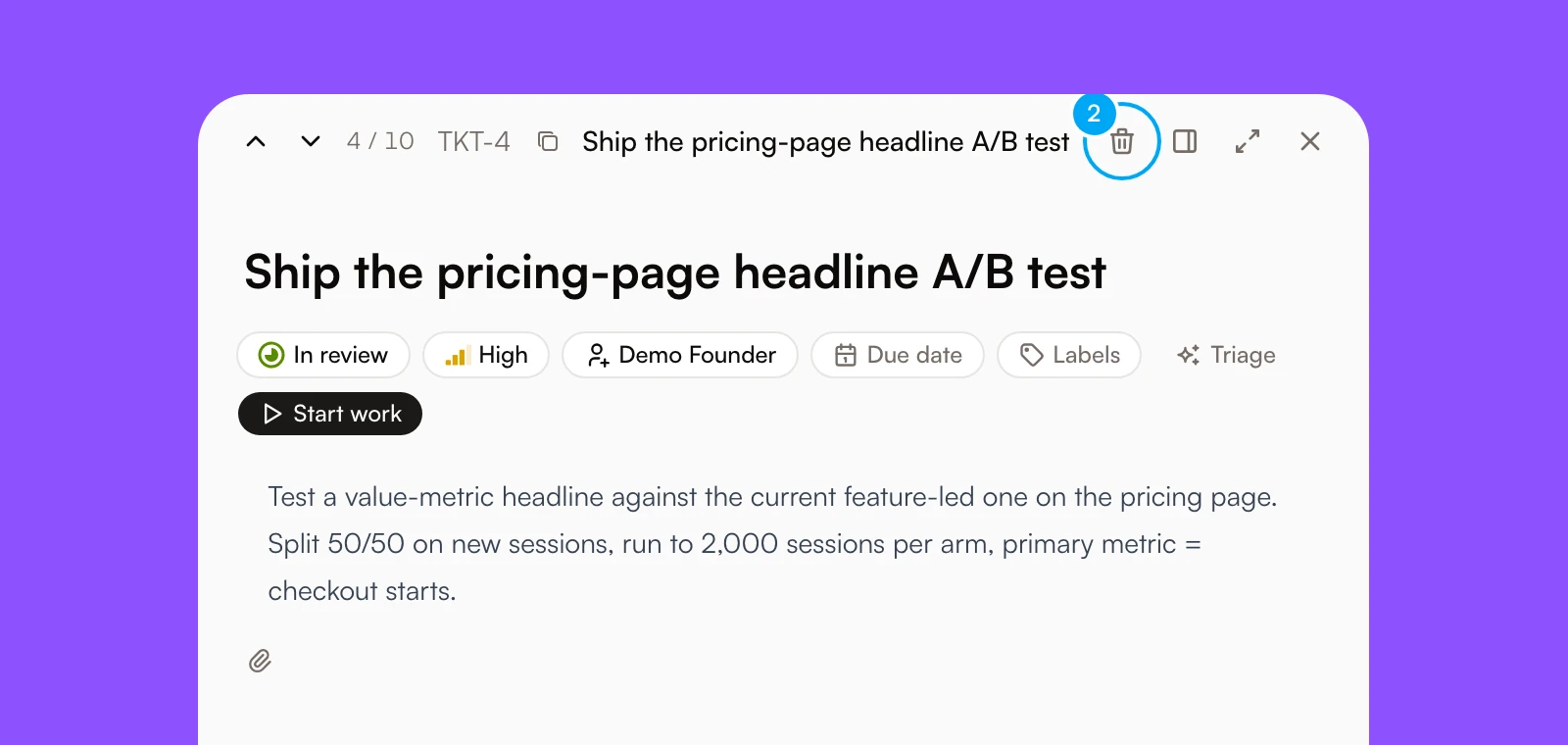
Archiving sets the ticket to Cancelled and asks for no confirmation. While the undo window is on, an Undo toast shows first and the archive completes when it closes. Archived tickets stay in the Archived tab.
- Click the Archived tab.
- To bring a ticket back, click Restore. A restored ticket returns to To do.
- To remove a ticket for good, click Delete permanently. Hold the confirmation button until it completes.
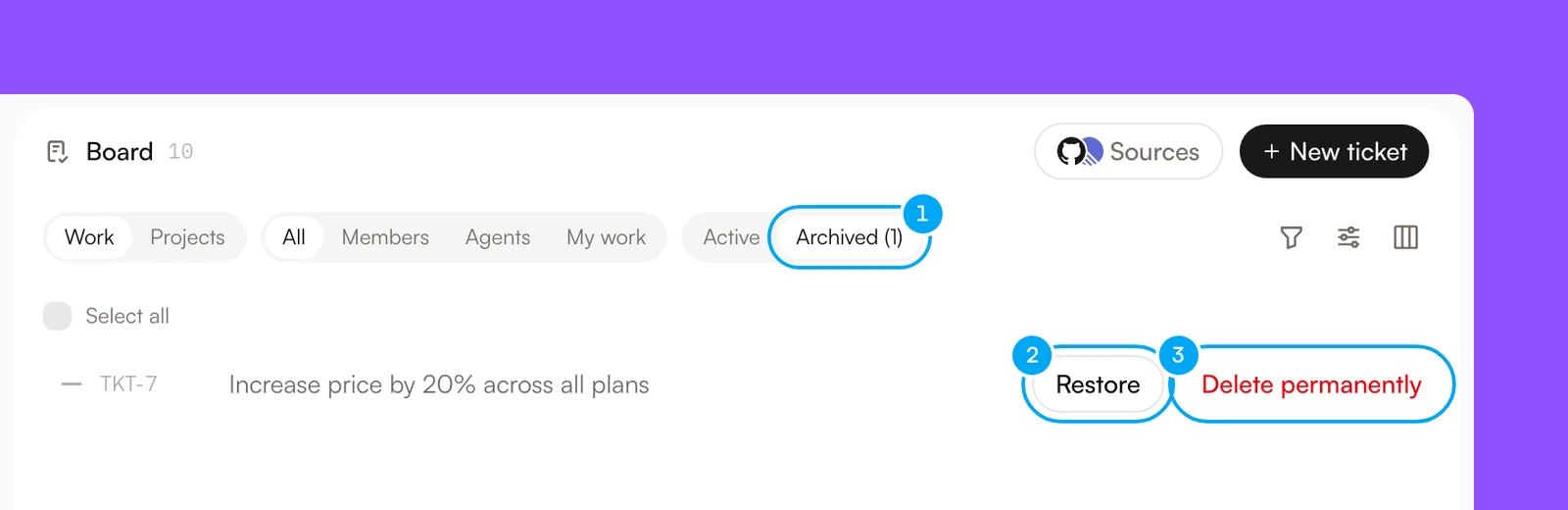
You can also delete a ticket from its own page: on a cancelled ticket, or a Done ticket that has reached the Archived tab, the trash icon reads Delete permanently. Only an archived ticket can be deleted.