Agents read your knowledge without extra setup. Every agent in the project reads the Brand knowledge pool, which holds every source added with Add to set to Brand knowledge. You can also attach docs to one agent.
What an agent can read
An agent reads these sources, and only when their status is Ready:
- Brand knowledge. Every source in the pool. An agent leaves the pool only when its Company knowledge switch is off.
- Docs attached to the agent. These stay available even when Company knowledge is off.
- Board Project sources. A source added to a Board Project counts only for work in that Board Project, and only while Company knowledge is on.
AI Agent splits each source into passages and gives the agent the passages that match the task. The agent does not read whole documents.
Attach docs to an agent
Attaching adds a source to that agent’s own list. It does not take sources away from the agent, because the agent keeps reading Brand knowledge unless you turn Company knowledge off. Attach a doc when you turn off Company knowledge for the agent, or when a Board Project source must always reach that agent.
Open the Docs section
- In Agents, open the agent.
- In the panel on the right, stay on Overview and scroll to the Docs section under Spec.
- In the Docs section, click Attach. The Attach docs dialog opens.

Choose the docs
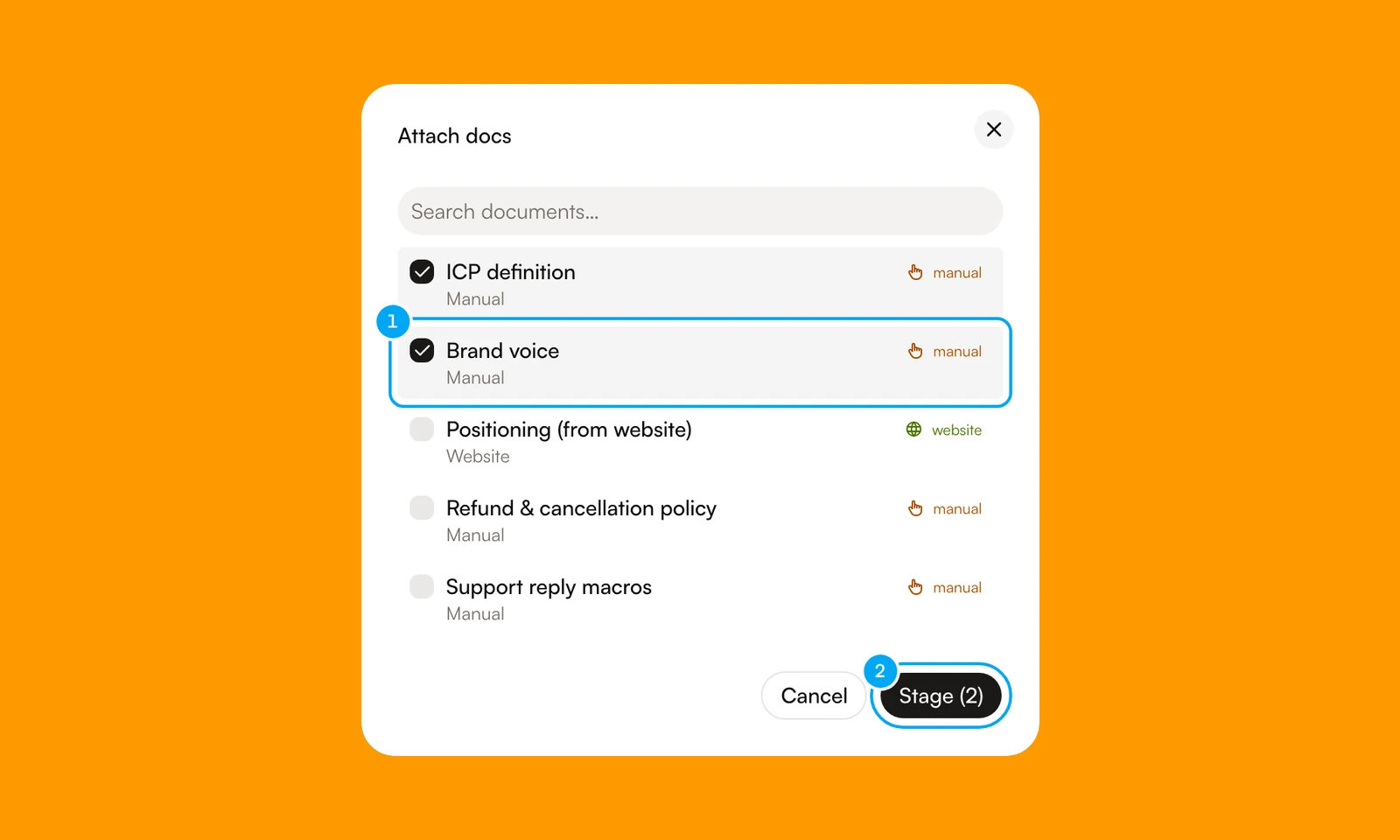
- In Attach docs, tick the docs the agent needs. The list shows only Ready sources.
- Click Stage. The button shows the count, for example Stage (2).
Choose a small, focused set. A focused set makes results easier to test.
Save the agent
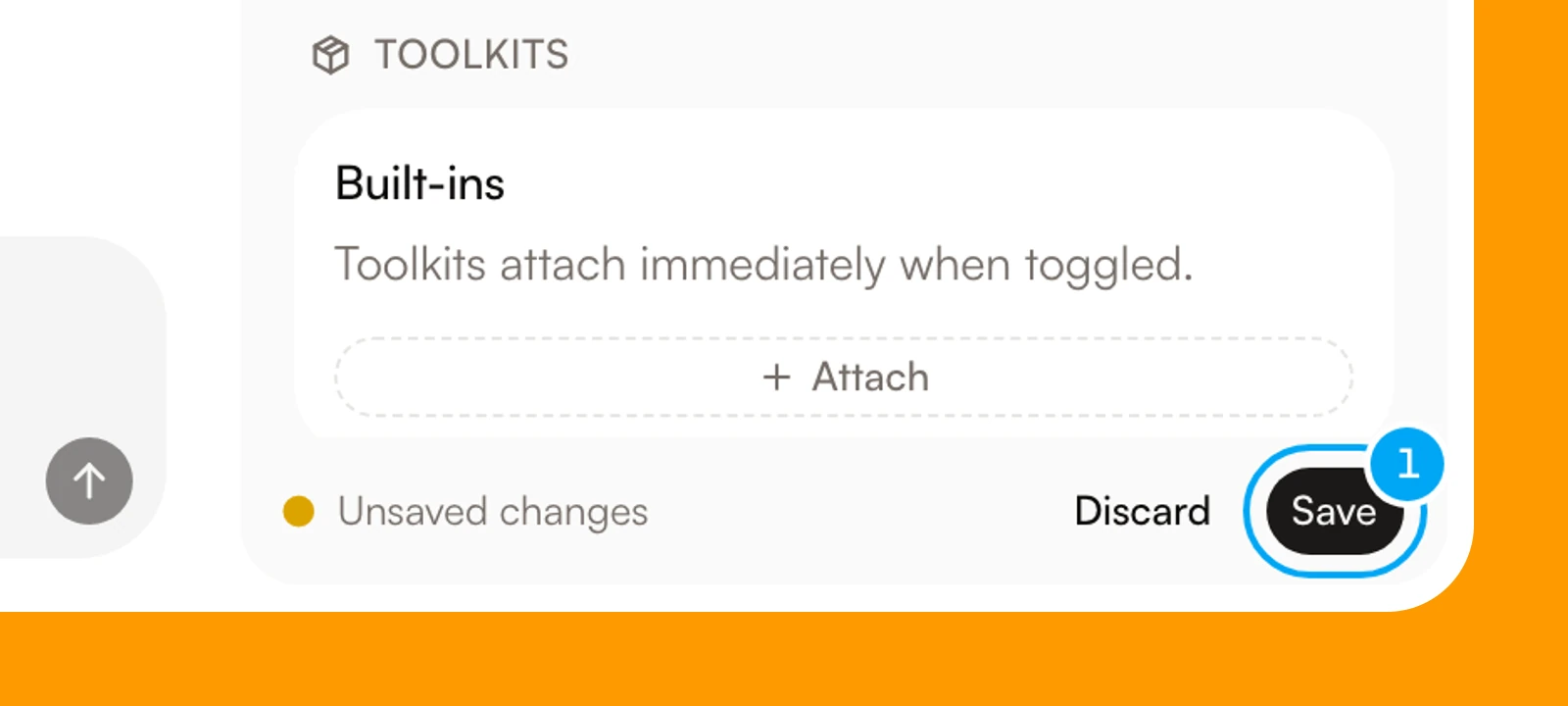
Staging changes only the draft. The docs appear as chips in the Docs section, and an Unsaved changes bar appears at the bottom of the panel.
- In the Unsaved changes bar, click Save. To drop the change, click Discard.
To remove a doc, click the x on its chip, then click Save.
Turn off Company knowledge for one agent
Use this when an agent must work only from the docs you attach to it.
- On the agent page, click Edit to open the agent builder.
- Click the agent block. In the panel that opens, find Model & Reasoning.
- Turn off Company knowledge. The switch is on by default.
- Click Save Core, then click Save at the top right.
Check the evidence
Ask the agent a question that one source answers clearly. In Chat, a reply that used your knowledge shows source chips under it, such as K1. Click a chip to see the source title, an excerpt, and the match percentage. A chip for a website source also links to the page.
Under the same reply, the Retrieval trace chip opens a page that lists the query, the sources considered, the citations, and the matched passages. Use it to tell a missing source from an answer that needs clearer instructions. The chip appears only under chat replies. Run details, tickets, and Activity have no link to it.