The connection directory lists the providers you can connect to your project. Use it to find a service, check what it can do, and start its sign-in or key flow.
Find a provider
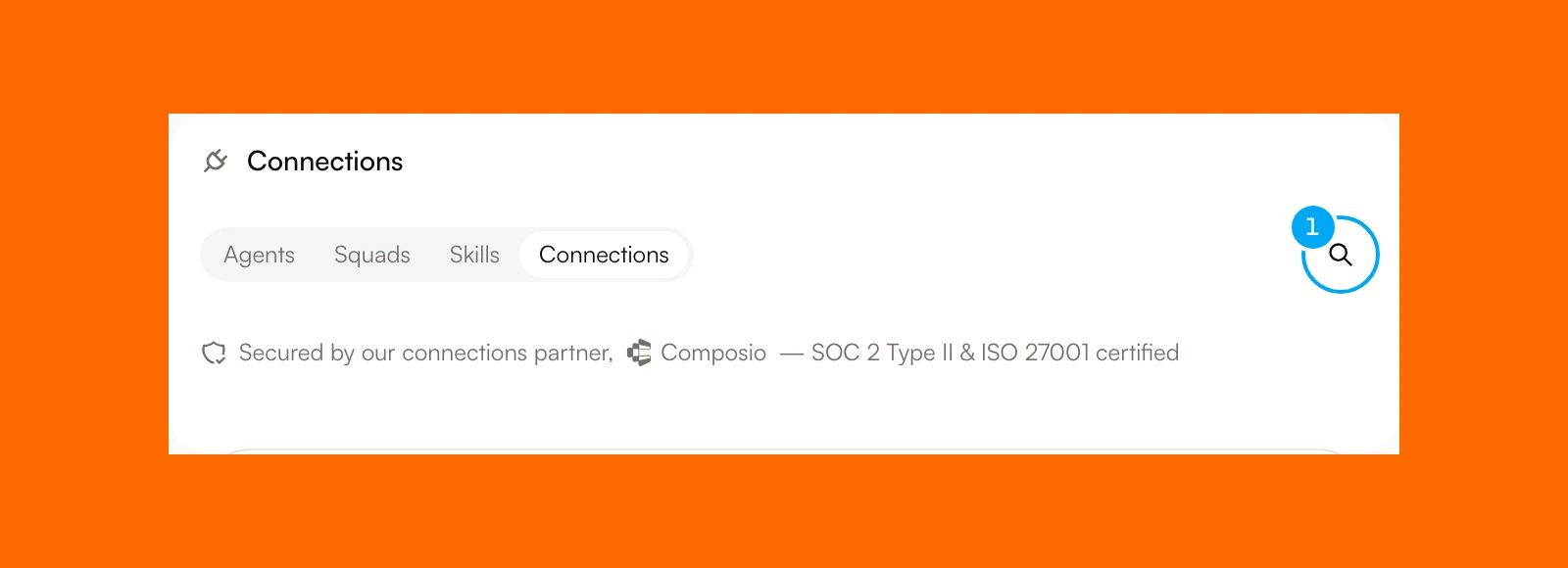
- To search, click the search button at the right end of the tab row, then type a provider name or a word from its description.
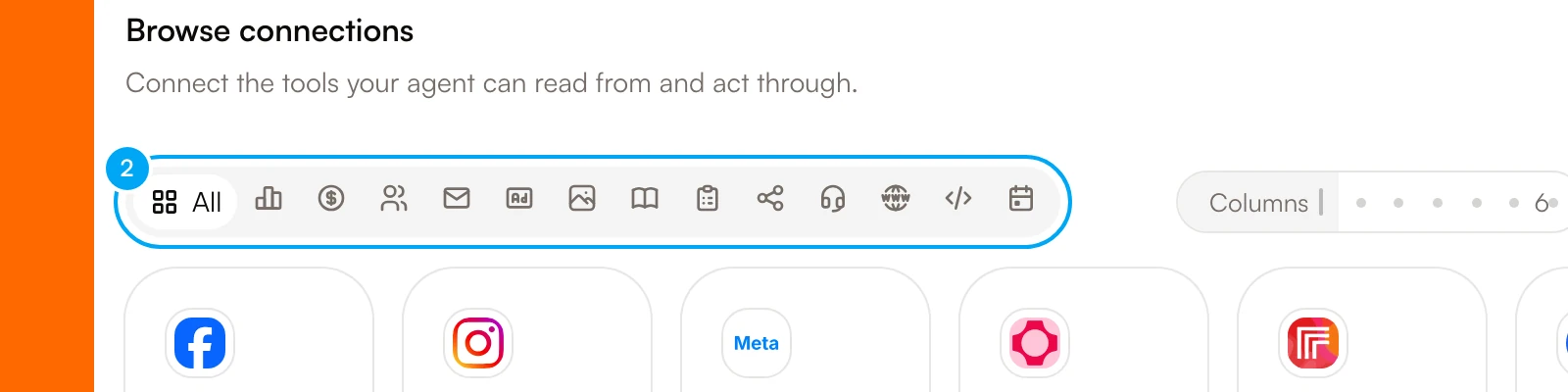
- To browse, choose a category icon under Browse connections. All shows every category.
Providers that already have an account move to the Connected section at the top and leave the browse list.
Check what a provider can do
- Click the provider’s card.
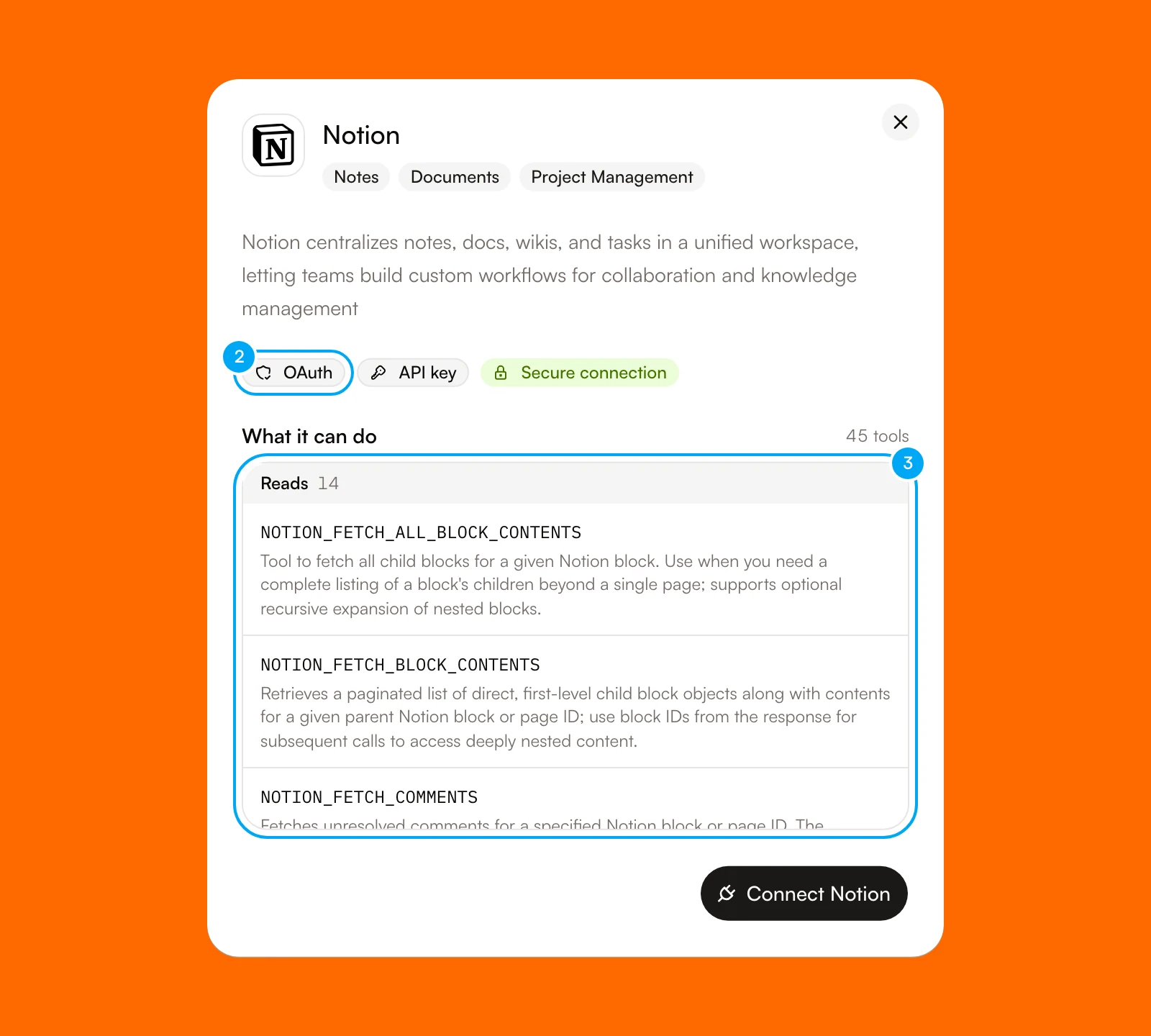
- Read the badges under the description. They list the sign-in methods that the provider supports, such as OAuth or API key. The table below shows the method that AI Agent uses for each provider. Secure connection marks a provider that AI Agent connects through a managed sign-in, so you do not set up your own app.
- Read What it can do. It lists the provider’s tools in two groups. Reads retrieve information. Actions change information and Require your approval.
A listed provider is not a promise that every tool suits your work. Review the tools you plan to use and test them with representative work.
How providers connect
| Method | What you do |
|---|---|
| Sign in | Click Connect followed by the provider name. The provider’s own page asks you to choose an account and approve access. |
| API key | Click Use API key. In API key, paste a key from the provider, then click Connect. |
| Several credentials | Mixpanel asks for a set of credentials. Fill in each field the form shows, then click Connect. |
| Token form | Telegram asks for a Bot token, and Apify asks for an API token. |
PostHog connects by sign-in, and Use API key opens a form for a PostHog host, a project ID, a project token, and a personal API token. After GitHub connects, its dialog lets you attach repositories.
Providers by category
This list shows what the directory offered when this page was written. The directory in the app is the current source.
| Category | Sign in | API key or token |
|---|---|---|
| Analytics | Google Analytics, PostHog, Triple Whale | Amplitude, Segment, Mixpanel (several credentials) |
| Revenue & Billing | Stripe | Shopify |
| CRM & Sales | Attio, HubSpot, Salesforce | Pipedrive |
| Marketing & Email | Mailchimp | ActiveCampaign, Klaviyo, Resend, SendGrid |
| Advertising | Atria, Facebook, Instagram | Meta Ads |
| Creative & Media | None | Fal.ai, Replicate |
| Docs & Knowledge | Confluence, Google Docs, Google Drive, Google Sheets, Granola, Notion | Fireflies |
| Project & Issues | GitHub, Jira, Linear | None |
| Social | None | |
| Support | Gorgias, Intercom, Zendesk | Freshdesk, Telegram (bot token) |
| SEO & Web | None | Ahrefs, Apify, Exa, Firecrawl, Moz, Semrush, SerpApi |
| Dev | Supabase | None |
| Comms & Calendar | Google Calendar, Slack | None |
Gmail connects from the Inbox, not from this page. See Connect Gmail.
Some entries are not ready to connect:
- Coming soon marks a provider that AI Agent plans to support. RevenueCat shows this label.
- Request this connection appears in the detail dialog of a provider that AI Agent does not support yet, such as Twitter. Click it to ask for the connection.
Use the connection
An agent you create cannot use a new account until you attach it to that agent and choose its tools. Built-in agents marked system, such as Assistant, can use every connection in the project. See Control tool access.