The sidebar is the map of the workspace. The first time you open a section from the sidebar, a short card explains what it does. Use this page as the full reference.
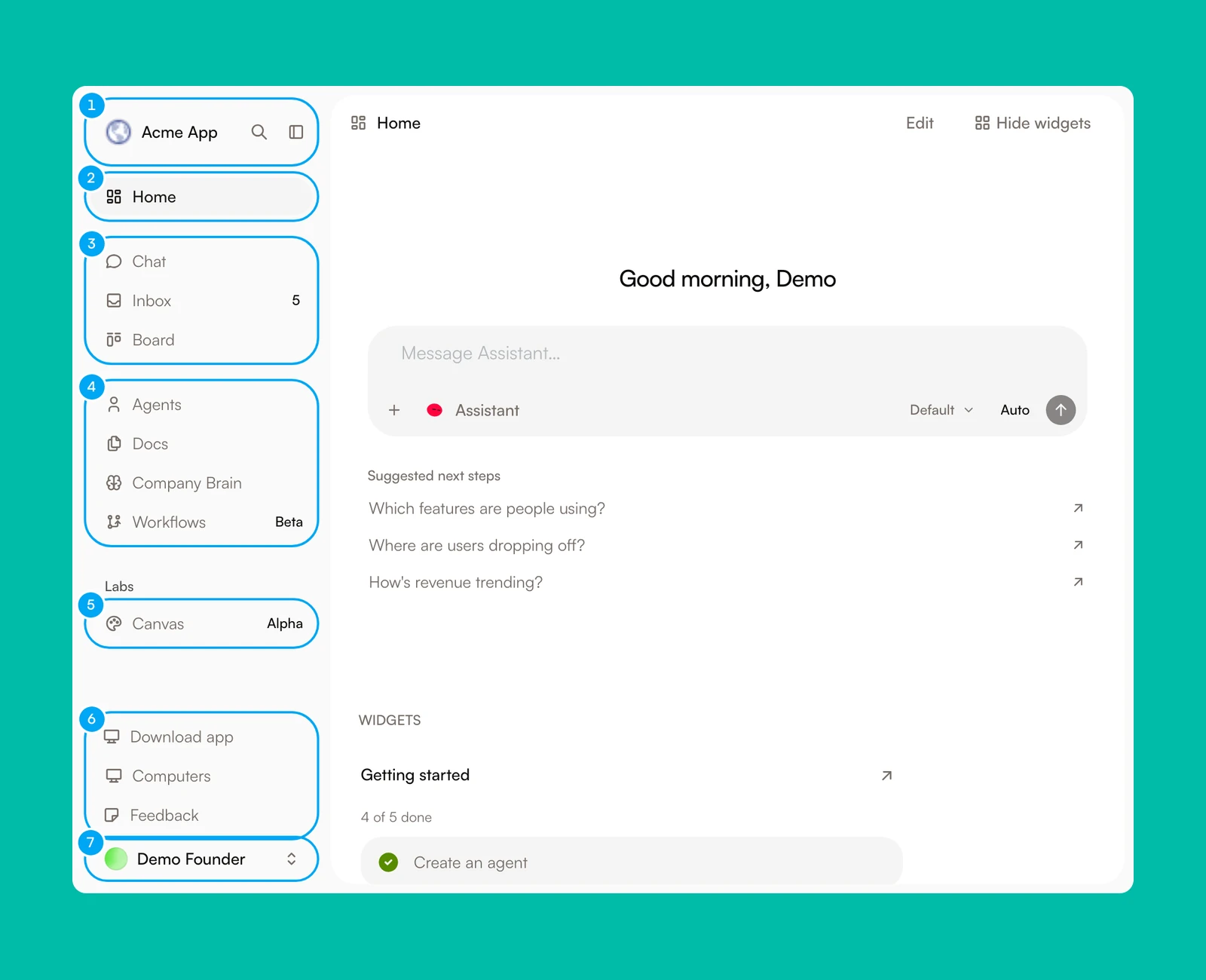
- The workspace switcher, Search (⌘K), and the button that collapses the sidebar.
- Home.
- Chat, Inbox, and Board.
- Agents, Docs, Company Brain, and Workflows.
- The Labs group.
- The footer links Download app, Computers, and Feedback.
- The account menu, which opens Settings.
Search
Search (⌘K) jumps to any page, and to any ticket by its key.
Home
Home starts as a calm chat composer with suggested next steps. Click Show widgets to add a grid below it: Getting started, Todo, Needs to know, Suggestions, Approvals, Recently done, Quick links, Notes, and Metric tile. Click Edit to rearrange the grid. Hide widgets returns to the composer.
Chat
Ask your agents anything, and switch models inside a thread.
Inbox
Inbox collects messages, proposals, approvals, waits, and errors that need attention. Learn how the Inbox and Board serve different purposes.
Board
Organize work as tickets. Use the Work tab to review scope, assign a person or an agent, track status, and inspect the history of work on a ticket. The Projects tab holds optional boards for focused initiatives. Learn how the Board and tickets fit together.
Agents
Create operators with a focused role, instructions, docs, and controlled access to connections. Open an agent to chat with it, inspect its recent activity, and refine its configuration. The page has four tabs: Agents, Squads, Skills, and Connections. Open the Connections tab to connect external accounts, then choose which account and tools each agent may use. Read tools can retrieve information. Actions and destructive tools have additional controls. Learn more about agents, create and test one, and see the connections overview and tool access guide.
Docs
Open Docs to add the URLs, files, and notes that agents can reference. The page has four tabs: All, Sources, Tables, and Competitors. Tables live here too. Learn how to add and manage knowledge sources.
Company Brain
Company Brain holds what your agents know about the product, the company, the brand, and the voice. Your agents act on it, so correct mistakes here before they reach their work.
Workflows
Build repeatable sequences, run them manually, and set up recurring Autopilots. Workflows is marked Beta. Its Runs tab shows recent execution across workflows and Autopilots. Compare workflows and Autopilots, then learn how to inspect runs.
Labs
The Labs group holds features that are still changing. Canvas, the Code workflow block, and Artifacts are marked Alpha and are on by default. Artifacts is a tab beside Chat, not a sidebar row. The Activity section appears here after you turn on Show Labs features in Settings → Labs. Each Labs feature has its own switch on that page, and the switches apply to this browser only.
Pinned, the footer, and Settings
Items you pin appear in a Pinned group under the main sections. The footer holds Download app, Computers, and Feedback. Upgrade also appears there while your workspace has no paid plan. Open the account menu at the bottom to reach Settings. Its My account group holds Profile, Preferences, Computers, Labs, and Notifications. The group named after your organization holds General, Members, AI providers, Billing, and Danger zone.
See the intro cards again
A dot sits on each sidebar item you have not opened yet. Opening that section shows its card once, then clears the dot. Closing a card does not change anything in the workspace.