Organization settings control the shared workspace identity and its membership. Administrative changes are available to organization admins.
Where to find it
Open the account menu at the bottom of the sidebar and click Settings. The settings list has two groups. My account holds your own tabs. The group named after your organization holds General, Members, AI providers, Billing, and Danger zone.
Two places are called “Danger zone”. The General tab ends with a Danger zone section for leaving or deleting the organization. The Danger zone tab deletes workspace projects.
Update organization details
Open General
- Click your name at the bottom of the sidebar.
- Click Settings.
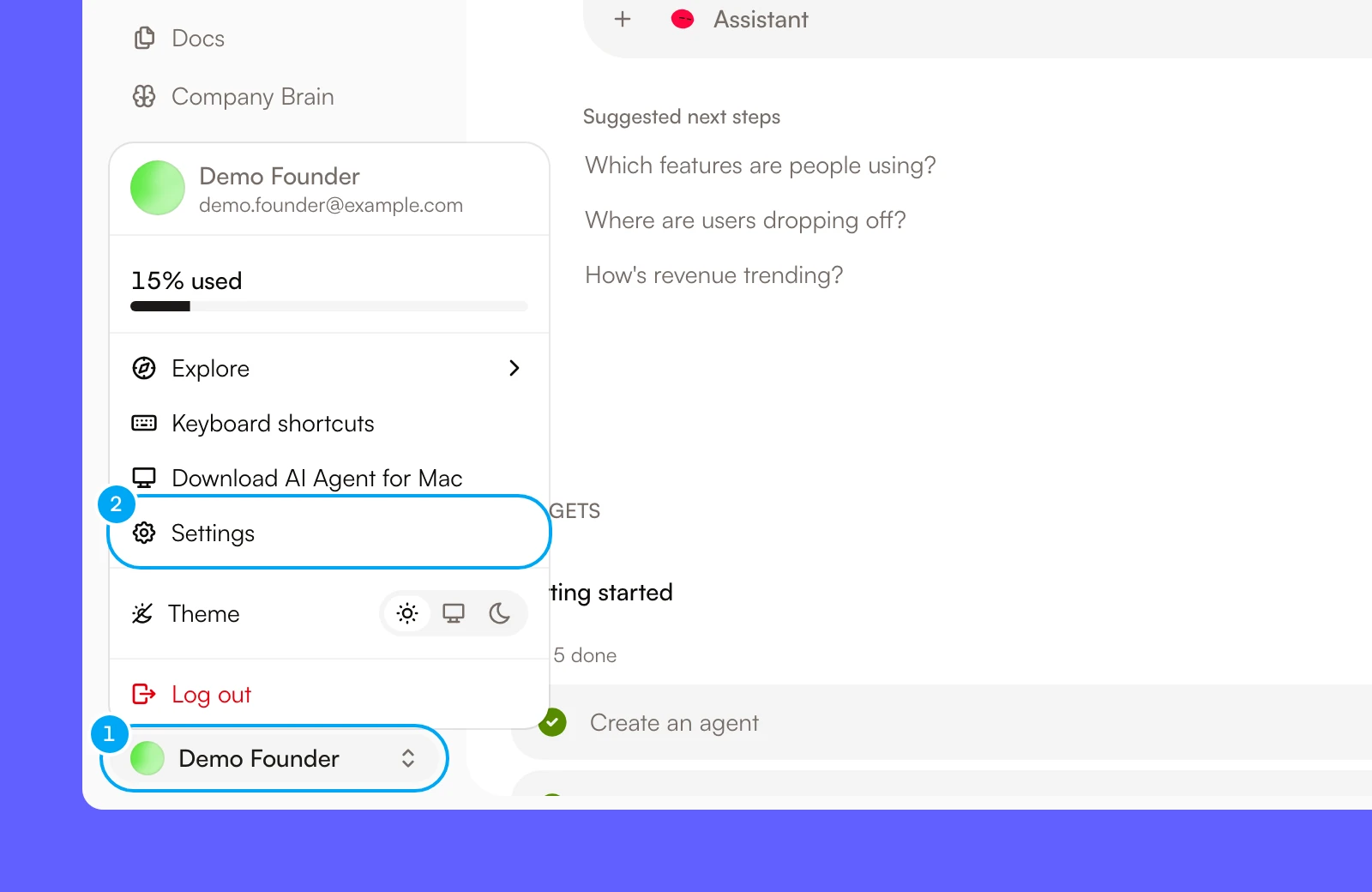
- Under your organization’s name, click General.
Change the details
- Edit Organization name, Description, or both.
- Click Save.
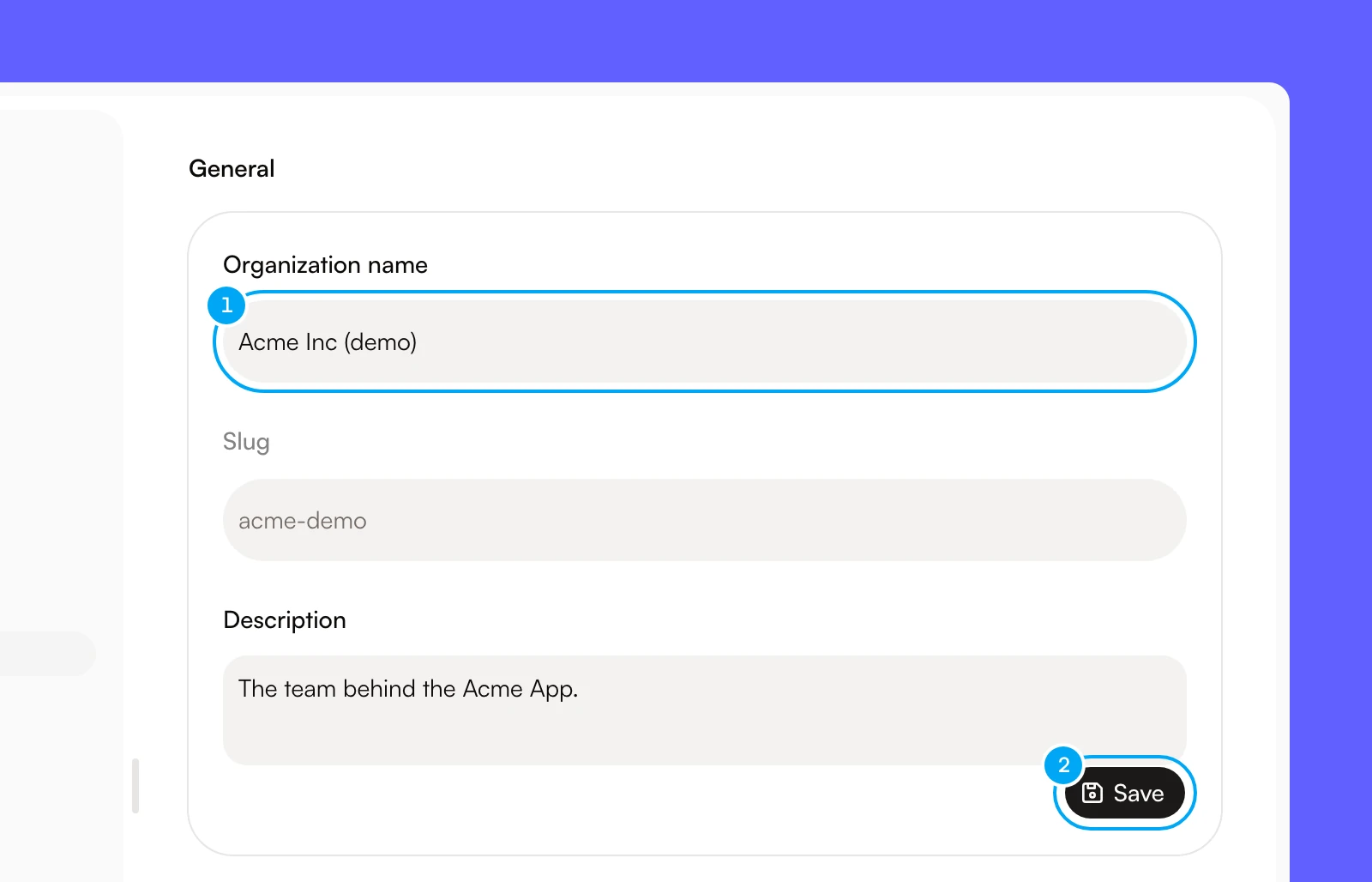
Save is available after you change a field. Slug is read-only.
Members who are not admins can view these details but cannot edit them. The tab tells them “Only admins can edit organization settings.”
Belong to more than one organization
If you belong to more than one organization and your browser has no remembered project, signing in shows Which workspace do you want to open? The page lists your projects grouped by organization. Pick one to open it.
Leave an organization
Any member can leave from the Danger zone section of General.
- Click Leave Organization.
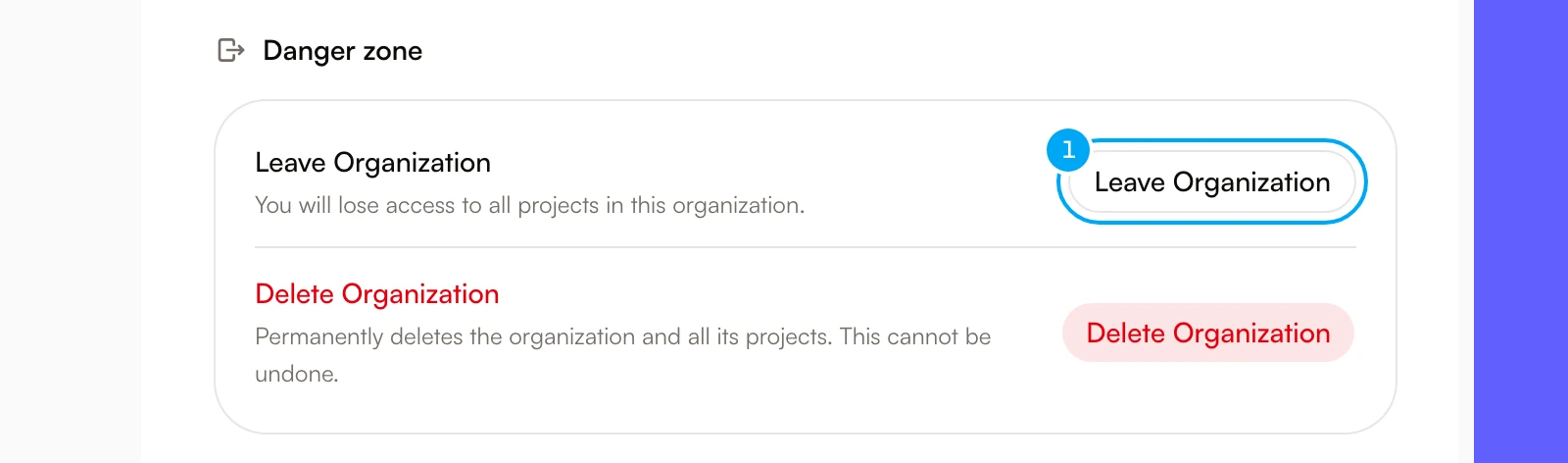
- In the Leave organization? dialog, press and hold Leave organization until it completes.
Leave Organization is disabled in two cases:
- You are the only member. The section says “You are the only member. Delete the organization instead.”
- You are the only admin. The section says “You are the only admin. Promote another member before leaving.”
Before leaving, confirm that another admin can manage members, projects, and settings. After you leave, you lose access to all projects in the organization. Your personal connections there are disabled, your assigned tickets become unassigned, and your Telegram link there is removed, as for a removed member.
Delete a workspace project
An admin can delete a workspace project from the Danger zone tab. This is a workspace project, not the optional Project used to group tickets on the Board.
- Under your organization’s name, click Danger zone.
- Next to the project, click Delete.
- In the Delete project? dialog, type the project name, then click Delete project.
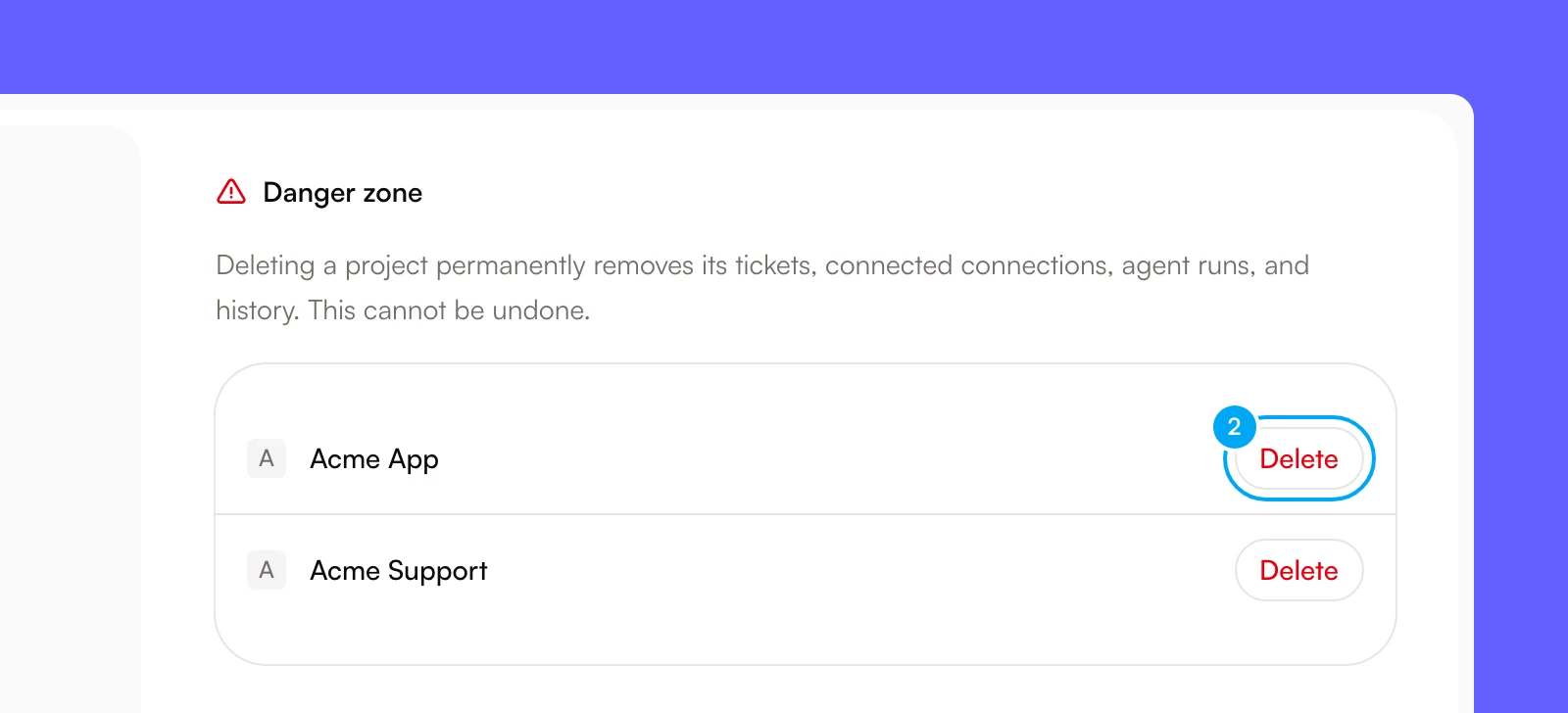
Delete a workspace project only when that entire business context and its data should be removed.
Delete the organization
An admin can delete the organization from the Danger zone section of General. The button appears only for admins.
- Remove every other member in Members. The organization cannot be deleted while other members remain.
- In General, click Delete Organization.
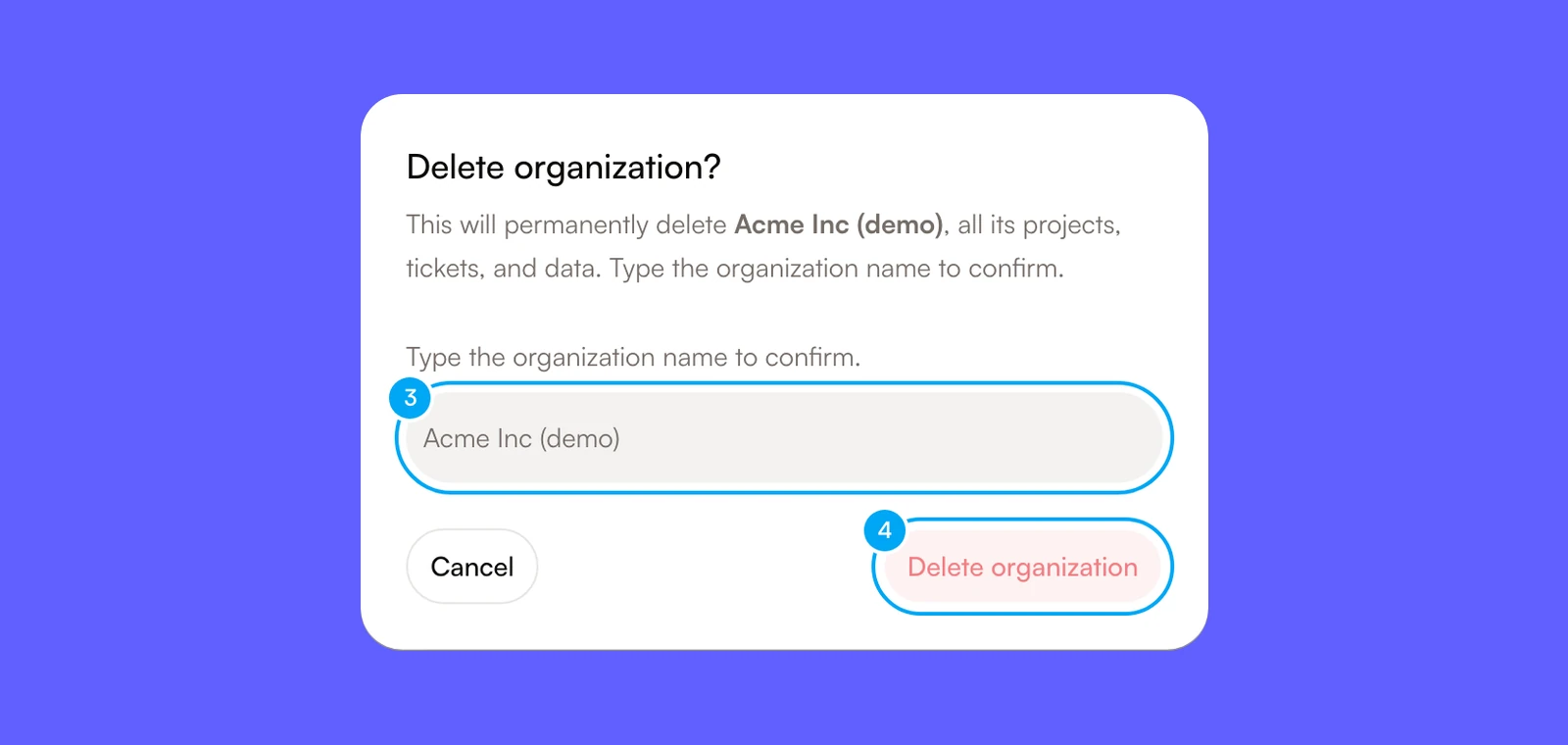
- In the Delete organization? dialog, type the organization name.
- Click Delete organization.
If the organization has a paid subscription, AI Agent cancels it first. If the cancellation fails, the organization is not deleted and a message tells you to try again or to cancel the plan from billing settings.
If you only need to stop participating, leave the organization instead of deleting it.